A game running in Task Manager but not opening often has a hung process left from an earlier launch. End that game's task and start it once more; if it appears on the taskbar, check for a hidden window before starting crash repairs.
A process that disappears after a few seconds is a different case: the game is failing during startup. Repair its files and check its requirements rather than repeatedly clicking Play and creating more launch attempts.
In this guide
1. Close the stuck game process
Press Ctrl + Shift + Esc to open Task Manager. Select Processes, locate the game, and expand its group if necessary. Select the game's process and choose End task.
On Windows 11, Processes appears in the navigation pane. On Windows 10, select More details first if Task Manager opens in its compact view, then use the Processes tab.
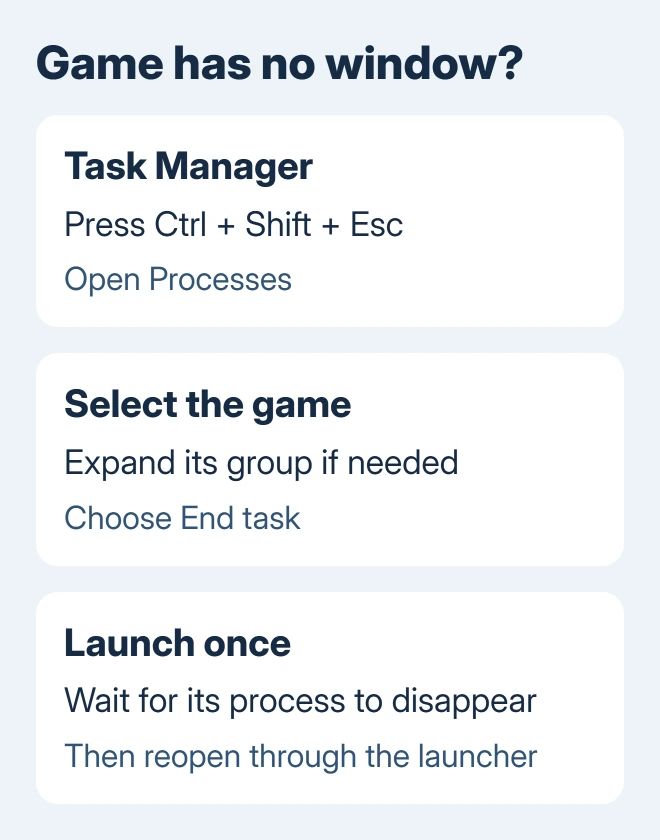
Wait until the game disappears from the process list, then launch it once through its usual launcher. Valve's already-running troubleshooting uses this approach for games that silently crash or hang.
Ending a game discards any unsaved session it still has open. Check for an actual game window first if someone else has been using this computer, and close only the game you recognize.
If the process won't close or immediately returns without a successful launch, restart Windows. Save your other work, choose Start > Power > Restart, and test the game before opening extra software.
Another signed-in Windows user can also have the game running. Ask them to close their session's copy or sign out. Switching users leaves their programs open, so it doesn't necessarily free the game.
If Task Manager itself stops responding, deal with that Windows problem before trying to end individual game processes repeatedly.
2. Bring a hidden game window onto the screen
Press Alt + Tab and look for a game preview. Select it if present. This check is useful after you've disconnected a monitor or changed docks: the game can be running with its window out of sight.
For a windowed game on another connected display, make it the active window and press Windows key + Shift + Left Arrow or Right Arrow. Microsoft documents these window shortcuts for moving an active window between displays.
A full-screen game may handle display changes differently. Use its own windowed-mode instructions if the normal window shortcut doesn't affect it; don't add launch commands copied from a different game's instructions.
If there is no preview, no visible window, and the launcher keeps reporting that the game is running, continue with the startup checks. Display shortcuts won't help a game that hasn't opened its main window.
3. Verify the game files in its launcher
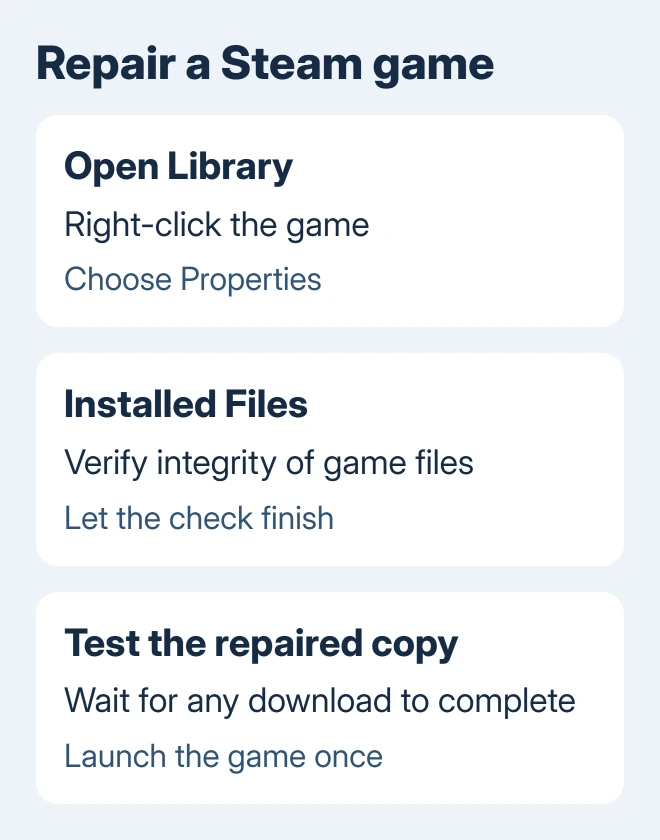
For Steam, open Library, right-click the affected title, and select Properties > Installed Files > Verify integrity of game files. Let the scan finish and allow any required download to complete before testing.
The check compares the installed game with the files it should have. It can replace missing or damaged game content without requiring you to delete the whole installation first.
One or more files can fail verification normally because some games have local configuration files that aren't replaced. Check the result and whether Steam downloads anything. A file that doesn't match isn't always a new fault.
Other launchers use different repair controls. Look for the affected game's Verify or Repair command in that launcher; the Steam path doesn't apply to an Xbox app, Epic, or standalone installation.
I'd repair a single failing game before reinstalling the launcher. If other games from the same launcher still open, that points you toward the affected title.
If the repaired game opens, return to normal play. If its process still hangs or disappears, check the hardware and software it needs to start.
4. Check requirements, Windows updates, and graphics drivers
Compare the game's published minimum requirements with your PC, including its graphics hardware and supported Windows version. Being able to install a game doesn't mean your PC meets those requirements.
On Windows 11, check Settings > Windows Update for available updates. Windows 10 uses Settings > Update & Security > Windows Update. Install updates available to your supported setup, then restart when requested.
For a graphics update, use your laptop maker's recommended driver or the graphics maker's official software. For a laptop with two graphics adapters, check their Device Manager entries before choosing driver updates.
If the game's support page names a required runtime, use its linked installer. Avoid downloading individual DLL files from a search result; the complete supported installer supplies the components the game expects.
A game that began failing after a specific update needs that detail in the next check. Write down the update date and driver version so its support team can match the report to a known startup issue.
5. Test without optional overlays or game modifications
Close optional recording tools, overlays, performance monitors, and other nonessential programs, then launch the game again. Use their own Exit or Quit controls so they stop running. Minimizing their windows leaves them open.
If you installed mods, use that mod manager's instructions to test an unmodified game. File verification repairs the official files, but it doesn't necessarily remove extra files a mod added.
When the game starts after one change, turn each optional program back on separately and check when the failure returns. That gives you a specific app or modification to update instead of leaving everything disabled.
For a continuing conflict, use the clean-boot steps. Restore normal startup afterward, following the game's launcher and anti-cheat requirements.
When the process still never produces a window
In Steam, select the game in Library, then choose Support to find the developer's help page. Send the game title, Windows version, graphics model and driver, and file-check result. Say whether the process stays open or disappears.
Include an error message or crash log if the game provides one. The Windows game-crash checks also help if several titles failed after an update. Ask for startup-crash troubleshooting for that exact title.
Reinstalling Windows is a much larger step than a game-specific startup repair.
The Short Version
End a hung game task, then launch once. Recover a visible window on the wrong display, repair game files, and check requirements and background software when the process crashes or never reaches a window.
Checked November 12, 2026.