Error 0x80070002 means Windows couldn't find a needed file. Run the update troubleshooter first, then replace the downloaded update files if it fails again. Damaged Windows files need a system repair instead.
The place the code appears matters. An update failing in Settings, a Windows upgrade rolling back, and a backup reporting this code aren't the same job. This repair sequence covers the Windows 10 and 11 update service.
In this guide
1. Record the failed update and run its troubleshooter
Open Settings > Windows Update > Update history on Windows 11. On Windows 10, open Settings > Update & Security > Windows Update > View update history. Record the KB number for that failed update and the full failure message.
Restart once if a different update needs that final step. Then return to Windows Update and try again. If that update installs but a different one fails, write down the new KB number so you're tracking the current failure.
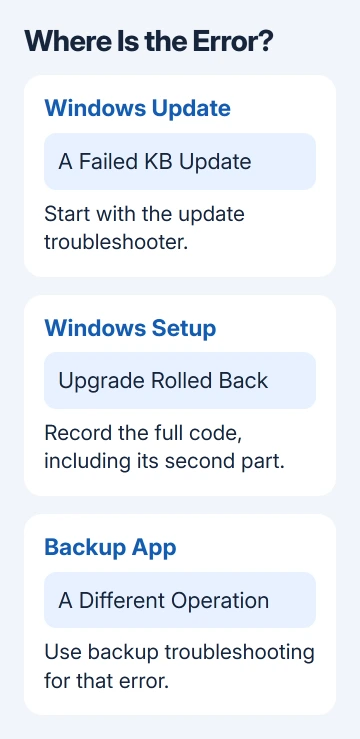
Microsoft recommends the Windows Update troubleshooter for failed downloads and installations. Open Get Help, search for Windows Update troubleshooting, and follow its automated checks.
The Settings route on Windows 11 is System > Troubleshoot > Other troubleshooters > Windows Update > Run. On Windows 10, use Update & Security > Troubleshoot > Additional troubleshooters > Windows Update.
Restart after the troubleshooter finishes, then check for updates. If the same KB still reports 0x80070002, keep that number for the next checks. Check whether the update installed, even if the troubleshooter says it fixed the problem.
2. Check storage and the connection used for downloading
Open Settings > System > Storage and check the system drive's available space. An update needs room to download and install; a drive almost full of personal files can stop the process before a repair has a chance to work.
Review temporary-file categories before deleting. Downloads can contain files you saved yourself. Use a second disk for bulky personal files if space is tight, then try Windows Update again.
Check that ordinary websites load on the same connection. Temporarily disconnect a personal VPN and try the update through your usual internet connection. Leave workplace network and security settings to your administrator.
A full drive or blocked connection can interrupt the download. If the download finishes but installation keeps failing, the next steps check the downloaded files and Windows itself.
3. Clear the downloaded update files and retry
Close the Windows Update page before clearing its cache, the folder that holds downloaded update files. Save open documents; this cleanup needs administrator access.
Press Windows+R, enter services.msc, and press Enter. Find Windows Update, right-click it, and select Stop. Keep the Services window open so you can start it again afterward.
In File Explorer, open C:\Windows\SoftwareDistribution. Delete the files and folders inside that directory, following the update repair instructions. Keep the SoftwareDistribution folder itself.
Don't delete anything from WinSxS or another Windows folder. This cleanup applies to the update cache, not to every folder named in a missing-file error.
Return to Services, right-click Windows Update, and select Start. After restarting the PC, return to Windows Update. Select Check for updates to download fresh update files.
If Windows refuses to remove a file because it's still in use, stop there rather than changing ownership of system folders. Continue to system repair or ask your administrator to handle the cache cleanup on a managed PC.
I'd check whether the affected update installs after that fresh download before moving to a larger repair. If the same failure returns, the missing or damaged file may be part of Windows rather than just the downloaded package.
4. Repair Windows components, then its system files
Right-click Start and open Terminal (Admin) on Windows 11, or Windows PowerShell (Admin) on Windows 10. Accept the administrator prompt. Enter the following command and wait for its final result:
DISM.exe /Online /Cleanup-image /RestorehealthDISM repairs the Windows component store, the files used for repairs and updates. Keep the PC online with power attached while it runs. Don't close the window just because the percentage pauses.
After DISM completes, run:
sfc /scannowSystem File Checker looks for damage in protected Windows files, then repairs them when it has a suitable replacement. Read the final message, restart, and retry the failed update. Save the message if it says files couldn't be repaired.
If DISM itself fails, note its separate error code. The Windows update error guide helps distinguish that new failure from the original 0x80070002. Running it again won't help if it still can't reach the files needed for repair.
5. Use the Windows 11 reinstall repair if it remains stuck
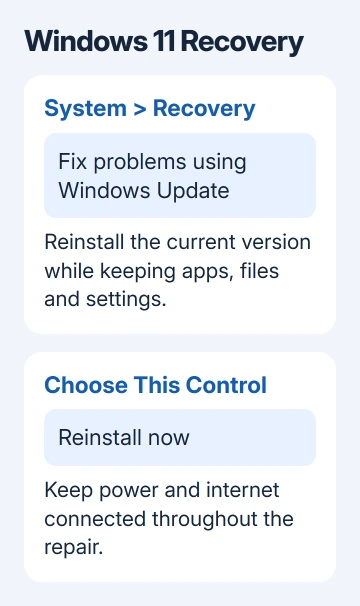
Windows 11 offers a repair that reinstalls the current version while keeping apps, settings and files. Open Settings > System > Recovery. Find the section named Fix problems using Windows Update.
Select Reinstall now, follow the prompts, and leave the computer on power and online throughout the repair. Make a backup of important documents before reinstalling Windows.
The option may be absent on an outdated Windows 11 build or a PC managed by an organization. This is separate from Reset this PC; the Windows 10 Recovery page has no equivalent control.
If you're using Windows 10 or the reinstall option is missing, ask support about repairing Windows with installation media while keeping your files and apps. The Windows repair guide explains that choice separately from a full reset.
6. Handle upgrade rollbacks and persistent failures separately
If the message appears during a Windows version upgrade, record any second part such as 0x20009. Give support both parts of the code, not just 0x80070002. Don't assume a monthly-update cache cleanup covers every Setup failure.
Regular free Windows 10 support stopped on October 14, 2025. For later updates, check whether your PC has Extended Security Updates or can move to a supported version. Repair commands won't change which updates the PC is eligible for.
For a persistent failure, open Get Help or contact your workplace IT team with the KB number, Windows version from winver, and DISM/SFC results. Ask them to check the failed installation and its logs before recommending a reset.
The Short Version
Record the failed KB, run the troubleshooter, and refresh the update cache if needed. Use DISM and SFC for damaged Windows files. On Windows 11, try the current-version reinstall when those repairs haven't helped.
Checked November 13, 2026.