Repeated I225-V Ethernet drops or false unplugged-cable reports may need the motherboard maker's firmware and driver update. Try another cable and router port first, then get the update package for your exact board.
Check whether Windows can't find the adapter, reports an unplugged cable, or shows a connection with no internet. Each case needs different checks. The I225-V is the wired Ethernet controller; changing Wi-Fi settings won't repair it.
In this guide
1. Confirm the controller and the kind of failure
Right-click Start, open Device Manager, then expand Network adapters. Look for Intel Ethernet Controller I225-V, which can include a revision number in its name. Open Properties and read Device status.
Write down any error code and the driver version under Driver. If the adapter isn't listed, look for a network device Windows hasn't identified rather than installing a driver for another Intel controller.
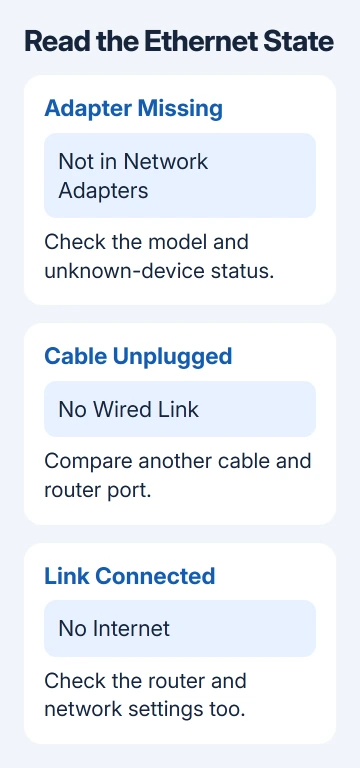
Connect a known working Ethernet cable directly between the PC and a router or switch. Try another LAN port, leaving out wall extensions and docks for this check. Watch whether the Ethernet status changes when the cable is connected.
If another computer gets a connection through the same cable and port, the PC needs attention. If it fails there too, fix that cable or network port before changing the I225-V software.
If Ethernet shows a connection but you can't get online, the router or the PC's network address may be the problem. The Ethernet connection guide covers that broader case; keep the I225-V checks for the adapter and its link.
2. Get the board's matching firmware and driver
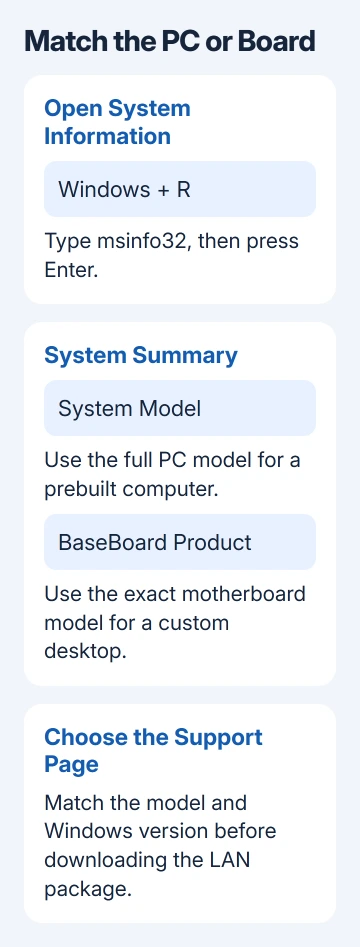
Find the exact motherboard model, or the full PC model for a prebuilt computer. Press Windows+R, enter msinfo32, and check System Model and BaseBoard Product. Match those details to the model on the maker's support page.
Use the motherboard or PC manufacturer's download page for that exact model. Check the supported operating system and the LAN package's instructions. Download it using Wi-Fi or another computer if Ethernet is unavailable.
Intel's I225-V network repair instructions describe both a driver and an NVM update for affected ASUS and Gigabyte boards. NVM is the controller's stored firmware, separate from the Windows driver.
The maker may include the firmware tool in the LAN package or supply it through a BIOS update. Follow that model's instructions for the required order. Installing a driver alone doesn't apply a separate firmware update.
Don't flash firmware from a different board or interrupt an update while it's running. A package offered for another I225-V motherboard can include changes meant for that board's hardware.
If the download page provides only a driver and no firmware instructions, ask the maker whether your board needs an NVM update. Don't substitute an old forum attachment because its version number looks newer.
3. Finish the power-off step in the update instructions
After applying the required firmware and driver updates, follow the package's shutdown instructions. For the desktop-board issue, the published sequence includes removing AC power and waiting 30 seconds before starting again.
Shut Windows down, disconnect the desktop's power cord, wait, then reconnect it and start the PC. A normal restart leaves the controller connected to AC power.
This sequence is for the affected desktop setup. Don't open a laptop or remove an internal battery to imitate a motherboard instruction. For a prebuilt PC, follow its maker's power-off directions.
Reconnect Ethernet after Windows loads and check the link. If the cable is now detected, try ordinary browsing and the activity that previously caused a drop. Note whether the problem returns immediately or only after sleep.
4. Reinstall the matching driver when the adapter fails
I'd save the correct driver installer locally before removing the existing driver. Otherwise, a PC with no Wi-Fi can lose its only way to download the replacement.
To reinstall its driver, open Device Manager > Network adapters, right-click the I225-V, and choose Uninstall device. If the dialog offers to remove the driver, follow the clean-install instructions supplied with your maker's package.
Restart if instructed, run the saved LAN installer, and finish any further restart it requests. Reopen the adapter's Driver tab to see whether the installed version matches your download.
A separate Event ID 27 support case describes an adapter that stops working and needs its driver reinstalled. That case concerns Windows 10; a Windows 11 connection that drops may have a different cause.
If the adapter disappears or reports an error again, save that exact status for support. Avoid cycling through unrelated driver-download utilities; support can check the version supplied for your board.
5. Check speed negotiation for a link that keeps dropping
If Ethernet connects but later cuts out, use the I225-V's Properties > Advanced tab. If Speed & Duplex is listed, note its current value and try 1.0 Gbps Full Duplex as a temporary comparison.
This limits the connection to 1 Gbps and requires suitable equipment at the other end. This checks whether the PC and router or switch have trouble agreeing on a speed. It won't give you the controller's full 2.5 Gbps performance.
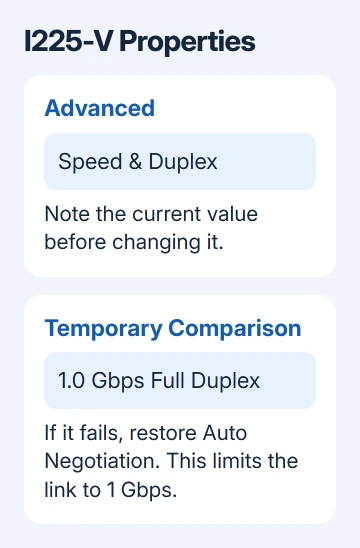
If the connection becomes stable, give the motherboard maker that result alongside the router or switch model. Return to Auto Negotiation if the change doesn't help or if the connection stops working.
If Power Management is available and drops follow sleep, note the setting for Allow the computer to turn off this device to save power. Uncheck it and test after sleep. Recheck the box afterward if needed. Some drivers don't show this tab.
For trouble that happens across multiple network adapters, use the Windows network reset guide after checking its effects. A reset doesn't update the I225-V's stored firmware.
Send a repeatable failure to the motherboard maker
Send support the board model, BIOS version, Windows version, LAN driver version and firmware-update result. Say whether a cable and port that work on another PC fail here, or the adapter disappears, reports no cable, or drops during use.
Ask for the board's current I225-V firmware procedure and, if it still fails, a warranty assessment. A spare USB Ethernet adapter can provide internet access while that is arranged; it doesn't repair the onboard controller.
The Short Version
Compare the cable and port, then apply the exact board's firmware and LAN package. Finish its power-off sequence. Reinstalling the driver and comparing link speed can help support assess a remaining failure.
Checked November 13, 2026.