File Explorer can reset its sort order when a different folder template or date grouping changes how files appear. Set the sorting, remove unwanted grouping, then use Apply to Folders if you want matching folders to share that view.
That button applies to the same folder type, not automatically to every folder on the PC. A Downloads folder, a music folder, and an app's Open dialog can behave differently, so check the exact location that keeps changing.
In this guide
1. Set sorting and grouping as separate choices
Open the affected folder and select View > Details. Click Name, Date modified, or another column heading to choose the sort field. Click the same heading again to reverse its direction.
In Windows 11, the command bar also provides Sort. In Windows 10, use the View tab's Sort by control. Choose the field and direction you actually want before saving the folder view.
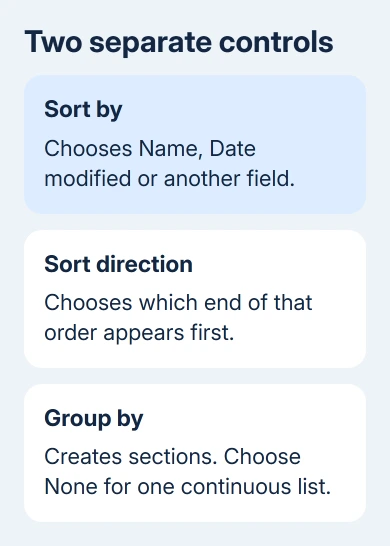
If headings such as Today or Yesterday still divide the files, grouping is also enabled. In Windows 11, open Sort > Group by > None. On Windows 10, open View > Group by > None.
A list can be sorted by name inside date groups and still look out of order. Removing the groups gives you one list. Check the first few filenames afterward rather than assuming a remaining date heading is a failed sort change.
Microsoft's File Explorer instructions explain the different View choices and version-specific Options menus. Start in a real folder, not the Home page's recent-file list.
Use this same folder for the next step. Before changing other locations, reopen this folder and check whether your chosen view stays in place.
2. Save the view for folders of the same type
With the list arranged correctly, open See more (the three dots) > Options on Windows 11. In Windows 10, use View > Options > Change folder and search options. The Folder Options dialog opens.
Select its View tab, click Apply to Folders, and accept the confirmation. Then select OK. Close that folder window, reopen the same path, and check the chosen column and direction.
If the setting holds there, open another ordinary folder of the same type. The button shares your current view with folders using that template, such as General items or Documents.
A picture or music folder can still have a different layout because it uses another template. That isn't necessarily a reset. Set that folder type separately if you want it to use the same columns and sorting.
If Apply to Folders is unavailable, open an ordinary folder on your drive rather than Home, search results, or a library. Arrange that folder and reopen Options. Special views aren't a good place to set a regular folder default.
I'd save one folder type at a time. It makes the change easier to check and avoids replacing a useful music layout just because a downloads list needs alphabetical order.
3. Use General items when a folder keeps changing type
If a mixed folder keeps showing music or picture columns, open its parent folder, right-click the affected folder, and choose Properties. Open Customize and look for Optimize this folder for.
Choose General items for an ordinary mixed-content folder, then select Apply and OK. Leave Also apply this template to all subfolders unchecked unless you want those subfolders changed too.
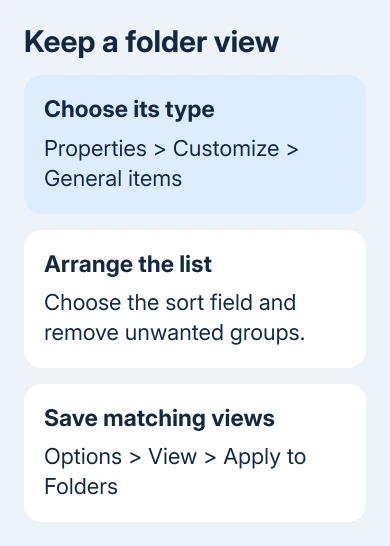
Open the folder again and set its sorting. Then use Options > View > Apply to Folders if you want that arrangement to become the default for matching folders. Reopen the original path to check it.
This extra template change fixed a persistent sort problem for one owner. They reported that the other sort-saving methods hadn't worked on their own, but the selected order held after switching to General items.
Keep a folder's existing type if its columns help you. A music folder that needs album and track information doesn't need General items just because another folder failed to remember its view.
The Customize tab isn't available for every special location. If it is missing, confirm that you selected an actual folder on the drive. Don't try to create the tab by changing registry keys.
4. Handle Downloads date groups in the affected location
For a Downloads folder that returns to date sections, first remove grouping in Downloads itself and reopen it. Sorting by Name alone won't remove those section headings, because sorting and grouping are separate controls.
If grouping returns, open a normal subfolder within Downloads. Set Group by > None, choose the sorting you want, then use Folder Options > View > Apply to Folders. Check the subfolder and Downloads again afterward.
An owner who reproduced this Downloads grouping problem reported success with that sequence. Their Downloads location was inside Dropbox, so treat it as a practical workaround rather than a promise for every installation.
If the change holds in one location but not the other, note both paths. A redirected Downloads folder or a cloud-managed location is useful context when reporting the remaining problem.
For a separate issue where Explorer opens at recent files instead of the folder list you expect, set its landing page to This PC. That changes where Explorer starts, not a folder's saved sorting.
5. Compare the same folder in Explorer and an Open dialog
Copy the folder's full path from Explorer's address bar before checking an app's Open or Save As window. Navigate to that same path in the dialog. A similarly named shortcut or recent-items page isn't the same comparison.
If only the dialog sorts differently, set its sort field there and reopen that app's dialog to check it. Don't keep changing all folder templates when the regular Explorer window already remembers the correct view.
Also compare the actual column names. Date, Date modified, and Date created aren't interchangeable. A picture's content date can differ from the day its file was copied or last edited.
To sort files by when they were last changed, choose Date modified. Note whether the newest or oldest item appears first. That avoids mistaking a reversed direction or a different date field for a forgotten setting.
6. Report a repeat reset with its path and template
After a change, close and reopen the same folder, then check again after a Windows restart. Note whether the view changes immediately, after an app uses the folder, or only after a new sign-in.
If Explorer also freezes or closes unexpectedly, use the File Explorer response fixes for that separate fault. Fix the freezing first, then check whether the window remembers your view.
For a repeat reset, open Feedback Hub from Start and report it under the available File Explorer category. Include your Windows version, the path without private names, the folder type, and the exact sort and group choices.
On a managed PC, ask IT whether a sign-in script or settings tool restores folder preferences. Keep your files in place while they check. Showing a view reset doesn't require deleting the folder or resetting Windows.
The Short Version
Set the sort field and direction, and remove unwanted grouping separately. Save the view with Apply to Folders. If the folder keeps changing type, try General items; compare Downloads and app dialogs using the same actual path.
Checked November 13, 2026.