An Update.exe error in Windows 10 often comes from an installed app, not Windows Update. Check the file's location, then repair or reinstall the app named there. A failing Windows update needs a separate fix.
The timing helps too. An error at sign-in can come from an old startup entry; one that appears while opening Discord can come from its installation. An unfamiliar file needs a security check before you let it run again.
In this guide
1. Find which app owns Update.exe
Leave the error open long enough to write down its full title and message. Include any file path shown. The name Update.exe alone isn't enough to identify either a program or a threat.
Press Ctrl + Shift + Esc to open Task Manager. Select More details if necessary, then open Details. Right-click the matching Update.exe process and select Open file location when the menu offers it.
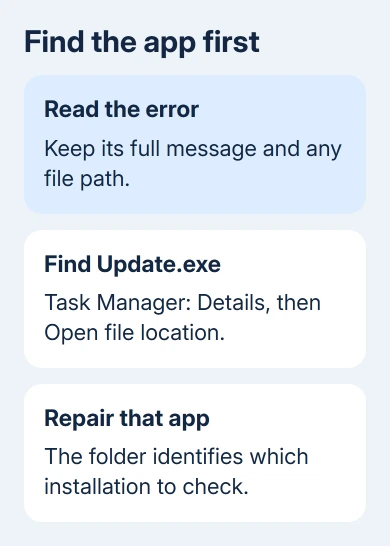
A path inside an app's folder is useful because some Windows apps use Squirrel, an update system whose launcher is called Update.exe. Its update process also uses that launcher for shortcuts.
That's why an updater error can stop an app from opening even when you're not trying to update it. It doesn't make every file with this name safe. Compare the folder with software you recognize and actually installed.
If the process has already closed, inspect the app's shortcut instead. Right-click its desktop shortcut, choose Properties, and read Target. A shortcut containing an app folder and Update.exe can identify the installation involved.
Don't download a replacement Update.exe from a file-download site. The application installer should supply the matching updater. Keep the app name and error text ready for the next steps.
2. Close the affected app and restart Windows
Save your work, quit the affected app from its notification-area icon if it has one, then select Start > Power > Restart. Choose Restart rather than signing out so Windows starts a fresh session for the app.
After signing in, open that app once. If it launches normally and completes its update, launch it a second time and check for the error. If the app now starts correctly, leave unrelated Windows components alone.
If the message returns, note whether it appears before you open anything or only when that app starts. Keep that difference in mind: a working app with a broken sign-in launcher needs the startup check in section 5.
I'd repair that app before running a system-wide cleanup. That keeps you focused on the file that failed and avoids removing settings from other programs that still work.
3. Repair the app, or reinstall its current version
On Windows 10, open Settings > Apps > Apps & features and select the affected application. If Advanced options is offered, open it and choose Repair when available. Reopen the app afterward.
For a traditional desktop program, open Control Panel > Programs > Programs and Features. Open its right-click menu and check for Repair or Change. Microsoft's app repair instructions explain both routes.
Some apps don't offer either repair option. When repair isn't offered, get the current installer from the app maker and follow its reinstall instructions for that product.
Before uninstalling, save projects or downloads that exist only inside the app. Have your account's sign-in details ready too. A reinstall can remove local preferences; what gets removed depends on the app.
Install the supported version, then open it from Start instead of using a previously pinned shortcut. If Start works but the old shortcut fails, remove that shortcut and create a fresh one from the working installation.
When the reinstall still produces the same error, use the maker's specific installation procedure. The Discord cleanup is one example. It isn't a general instruction to erase every app's folders.
4. For Discord, clear the failed installation properly
Discord's Windows installer procedure calls for closing its processes, removing two Discord folders, restarting, and reinstalling. Use this section only when the failing file belongs to Discord.
Quit Discord from the notification area. In Task Manager, end any remaining Discord processes. Close a Discord browser session too before the reinstall, as the vendor's instructions request.
Removing the folders clears Discord's local installation and settings, so keep your account sign-in and recovery method available. Do not remove the surrounding AppData folders or similarly named folders belonging to other applications.
Press Windows + R, enter %appdata%, and press Enter. Find and delete the Discord folder. Open Run again, enter %localappdata%, and delete the Discord folder in that location as well.
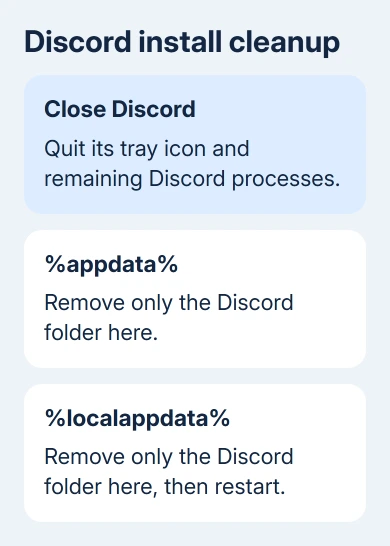
If Windows says a folder is in use, return to Task Manager and check for remaining Discord processes. Once both folders are removed, restart Windows and use the official Windows installer.
Open Discord and sign in. If installation fails again, keep the installation log or error details and submit them through support.discord.com > Submit a request. Include the Windows version and the stage that failed.
5. Stop an abandoned updater launching at sign-in
If the message arrives during sign-in, open Task Manager > Startup. Look for an entry connected to the app you identified. Check its publisher or use Open file location, if available, to confirm which app it belongs to.
Disable that entry temporarily and restart. If the sign-in message stops while the app still opens manually, the problem is with its automatic launcher. Reinstall or update that app before enabling its startup entry again.
Uninstall an unwanted program through Apps & features. Disabling its startup entry stops that launch attempt; it doesn't remove the software or repair a damaged installation.
If the app itself also freezes, the computer-freezing checks can help distinguish an app hang from a wider freeze. Keep the Update.exe path when reporting either symptom.
6. Scan an unfamiliar file and report a repeat failure
For a file you can't link to software you recognize, right-click its folder and select Scan with Microsoft Defender. If another antivirus manages protection, scan with that antivirus instead and follow its advice.
A clean scan doesn't explain a crash. Send the app maker the exact message, file path, app version, and whether repair or reinstall changed it. Ask for repair steps for that app's installation rather than a general Windows reset.
If the failing screen is actually Settings > Update & Security > Windows Update, use the Windows update troubleshooting steps instead. That screen is separate from an app's Update.exe launcher.
The Short Version
Use the Update.exe path to identify its application, restart, then repair or reinstall that app. Use Discord's folder cleanup only for Discord. A sign-in-only error needs its startup entry checked; an unrecognized file needs a scan.
Checked November 13, 2026.