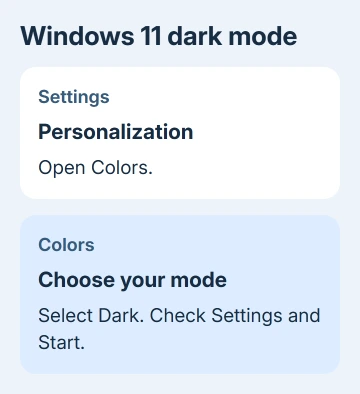
Windows 11 dark mode is under Settings > Personalization > Colors > Choose your mode > Dark. It changes Windows and supported apps to a dark appearance. Screen brightness and website backgrounds have separate controls.
For a dark taskbar with light apps, choose Custom instead. Windows has separate settings for its own appearance and the default appearance of apps. That explains why some screens can stay white after you change the mode.
In this guide
Set Windows 11 to Dark
Press Windows key + I to open Settings, then choose Personalization > Colors. Find Choose your mode, open the menu, and select Dark. Windows applies the change without needing a separate theme download.
Leave Settings open for a moment and look at its background. Open Start and File Explorer too. These are useful places to check that the change worked before you try an app or website with its own theme setting.
Microsoft's Windows color settings describe Light, Dark and Custom. Some apps let you choose their appearance independently, and some don't support a dark appearance at all.
Dark mode changes the colors of menus and windows. It leaves the screen's backlight and your wallpaper photograph alone. If the whole display still feels too bright, adjust brightness separately rather than switching the color mode again.
To reverse the change later, return to the same Choose your mode menu and select Light. Your files and installed apps stay in place. Switching back to Light needs no Windows reset or extra theme download.
Choose different modes for Windows and apps
Select Custom in Choose your mode if you want a mixed appearance. Windows then offers Choose your default Windows mode and Choose your default app mode. Each has its own Light or Dark selection.
Choose Dark for Windows mode to darken the system interface, including Start and the taskbar. Set the app mode to Light if you prefer light backgrounds in apps that follow this setting.
For dark apps with a light Windows appearance, reverse those choices. If both parts should be dark, set both to Dark, or return to the main Dark option instead of leaving a confusing mix selected.

Change each option separately, then check the part of the screen it controls. That makes it easier to understand why the taskbar changed while a document window didn't. A single white app window doesn't mean the system setting was ignored.
I'd use the normal Dark choice first if the goal is simply a darker PC. Custom is useful when you already know which parts should stay light, rather than as a required step for a simple switch.
Check an app's own appearance when it stays light
Open the app's Settings, Appearance or theme preferences and look for a choice such as Use system settings. The wording differs by app. Selecting a fixed Light theme can keep it bright while the rest of Windows is dark.
Quit and relaunch the app if its window doesn't update. Compare another supported app before deciding the Windows change failed. An older program might simply have fixed colors.
Office apps also have document-specific choices. Word can keep the page white even when you've chosen a dark ribbon. The Word light-mode settings explain the difference between the app's controls and the page background.
Outlook has its own version-specific settings too. Use the Outlook appearance controls when the mailbox remains bright, rather than changing every Windows color option to solve one app's preference.
A web page can likewise choose its own background. Check that site's appearance menu if it has one. Windows dark mode doesn't change every page, photograph, document or video you open inside a dark browser window.
Keep accent colors and transparency separate
The Accent color section sits on the same Colors page, but it serves a different purpose. It changes highlights and selected interface elements. Choosing a dark accent color isn't the command that enables dark mode.
After setting Dark, choose an automatic accent based on the wallpaper or a manual color if you want. Check the preview and leave the change you prefer. Dark mode doesn't require a black accent color.
Transparency effects is another separate preference. It changes how see-through some Windows backgrounds look, rather than switching the whole screen between Light and Dark. Turning it off can make those backgrounds look more solid.
If the desktop still looks busy, consider a quieter wallpaper. The Colors page can't make every bright section of a background photograph dark while preserving the image. Wallpaper and interface colors need their own choices.
Once the main appearance is correct, stop changing unrelated settings. A dark taskbar, a colored highlight and a light document can be a valid combination. They don't have to match the same shade to be working correctly.
Check contrast themes when the colors look unusual
Open Settings > Accessibility > Contrast themes if the screen uses strong solid colors or looks different from the usual dark interface. A contrast theme is an accessibility setting with its own color choices.
If it was enabled accidentally, choose None and select Apply. Then return to Personalization > Colors and check the mode again. That lets you check the normal Windows Light and Dark options without the contrast theme changing the colors.
If you rely on the contrast theme to read the screen, keep it and adjust its colors instead. Ordinary dark mode isn't a replacement for the readability changes a contrast theme provides.
Night light makes display colors warmer; it doesn't darken white app backgrounds. Check Settings > System > Display > Night light for an orange tint rather than a light interface.
Get help when the setting won't stay selected
If Dark changes back immediately, check whether a theme utility or another personalization app is applying its own choices. Use that app's settings to stop its appearance changes, then choose your Windows mode again.
A message about organization management on a workplace or school computer can mean IT controls the appearance. Ask IT about the policy instead of trying registry edits to force a different theme.
For an unmanaged PC with a persistent problem, open Get Help and describe which setting changes back and when. Include whether Settings, Start and File Explorer switch together, or whether the problem only affects one app.
The Short Version
Choose Settings > Personalization > Colors > Choose your mode > Dark. Use Custom for separate Windows and app preferences. Check an app's own theme if it stays light; brightness, Night light and contrast have different jobs.
Checked November 16, 2026.