Choose White from Word's Office Theme menu to make the Windows app light. If only the document page needs to turn white, use View > Switch Modes instead; that keeps the dark ribbon and changes how the page looks while you work.
Word for Mac and Word in a browser have separate controls. Changing the Windows app won't automatically change those versions, so use the section for the Word window you're actually looking at.
In this guide
Make the Windows Word app light
Open a document in Word, then select File > Account. Find Office Theme and choose White. The ribbon and other app controls should switch to a light appearance.
The Colorful theme is another light option. It uses the app's accent color around the top of the ribbon, while White gives you a plainer appearance. Pick whichever is easier for you to read.
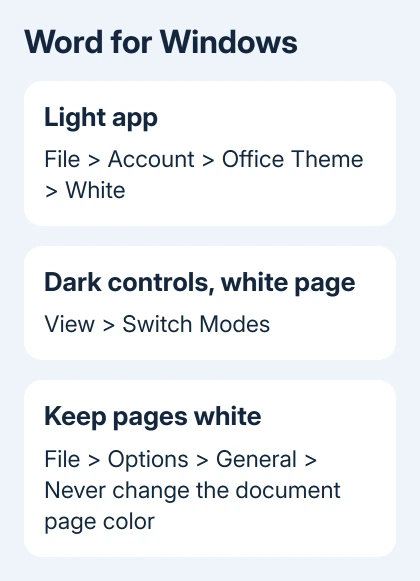
If your version doesn't show that menu on Account, use File > Options > General. In the Personalize your copy of Microsoft Office section, choose White in Office Theme, then select OK.
An option named Use system setting follows Windows rather than fixing Word permanently in light mode. Choose White directly if you want Word to stay light while the rest of your PC uses a dark appearance.
Microsoft's Office appearance settings describe the available themes. Office Theme also affects other Office apps, so check their appearance too if Word was the only app you wanted to change.
After making the change, open a second document. The controls around it should use the same theme. If just the page stays dark, check its background settings before changing Windows itself.
Keep the dark ribbon but turn the page white
Open the View tab and select Switch Modes. With Word's dark theme active, this changes the page between dark and light. It doesn't require you to give up the darker controls around the document.
To keep the page white in Windows, go to File > Options > General. In the Personalize section, select Never change the document page color, then choose OK.
That checkbox is useful when the dark page is the only thing bothering you. You can keep the Black theme for the app and still read or edit on a white page without toggling the view each time.
I'd decide between these two looks before changing Windows colors. You can have a white page with dark controls or make the whole Word window light, but those choices use different settings.
If Switch Modes isn't available, check the current Office theme and your Word version. The button is part of Word's dark-mode controls; an older edition or different interface may not have the same ribbon command.
Turn off dark mode in Word for Mac
On the Mac menu bar, choose Word > Preferences > General. Find the Personalize section and select Turn off Dark Mode. This lets Word use a light appearance even when macOS is dark.
If you prefer dark controls with a white document, use Dark Mode has a white page color in that same section. The View > Switch Modes command also switches the page background while dark mode is active.

To change the whole Mac instead, open Apple menu > System Settings > Appearance and choose Light. On older macOS versions, the system appearance controls are in System Preferences > General.
The Word preference is the better choice when you want other apps to stay dark. Changing macOS appearance affects the system and apps that follow it, rather than just the document you're editing.
Open another Word document after making the change. If the page is white but the controls remain dark, check whether you selected the white-page option instead of turning off Word's dark mode completely.
Set a light view in the browser editor
In an open browser document, select View and check the Dark Mode control. Use it to change Word's dark-mode view. If you want a white page while keeping dark mode, choose Switch Backgrounds.
Word for the web can start in dark mode when your operating system or browser uses a dark theme. Its setting is separate from the Word desktop app, so changing File > Account in Windows won't change this browser document.
The background preference is remembered per browser. If it keeps resetting, check whether the browser allows cookies and whether you're switching between a normal window, a private window, or another browser.
These controls are inside an open document after sign-in. A public Word landing page won't show the document's View tab, so open your document rather than looking for the button on the Microsoft 365 home page.
For ordinary document changes after setting the appearance, the Word editing steps explain text selection and saving. App appearance and document formatting use separate controls.
Check whether the color belongs to the document itself
Dark mode doesn't change how other people see the same file. Each person can use their own appearance preference. Ordinary dark-mode documents also print using their light-mode page colors.
If a page stays colored after the app is light, check Design > Page Color in desktop Word. That is document formatting, which is different from the dark-mode preview. Remove an unwanted page color using No Color.
Likewise, a colored rectangle behind a sentence can be text highlighting or shading. Changing Office Theme won't remove formatting stored in the file. Select the affected text and check its highlighting or shading settings instead.
Check File > Print before sending the document out. If you're formatting a school paper, the MLA setup steps cover the document settings separately from Word's appearance.
If a theme control is missing on your work computer, ask the administrator for Microsoft 365 to check whether your workplace controls that setting. Give them the version from File > Account > About Word and describe which part stays dark.
The Short Version
Use White in Office Theme for a light Windows Word app. Use Switch Modes for just the page. On Mac, select Turn off Dark Mode in Word's General preferences. In a browser, use the View tab's dark-mode and background controls.
Checked November 12, 2026.