
You see a black Command Prompt window flash up and vanish, too fast to read. It returns every few minutes, or at sign-in, or in the middle of your game.
It is unsettling, and it looks like a virus, but I would hold off on any reinstall. Something on your PC starts that window on a schedule, and Windows keeps a record of what ran and when.
One Microsoft Q&A asker saw the window every night, and 700+ people clicked Same question.
Why a window flashes and closes
A console program opens a window while it runs and closes it when it finishes. If the job takes half a second, half a second is all you see, and most of the time a scheduled task starts it.
On Super User, the answer with the tick was one line: "Check the task scheduler, see if anything added in there could be triggering it".
The asker came back with "I think it's fixed!" They had found an entry "scheduled to run every 10 minutes". It was Firefox's Default Browser Agent, and they disabled it.
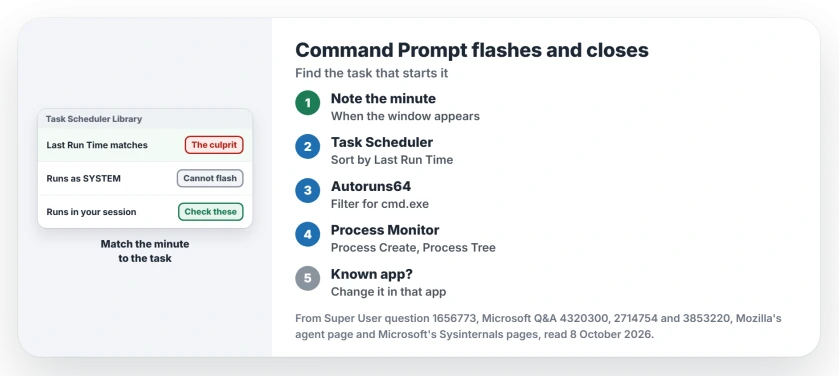
Status: checked 8 October 2026. A flashing Command Prompt is usually a scheduled task in your session. Match its Last Run Time, filter Autoruns for cmd.exe, or catch it with Process Monitor.
Ours: this laptop holds 217 scheduled tasks. 110 run as SYSTEM or another service account, outside your desktop session, so they cannot flash a window at you. One Windows task here runs cmd.exe that way.
1. Match the flash to Last Run Time
Note the minute the window appears. Then open Task Scheduler from the Start menu. Select Task Scheduler Library on the left.
The middle pane has a Last Run Time column, so sort by it and look for a task that ran at your minute. Check the folders inside the library too, such as Mozilla or your laptop maker's.
PowerShell gets you there faster, with a line that lists the tasks that run in your session, newest first:
Get-ScheduledTask | Where-Object {$_.Principal.LogonType -ne 'ServiceAccount'} | Get-ScheduledTaskInfo | Sort-Object LastRunTime -Descending | Select-Object -First 10 TaskName,LastRunTimeOn this laptop it listed 107 such tasks, and the top ten had all run within the last two hours.
If the task belongs to software you know, change it there. For Firefox, a Super User commenter said the "proper way to disable it would be through firefox settings".
Mozilla documents the agent as "a Windows-only scheduled task" that runs as "the user that ran the Firefox installer".
Its page now gives the schedule as "every 24 hours", so on a current Firefox it explains a daily flash. A flash every few minutes points somewhere else.
2. Filter Autoruns for cmd.exe
If no task lines up with your minute, try Autoruns. Microsoft documents it as a tool that lists every place a program can start itself, and the Autoruns page on Microsoft Learn shows logon entries and scheduled tasks among its tabs.
Download it and run Autoruns64 as administrator. Type cmd.exe in the filter box. A volunteer moderator gave exactly that step in a 10+ question: "In the Quick Filter box enter cmd.exe".
That asker's window carried the cmd.exe path in its title. Every flash closed and reopened Chrome. The moderator told them to delete a task named chrome tab and a file named energy.exe if either showed up.
The asker replied "This method has worked". A window that closes your browser is a warning sign, so after removing entries like those, run a full scan with Microsoft Defender.
3. Catch it in the act with Process Monitor
When the flash is too irregular to match, record it with Microsoft's Process Monitor, which logs each program as it starts. Its process tree "shows relationship of all processes" in the capture.
A Super User owner "found the culprit using the Sysinternals tool Process Monitor". They used one filter: Operation is Process Create. Leave it running until the window flashes, stop the capture, and find cmd.exe or conhost.exe in the list.
A commenter added that Tools, then Process Tree, shows "what created the process". That parent is your answer.
In a 2025 question, a moderator read such a log and gave the verdict: "the Asus Framework service is the one spawning multiple console windows". Disabling its task alone did not stop it for that poster, who answered "Doesn't work".
So when the parent belongs to a maker's app, update the app or remove it, since its own service starts the window.
When it only happens at sign-in
A flash at sign-in points at startup items first. In Task Manager's Startup apps page, turn off the entries you cannot name.
Startup items were the cause reported by an owner in a 30+ question. They switched off all startup programs and wrote "It hasnt happened again since the last time".
At a company in a 20+ question, Autoruns' Logon tab pointed toward a Teams entry.
The 700+ asker listed four tasks that ran near their nightly flash. Microsoft Compatibility Appraiser was one. That one is Windows' own, and our page on the compatibility telemetry task explains what it does.
Is a flashing Command Prompt a virus?
Usually not. The Super User asker wrote "I'm afraid I may have been infected by something", and it was Firefox. A commenter who "figured it would be a virus" was just as surprised.
It can be, though. Look at the file the task or entry runs, because a program in your user folder or AppData with a random name deserves a scan. Our hidden miner page covers that kind.
Dozens of Console Window Host processes that never show a window are a different case, and one PowerShell line names the program behind each copy.
No window at all, and cmd.exe will not start because the file is gone from System32? Windows can put it back from its own copy.
What to leave alone
Switching off every task in Task Scheduler stops updates and maintenance too. That costs more than the flash. Disable one task, restart, and wait for the next flash.
A clean boot is less help than it sounds. Microsoft's clean boot steps turn off non-Microsoft services and startup apps. They leave scheduled tasks running.
The Short Version
- A flashing Command Prompt is usually a scheduled task that runs in your session.
- Note the minute, then match it to Last Run Time in Task Scheduler, or use the PowerShell line.
- No match? Filter Autoruns for cmd.exe, or record a Process Create in Process Monitor.
- Change a known app's task inside that app. Scan anything with a random name.
Where to Next
The clock comes first. Two flashes with their exact minutes usually narrow it to one task.
If the task name means nothing to you, post its name and the program it runs as a comment. I can usually say what installed it.

Isaac Smith is the founder and editor of PC Glance, a website that covers computers, laptops, and technology. He is a tech enthusiast and a computer geek who loves to share his insights and help his readers make smart choices when buying tech gadgets or laptops. He is always curious and updated about the latest tech trends.