
The fan roars while you are not even using the PC. You open Task Manager to catch the culprit. The CPU reads 100% for a moment, then falls to almost nothing before you can see what was running.
I would not panic, and I would not shrug it off either. Windows does pause its own idle work when you come back. Some malware copies that trick on purpose.
One Super User question on this has 76,850 views. On Microsoft Q&A, two threads describing it show Same question 200+ and 100+, which is a lot of people asking the same thing.
Two reasons the number falls
The first is Windows itself. Microsoft says on its maintenance page that "The system also suspends any executing maintenance task if the user returns to using the PC". Opening Task Manager counts as coming back.
The second is a coin miner. Microsoft describes how criminals "install, and run trojanized miners at the expense of other people's computing resources". Some are written to stop the moment a monitoring tool opens, so you never see them.
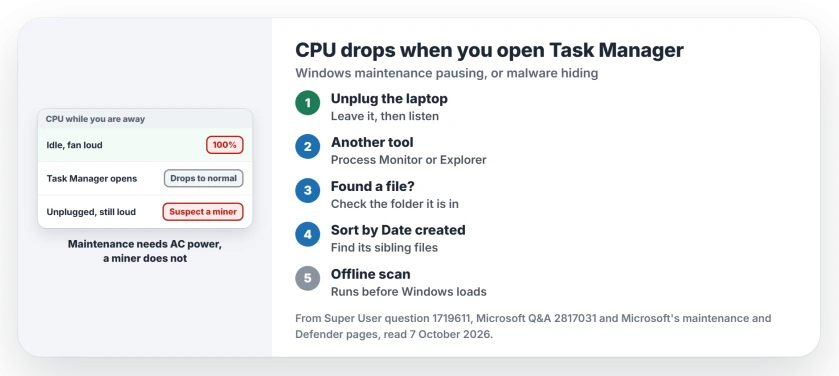
Status: checked 7 October 2026. CPU that falls when Task Manager opens can be Windows maintenance pausing, or malware hiding. Owners found coin miners with scans and file dates.
The asker had the worrying version. A separate monitoring app showed 100% the whole time. The CPU ran hotter. Task Manager even closed itself after a few minutes. Swapping in another CPU changed nothing.
The test that needs no Task Manager
Microsoft says its maintenance tasks "run when the machine is idle and on AC power". Ours: on a laptop, unplug it, walk away for ten minutes, then come back and listen.
A fan that keeps roaring on battery is harder to blame on Windows housekeeping.
Length matters too. A volunteer on Q&A put it plainly: with a miner, "you would hear your PCs cooling fans sound like a jet fighter for a prolonged time". A short burst that stops is normal. An hour of it is not.
Our laptop fan page covers the normal kinds of load that spin a fan up. If yours matches none of them, keep going.
Catch the process another way
The Q&A asker who marked their thread SOLVED found the culprit with Microsoft's own Process Monitor.
They clicked into its timeline as the CPU rose, and the trail led to "a Trojan disguised as igfxupdate.exe", named after an Intel graphics file.
If what you keep seeing is a Command Prompt window that flashes and closes, a Process Create filter in the same tool names the program that opened it.
Process Explorer, also from Microsoft, shows every running process with its file path. Be warned that it is not a sure catch. An owner in April 2026 found their miner paused for Process Explorer as well as Task Manager.
When you do spot a process name, check the folder its file lives in before you delete anything. Our strange .exe page explains the location test, which is the quickest way to tell a real Windows file from a fake one.
Find the file and its siblings
One owner found the file that used all the CPU, then looked for its friends. In their words, the method was "figuring out which other .exes have a creation date similar to that one".
In their case four files sat together in System32, all named to look like Windows.
So sort that folder by Date created and look at what arrived on the same day. Miners often come with a second file that reinstalls the first, so removing one alone does not end it.
Scan from outside Windows
Microsoft says on its virus and threat protection page that the offline scan restarts the PC and runs before Windows loads. Persistent malware then finds it much harder to hide.
That matters when the malware watches for tools.
In Windows Security, open Virus and threat protection, then Scan options, and pick the offline scan. Save your work first, because the PC restarts.
Our virus scan page explains where the results show up afterwards, since the scan itself shows nothing on screen.
One owner on a Ryzen 7800X3D had three of eight cores at 100% after about five minutes. A deep scan with Malwarebytes found a coin miner hidden in their AppData folder. "Malwarebytes got rid of it and it is running fine now", they wrote.
What I would not do
Running SFC and DISM is the usual advice in threads like this one. Those repair Windows files. They do not remove a miner.
Disabling Windows Update or every background app, as one Q&A reply suggested, hides the symptom and costs you security fixes. I would scan first.
Is 100% for a second when Task Manager opens a problem?
Usually not. Task Manager's first reading can be high, and the Q&A volunteer called that normal. What matters is whether the CPU was busy before you opened it, which only the fan, the temperature or another monitor can tell you.
The Short Version
- Windows pauses its maintenance when you return, so a falling number can be normal.
- Unplug a laptop and leave it idle; long fan noise on battery points away from maintenance.
- Process Monitor or Process Explorer can catch what Task Manager scares off, though not always.
- Sort the folder by Date created to find a miner's sibling files.
- Run the Microsoft Defender offline scan, which works before Windows loads.
Where to Next
Tonight, leave the PC idle and listen from across the room for ten minutes. If the fan stays loud, run the offline scan before anything else.
Did a scan find something on yours, and what was it called? Tell me the file name, so other readers can search for it.

Isaac Smith is the founder and editor of PC Glance, a website that covers computers, laptops, and technology. He is a tech enthusiast and a computer geek who loves to share his insights and help his readers make smart choices when buying tech gadgets or laptops. He is always curious and updated about the latest tech trends.