The Set priority command is on Task Manager's Details page, rather than the ordinary app list. Right-click the program's process there, choose Set priority, select a level, and approve Change priority if a confirmation appears.
That changes how Windows shares processor time when programs compete for it. It doesn't give an app extra memory or a faster graphics card, so start with a small change and check whether your actual task improves.
In this guide
Find the running program on the Details page
Open the program you want to adjust first. Task Manager changes a running process, which is one active instance of a program. An installed app that isn't running won't have a process to select.
Press Ctrl+Shift+Esc to open Task Manager. On current Windows 11, select Details in the left navigation. Expand the navigation menu if only icons are visible.
On Windows 10 and older Task Manager layouts, select More details when the initial window contains just open apps. Then open the Details tab across the top.
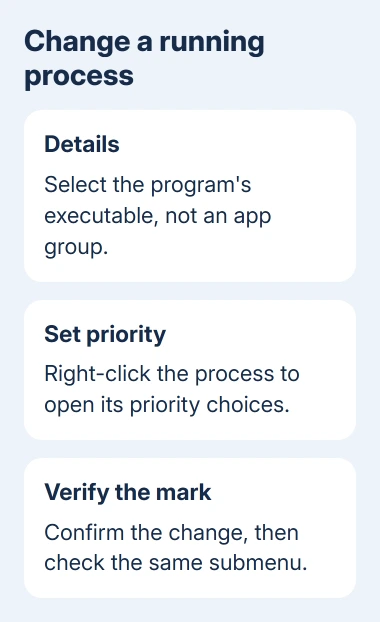
If you're starting on Processes, find the app, expand its group if necessary, right-click the relevant process, and use Go to details. That helps match the friendly app name to its executable name.
An executable is the program file, usually ending in .exe. Check that the selected row is the program you meant to adjust. A browser or game launcher can have several processes, and the game's priority is separate from its launcher's.
For a window that doesn't open, use the other ways to launch Task Manager. Get the tool working before attempting any priority change.
Change one process, then verify the selected level
Right-click the correct row on Details and open Set priority. The menu has several levels, including Realtime, High, Normal, and Low. A selection mark identifies the current level.
Choose the level you intend to try, then approve Change priority if Windows asks. Open the same submenu again to check the mark. If Windows reports an error, don't assume that the requested level took effect.
I'd leave a foreground app at Normal until CPU competition is clearly the issue. For less urgent background work, try Low. Keep other apps unchanged while comparing the result.
The level tells Windows which work gets processor time first. It doesn't promise a particular speed increase, and raising it can't fix every cause of slow performance.
Microsoft's processor scheduling explanation describes why priority matters when programs are ready to run and competing for processor time. An app waiting for a download or disk operation can remain slow after its CPU priority changes.
Try the task that matters: play the same scene, run the same export, or work in the same document. Check responsiveness as well as completion time. A higher number in Task Manager doesn't tell you whether the task improved.
Choose a level without making the PC harder to use
Normal is the ordinary starting point for most applications. Setting less urgent work to Low lets higher-priority work get processor time first. The benefit depends on what else needs the CPU.
High is intended for time-critical work. A busy process at that level can leave other programs short of processor time, especially if you raise several demanding programs at once.
Keep Realtime out of routine app and gaming adjustments. It can interfere with system work involved in keyboard input, mouse input, and writing buffered data to disk. It isn't an extra gaming performance setting.
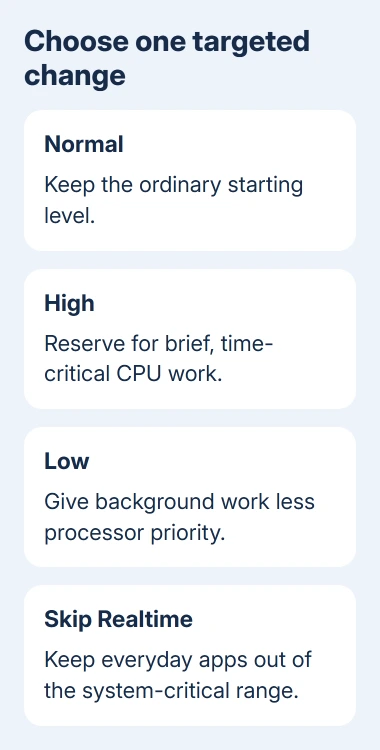
If your desktop becomes less responsive, return the selected process to Normal. The goal is a usable computer while the chosen task runs, rather than making every process compete at a high level.
When the issue is overall high memory usage in Windows, address that separately. Changing priority doesn't clear RAM or change how much memory a program has set aside.
Handle a missing command or an access-denied message
If Set priority isn't in the menu, check the page first. The main Processes view has different commands from Details. Select an individual process on Details rather than an application group heading.
If Windows denies the change, close Task Manager and search Start for Task Manager. On your own PC, choose Run as administrator, approve the request, and find the process again.
Running as administrator can let you make changes your account couldn't make before, though protected processes can still refuse them.
An employer-managed PC may also limit your account. Ask IT rather than changing Windows file permissions.
Some programs manage their own priority, and a game may restrict changes through its protection system. If the level changes back immediately, ask that program's support team whether manual process-priority changes are supported.
Include the app name and exact error message. An error changing one protected process is different from Task Manager being unable to change any ordinary app you own.
Know what happens when the program restarts
Task Manager applies the selection to that running process. It doesn't provide a saved rule that forces every future launch of the same executable to use your chosen level.
Closing and reopening the application creates a new process. The app can choose its priority again as it starts, so check the new process instead of assuming your earlier choice still applies.
For the same reason, check that you're still looking at the right PID if several rows share a name. PID means process identifier, a number Windows uses to distinguish running processes.
If you need a lasting change, look for a supported setting in the application or ask its developer about its launch options. Don't add a registry tweak just to make this temporary Task Manager adjustment stick.
Treat Efficiency mode as a separate choice
On Windows 11, a leaf icon or Efficiency mode label can appear beside a process. That mode lowers its priority and also changes how Windows handles its power use. It isn't simply another name for the Set priority menu.
For an app you placed in Efficiency mode, use its Task Manager context menu to turn the mode off when checking normal performance. Some apps also apply power-saving behavior themselves, so the label can return.
The Efficiency mode explanation covers those two changes. Whether you can use it depends on the selected process. A disabled command doesn't mean Task Manager is broken.
For persistent poor performance, send the app's support team your Windows version, process name, selected level, and the task that stays slow. Those specifics help them check the app's behavior.
The Short Version
Open Details, select the correct running process, and use Set priority. Verify the marked level, compare the same task, and return to Normal if responsiveness suffers. The choice applies to that process and isn't a permanent launch setting.
Checked November 13, 2026.