

When a MacBook Pro keyboard and trackpad stop working together, connect power first and try a wired keyboard and mouse. Apple's instructions for both built-in input devices identify an unseen low-battery alert as a possible cause.
If external input works, save your files before further checks. If the entire Mac is frozen, a restart takes priority over changing keyboard settings.
Restore power and a way to control the Mac
Connect a suitable charger to a working outlet. Apple says an apparently dead built-in keyboard or trackpad can accompany a low-battery alert in its keyboard troubleshooting.
Connect a wired USB keyboard and mouse, using a suitable adapter if required. Apple documents external input devices as alternatives to a laptop's built-in controls.
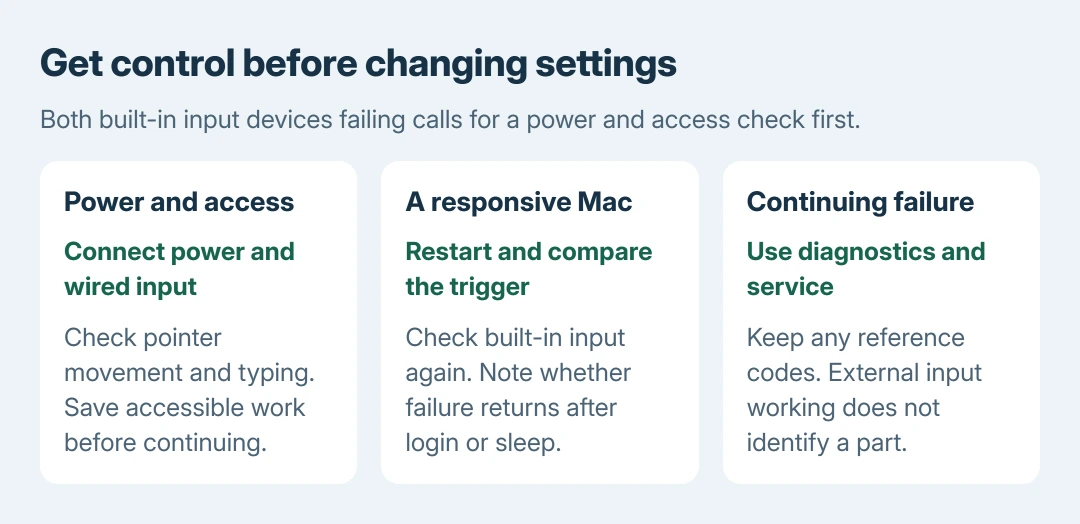
Status: Apple's built-in input, restart, safe-mode and Diagnostics guidance checked October 28, 2026. No Mac tested. Combined input failure does not identify a replacement part.
Test moving the pointer and typing in a normal text field. External devices working shows that the Mac can accept input through those devices; it does not prove which built-in component failed.
If the pointer moves normally and only typing disappears across apps, use the lost keyboard-focus checks. That is a narrower symptom than both built-in devices becoming unresponsive.
Restart normally when the Mac still responds
Use the external controls to save accessible work, then choose Apple menu > Restart. After startup, check the built-in keyboard and trackpad before reopening optional input utilities.
When the Mac cannot respond at all, Apple documents a forced shutdown in its restart guide. Hold Power or Touch ID until the Mac turns off, then start it again. Unsaved changes can be lost.
A restart that restores input temporarily is useful information for support. Note whether the failure returns after sleep, after login or after a particular utility starts. Repeated forced shutdowns do not resolve a recurring input fault.
Check settings only when some input still works
If keys register only after a long hold, open System Settings > Accessibility > Keyboard and check Slow Keys. Apple states that this option delays recognition, so turn it off if that behavior was unintended.
For letters acting as pointer controls, check Accessibility > Pointer Control > Mouse Keys. Disable Mouse Keys if it was enabled accidentally. These settings explain particular keyboard behavior, not every simultaneous hardware failure.
For a trackpad, try moving with one finger. Apple's trackpad troubleshooting distinguishes pointer movement from two-finger scrolling, then directs persistent faults to service.
If movement works and only the corner menu fails, use the secondary-click repair checks. A missing right-click does not call for treating the entire keyboard and trackpad as disconnected.
Compare safe mode if input returns after restarting
Use Apple's safe-mode procedure when the Mac can be controlled and software remains suspect. Safe mode stops some software from loading at startup.
On Apple silicon, start with the Mac off. Keep its power button down until startup options load. Select the disk used for macOS. Keep Shift pressed as you select Continue in Safe Mode.
On Intel, restart while holding Shift until login appears.
Reproduce the usual failing task, then restart into the normal desktop. A problem absent in safe mode warrants reviewing startup software. This is a comparison, not proof that an internal connection is sound.
Test the built-in devices and seek service
Apple's diagnostic tool can offer specific keyboard and trackpad tests on macOS Tahoe 26 and later. Earlier versions choose tests automatically.
Shut down and remove unnecessary accessories, retaining power and the keyboard/mouse needed for control. On Apple silicon, hold Power until Options appears, release it, then hold Command + D on the connected keyboard.
On Intel, start with D held, or try Option + D if needed. Follow the prompts and record reference codes. If startup does not accept the connected keyboard, contact Apple for help entering diagnostics.
Our recommendation is to arrange an Apple service assessment for persistent combined failure, keeping an up-to-date backup. Include the model, macOS version, whether wired input worked and whether the fault occurs before login.
Those details help assess the input path. They do not establish that a cable, trackpad or logic board must be replaced without inspection. Ask about preserving data before approving service.
The Short Version
Connect power and wired input, save work and restart. Match partial failures to their specific settings. Use safe mode for a recurring software comparison and Diagnostics for service evidence when the built-in devices remain unresponsive.

Isaac Smith is the founder and editor of PC Glance, a website that covers computers, laptops, and technology. He is a tech enthusiast and a computer geek who loves to share his insights and help his readers make smart choices when buying tech gadgets or laptops. He is always curious and updated about the latest tech trends.