
A MacBook trackpad can lose its click sensation while the pointer still moves. Force Touch needs power to produce that feeling, so a hard-feeling trackpad while the Mac is off is expected. Start the Mac before judging the symptom.
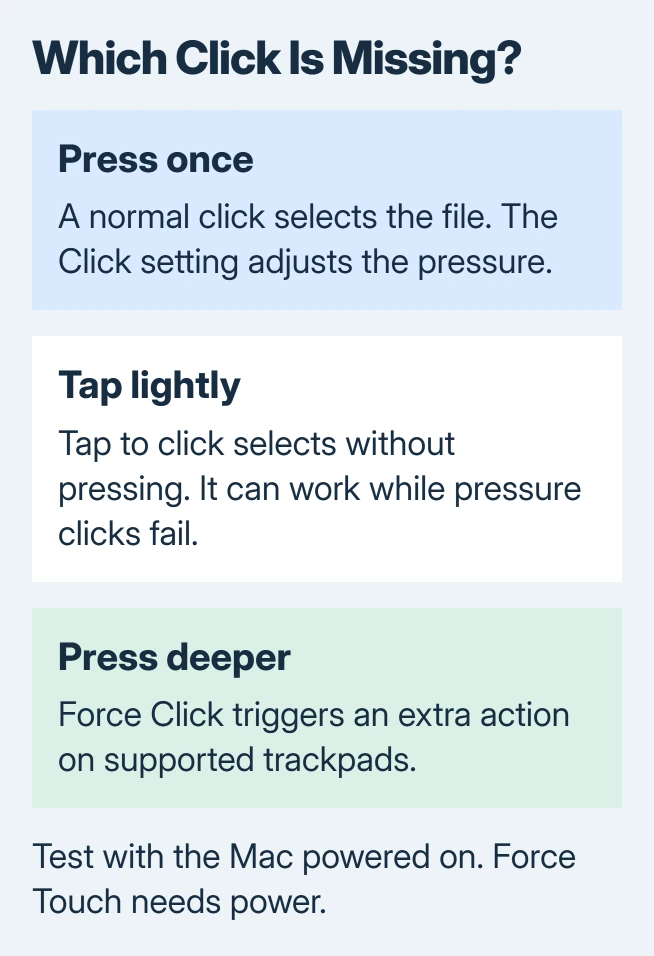
If clicking still fails while macOS is running, check whether pressing, tapping or only the deeper Force Click is affected. Those actions have separate controls.
Separate a missing click from a missing response
In Finder, point at a file and press once. Watch whether the file becomes selected, as well as whether a click can be felt. A selection without feedback differs from a press that does nothing.
Apple documents the distinction in its Force Touch explanation. Force Click is the deeper second press after an ordinary click. Older mechanical trackpads have no Force Click setting.
Status: Apple trackpad controls and diagnostic guidance checked October 31, 2026. Mechanical clicks, pressure clicks and taps are treated separately. No MacBook was tested.
If both typing and pointer movement have failed, use the combined MacBook input-failure checks. A dead keyboard and trackpad need a broader power and input check.
Adjust the pressure required for a click
Connect a mouse if trackpad presses cannot open menus. Choose Apple menu > System Settings > Trackpad > Point & Click. Older macOS versions call the settings app System Preferences.
Find Click and choose a lighter pressure setting. Try selecting the same Finder file again. Apple says this control changes how firmly the trackpad must be pressed; it does not increase pointer sensitivity.
The Tracking speed slider changes pointer movement instead. Moving that slider will not adjust the force needed for a press.
If an ordinary press works but the deeper action is absent, enable Force Click and haptic feedback where available. Apple lists its purpose in the Trackpad settings reference.
Use a supported action when checking the second press, such as a Force Click on a Finder file to preview it. The result depends on the app and object being pressed.
Use tapping when pressure clicks remain unreliable
Turn on Tap to click in that same Point & Click pane. Now touch the trackpad lightly with one finger over the file. A successful selection gives you a way to operate the Mac without pressing down.
An owner with an M4 MacBook Air reported that tapping still worked while pressure clicks and their feel were missing. The discussion ended with service advice, not confirmation that a replacement had repaired it.
Tapping is a usable fallback, not proof that the haptic mechanism is healthy. If only the right-click menu fails, follow the Mac secondary-click checks instead.
Arrange a check when the click stays absent
Save work and restart from the Apple menu, then repeat the simple file-selection check. Note whether the fault returns after sleep or remains immediately after startup.
Apple states that Apple Diagnostics offers specific trackpad testing on macOS Tahoe 26 and later. Earlier releases select tests automatically.
On an Apple silicon Mac, begin with it shut down. Hold the power button; release it when startup options are visible. Then hold Command + D until the Mac restarts.
An Intel Mac starts diagnostics with D held as it turns on. Apple also lists Option + D if D fails.
Follow the test prompts and keep any reference code. For continuing pressure-click failure, arrange an Apple service assessment with the model, macOS version and the press-versus-tap results.
A working tap does not tell a repairer which part to replace. Avoid pressing harder to force movement from a trackpad that is raised, damaged or physically obstructed; have that inspected.
The Short Version
Check the trackpad while the Mac is powered on. Compare a normal press with a light tap, adjust Click pressure, and check Force Click separately. Tapping can keep the Mac usable while persistent pressure or feedback failure is assessed.

Isaac Smith is the founder and editor of PC Glance, a website that covers computers, laptops, and technology. He is a tech enthusiast and a computer geek who loves to share his insights and help his readers make smart choices when buying tech gadgets or laptops. He is always curious and updated about the latest tech trends.