Press the MacBook's trackpad once with one finger to left click. There isn't a separate left button to find: a normal one-finger click selects an item or activates the button or control under the pointer.
For a light tap instead of a press, turn on Tap to click in Trackpad settings. Two fingers usually perform a right click, and pressing harder on a Force Touch trackpad can trigger a different action.
In this guide
Make one ordinary click first
Move one finger across the trackpad until the pointer sits over the item you want. Press with that finger, feel the click, and release. Keep your other fingers off the surface while learning the gesture.
A file should become selected when you click it. A button should activate. Clicking empty desktop space generally clears a selection, so try clicking a visible file or an ordinary app button.
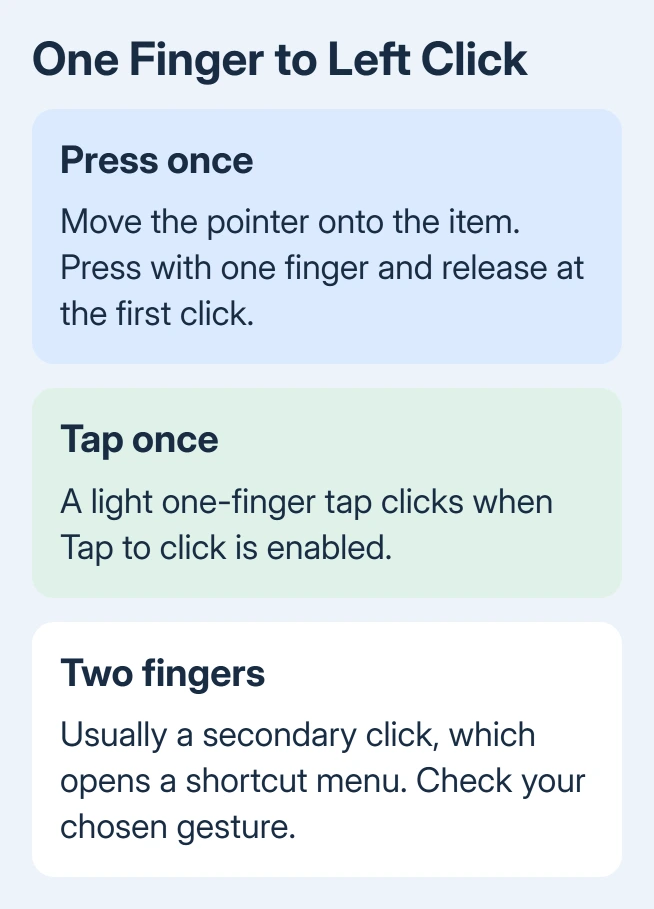
The Mac calls this the primary click or simply a click. Left click is the familiar name from a two-button mouse. The action matters more than which half of the MacBook's trackpad your finger happens to touch.
On a Force Touch trackpad, you can click across the surface. Older mechanical trackpads have a different feel and can be easier to press near the lower edge. On either kind, one finger is enough to select an item.
Keep the Mac awake while trying it. A Force Touch trackpad uses power for its click feedback, so checking its feel with the laptop shut down can make a working trackpad seem stuck.
Turn on Tap to click for a lighter touch
A finger touching the trackpad isn't always a click. With Tap to click turned off, a light tap can do nothing even though moving the pointer works. Turn it on to select an item with a tap, without pressing down.
- Open the Apple menu > System Settings.
- Scroll the sidebar and choose Trackpad.
- Open Point & Click.
- Turn on Tap to click.
- Place the pointer on a file, then give the trackpad a one-finger tap.
On macOS Monterey and older, open Apple menu > System Preferences > Trackpad > Point & Click and select Tap to click. Ventura and later use System Settings instead of System Preferences.
Apple's Trackpad settings describe Tap to click as a one-finger gesture. The controls you see depend on your Mac or connected trackpad.
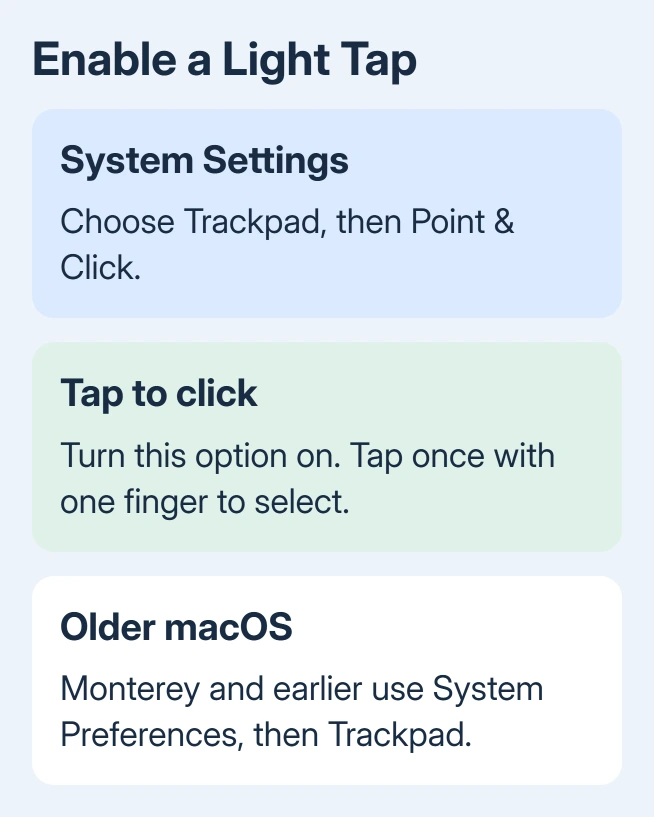
After enabling it, both a light tap and an ordinary press can perform a click. Use whichever is more comfortable. Tapping doesn't mean you must switch every gesture or change how the pointer moves.
I'd enable this before trying to make every physical press softer. It's a good fit when the pointer moves normally but the light tap you're used to on another laptop doesn't select anything.
Use a double-click or a held click when the job needs it
One click and two clicks do different jobs. In Finder, one click selects a file or folder. A quick double-click normally opens it. A selected file that hasn't opened isn't necessarily a failed click.
Keep the pointer on the same item for both clicks. Moving it away between presses can select something else or leave the first item selected without opening it.
For a simple drag, press the trackpad and keep it held while moving the item, then release at the destination. A quick click followed by moving your finger doesn't hold the item for dragging.
Tap to click doesn't require you to learn a separate drag gesture immediately. The physical press-and-hold remains useful. If you're interested in moving items with less pressure, there are separate accessibility options for dragging.
Double-click speed is separate from Tap to click. If selections work but folders won't open, select a folder and compare two quick clicks with Command + O. That tells you whether opening is the problem or clicks aren't working at all.
For clicks that stop responding altogether, our MacBook trackpad clicking checks cover the repair path. Don't keep changing double-click timing when even a single button press fails.
Stop a shortcut menu from replacing the normal click
A menu containing commands such as Copy or Get Info is a secondary click, also called right click. It isn't the normal left-click action. Press Escape to close the menu before trying again.
Check that only one finger is touching the trackpad and that Control isn't held down. Holding Control while clicking opens a shortcut menu on a Mac, even with an ordinary one-finger click.
In Trackpad > Point & Click > Secondary click, check which gesture is selected. Many Macs use two fingers. A corner-click option can make pressing that particular corner open the menu instead of selecting normally.
If the issue is only that the right-click gesture doesn't work, the Mac trackpad secondary-click guide addresses that control. Check the normal one-finger click and the secondary click separately.
An external mouse works differently from the trackpad surface. With a standard mouse in its usual configuration, press the left physical button once. A swapped button assignment can make the right button act as the primary click.
For a Magic Mouse, an ordinary click uses its top surface, with secondary-click behavior set in System Settings > Mouse. Review that setting if one side opens a shortcut menu when you expected selection.
Avoid pushing through into Force Click
On supported Force Touch trackpads, pressing beyond the first click produces a deeper second click. That is Force Click, which can show a preview or look up information depending on the item and app.
For a left click, stop at the first click and release. More pressure doesn't make an ordinary selection more successful. A word lookup or unexpected preview suggests you're pressing through into that second action.
Adjust Click in Trackpad > Point & Click if the pressure feels wrong. It changes how firmly you need to press.
The Force Click and haptic feedback option controls that extra action on trackpads that support it.
A Mac without Force Touch won't have the same options. Apple silicon and Intel aren't the deciding distinction for the basic click gesture; the trackpad itself and your macOS settings determine which controls you see.
If neither tapping nor pressing activates anything while the pointer moves, try a connected mouse and restart through the Apple menu.
If the mouse works but the built-in trackpad still fails, ask Apple or a repair provider for a trackpad check. Describe which actions still work.
The Short Version
Press once with one finger, or enable Tap to click for light taps. Double-click opens a Finder item; holding a click lets you drag. Two fingers, Control and the deeper Force Click can produce different actions.
Checked November 12, 2026.
 If you have any business, I can build it online