
You typed a sentence into Translate, the other person is waiting, and the box underneath stays empty. Or it hands back three letters and stops. Standing in front of somebody while that happens is grim, and I get how it makes you look.
It is usually one switch.
One fork decides everything. Translate can send your words to Apple and get an answer back, or it can do the whole job on the phone with no signal at all.
Offline needs both languages downloaded already, and if they are not there, the app goes quiet rather than saying so.
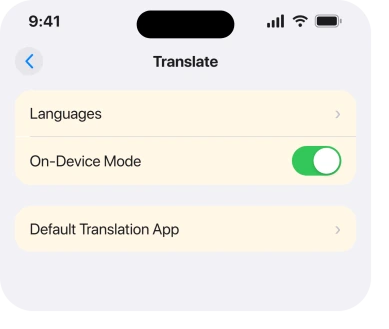
1. Turn On-Device Mode off
Start here. One switch, ten seconds.
On-Device Mode tells Translate to stop using the internet. Apple's description of it is plain: "You can choose to always translate offline using downloaded languages."
Read the last two words again. If the languages are not downloaded, that switch asks your phone to do a job with nothing to do it with.
Go to Settings, tap Apps, tap Translate, and turn On-Device Mode off. Then open Translate again with Wi-Fi or cellular on.
An owner on a community thread about the app dying found exactly this. They posted the whole fix in one line: "Go t setting click on translate and turn off on-device mode. It will work only when your internet is on."
No reinstall. No downloads.
2. Download both languages, not one
Do this one if you genuinely need it working with no signal.
Apple's wording, in the Translate settings page of the iPhone User Guide, is specific:
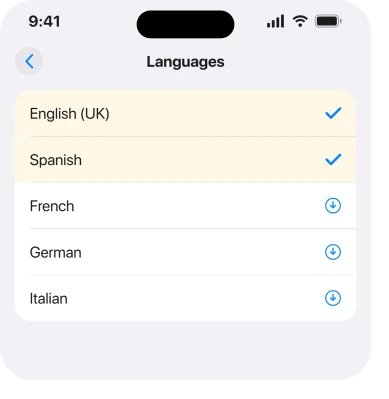
"To use the translate feature when you're not connected to the internet, you need to download both the input and output languages."
Both. That is the word that matters. People download Spanish and leave English alone, because the phone is already in English. Then nothing happens and it looks like a bug.
The route is Settings, then Apps, then Translate, then Languages. Tap the arrow next to each language you want stored, and note where that is: not Settings, then Translate.
App settings moved into a single Apps list, so if you have been scrolling the main Settings screen hunting for a Translate row, you were looking somewhere that no longer exists.
Our page on where app settings went in iOS 26 covers the move.
There is a second reason to open that list even when you are online. On a thread about the app freezing on its download screen, the person asking worked out the answer themselves.
Open Languages, find that nothing is actually stored despite being certain it once was, and "Download two languages and watch them populate on the screen. Once complete, go back to the app and one might find it working again."
That thread collected 85 Me Too votes.
3. Check which app your phone is actually calling
Quick. It explains the case where nothing you change makes any difference.
iOS lets you nominate a different translation app as the default. If somebody did that, the Translate option inside Safari, Messages and Photos hands the job to that other app instead.
Apple's route is Settings, Apps, Translate, then Default Translation App.
If it names anything other than Translate, you have been fixing the wrong app.
4. Force close it, then restart the phone
Ordinary. It earns fourth place rather than first, and there is a reason.
Swipe up from the bottom of the screen and pause. Flick the Translate card away. Open it again.
If that changes nothing, restart properly. On a Face ID iPhone, press and hold the side button with either volume button, then drag the slider.
A stuck language download usually survives a force close. It does not always survive a full restart. That gap is the whole reason this rung exists, and the reason it is not rung one.
5. Delete the app and reinstall it, then the languages
Now the ones people confirm, rather than the ones people suggest.
Translate is a built-in app you are allowed to remove. Touch and hold the icon, remove it, then get it back from the App Store.
Then go straight to Settings, Apps, Translate, Languages and download your two again.
An owner running two devices reported it plainly: "I fixed it on my iPhone 14 and iPad iOS 17.1 by deleting the app and reinstalling the app and languages."
Do the languages as a separate, deliberate step. Reinstalling the app does not carry them back with it. Stopping halfway is why this gets reported as not working.
6. Reset Network Settings, then reinstall
Longer, and it costs you something. Read the cost first.
Resetting network settings wipes every saved Wi-Fi password, your VPN configurations and your cellular preferences. Write down anything you would struggle to retype.
The sequence somebody reported as working was all four steps together, not any one of them: "Delete the app, Reset Network Setting, Redownload app, Redownload languages".
The route is Settings, General, Transfer or Reset iPhone, Reset, then Reset Network Settings.
Why it might matter: the language files arrive over the network like any other download. A half-finished one can leave a record the phone keeps trusting.
Apple documents no such mechanism, so the reasoning is mine and the outcome is one person's.
7. If it cuts you off mid-sentence, that is where it stands
Last, because there is no fix, and you deserve to hear that rather than keep trying things.
A second complaint runs alongside the download failures. You speak, and Translate takes the first few seconds and drops the rest.
An owner on an iPhone 14 running iOS 26 put it this way: "Language downloads are often unreliable. Sometimes they fail, or translations return only a few letters". Eight other people marked that they had it too.
The only reply came from a Level 10 member. It was to send Apple a report through apple.com/feedback naming the languages involved.
So no setting touches this one. If speech is the half failing for you, type the sentence instead. Typed translation is the more reliable side of the app today.
Do not confuse this with Live Translation, the newer feature that handles calls, FaceTime captions and Messages and needs an Apple Intelligence iPhone. Different feature, different requirements.
Our page on Live Translation through AirPods covers that one.
What does not help
- Downloading only the language you are translating into. Apple says both, and the app never warns you.
- Hunting for Translate in the main Settings list. It lives under Apps now.
- Turning On-Device Mode on to make it more reliable. Apple's own note says the opposite: "Offline translations may not be as accurate as online translations."
- Signing out of your Apple Account. Nothing in Translate hangs off it, and nobody reports it helping.
- Waiting for a stalled language download to resume. The threads describe it sitting there indefinitely.
Status: iOS 26.6.1, checked 18 August 2026. Apple documents the both-languages rule and the Settings route. The reinstall and network-reset fixes are user-reported. The speech cut-off has no fix.
Why is my iPhone Translate app not translating?
Most often because On-Device Mode is on and the languages it needs are not on the phone. Turn On-Device Mode off in Settings, Apps, Translate and try again with a connection. Or download both languages if you need it working offline.
Where is the Translate setting on iPhone?
Settings, then Apps, then Translate. It is no longer a row in the main Settings list. That changed when app settings were gathered into the Apps section.
Why does Translate only give me part of the sentence?
That is being reported on iOS 26 with no fix published. It hits spoken input harder than typed input. Type the sentence as a workaround and send Apple a report naming the language pair.
Do I need both languages downloaded to translate offline?
Yes. Apple states you need both the input and the output language on the device. Downloading only the foreign one leaves the pair incomplete, and the app will not translate offline.
The Short Version
- On-Device Mode with no downloaded languages is the commonest cause, and it is one switch.
- Apple requires both the input and the output language, not just the foreign one.
- The setting lives at Settings, Apps, Translate, which is not where older guides send you.
- Check Default Translation App if nothing you change to Translate makes any difference.
- Deleting the app and reinstalling both it and the languages is the fix owners confirm most.
- Speech being cut off after a few seconds has no published fix, so type instead.
Where to Next
Translate has two completely separate ways of working, and no way of telling you which one just failed. An empty result box looks identical whether your signal dropped or a language pack never finished.
So knock one of the two out first. Turn On-Device Mode off, get a result, and you know the app is fine and the offline half is what broke.
Where the app showing stale information is Stocks, the cause is usually not your phone.
If you get it going and it breaks again next time you travel, tell me which two languages you had loaded. The pairs people report failing are not random, and I would like to see whether yours is on that list.

Isaac Smith is the founder and editor of PC Glance, a website that covers computers, laptops, and technology. He is a tech enthusiast and a computer geek who loves to share his insights and help his readers make smart choices when buying tech gadgets or laptops. He is always curious and updated about the latest tech trends.