
An iPad can screen record using its built-in control. Open Control Center at the upper-right edge, tap Screen Recording, and wait three seconds. To add spoken instructions, enable Microphone before starting.
The finished video goes to Photos. Add the recording control if it is missing, and stop screen mirroring before trying to capture the display.
1. Add the recording control once
Open Control Center by dragging down from the upper-right edge. On current iPadOS, this gesture also applies to iPads with a Home button. Look through the control groups before adding a duplicate.
Apple documents adding controls through the Plus at Control Center's upper left. Tap it, choose Add a Control, and select Screen Recording from the gallery. Search the gallery by name if needed, then leave editing mode.
Status: iPadOS 27 recording and Control Center instructions reviewed October 26, 2026. Apple supplies the procedure; no iPad recording was made here.
Look for a circle inside a ring. Apple's Control Center guide documents the current editing route.
If Control Center opens from the Home Screen but not inside an app, check Settings > Control Center > Access Within Apps. That setting affects access to the panel, rather than adding a missing recording button.
2. Start the capture with the sound needed
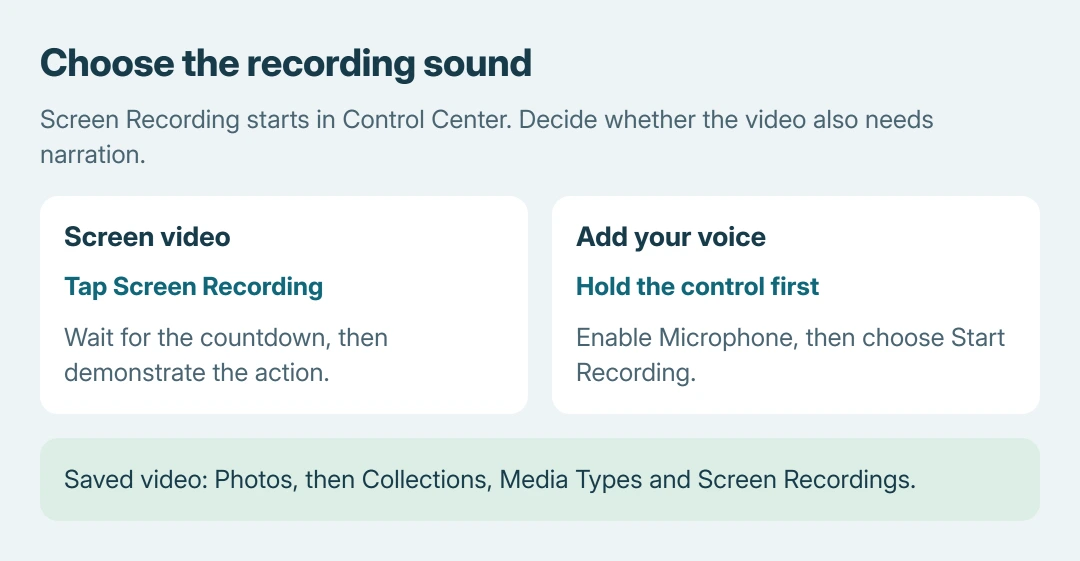
For a screen video, tap the recording control and wait three seconds. Swipe upward to dismiss Control Center, then demonstrate the action. Open the intended app beforehand so the countdown does not become a search for it.
For narration, touch and hold the control instead. Tap Microphone to enable it, then Start Recording. Speak after the countdown. The microphone captures surrounding sound as well as the explanation.
Our recommendation is to record a brief sample, then watch and listen before attempting a long demonstration. That check is ours: enabling the microphone does not establish how clearly the voice or app sound was saved.
For a single still image, use the iPad screenshot buttons instead. A video is useful when the sequence of taps is what the recipient needs to see.
3. Stop, find and review the video
Tap the red recording button at the screen's top and choose Stop. Apple says the result saves automatically to the photo library.
Open Photos > Collections, scroll to Media Types, and select Screen Recordings. Play the clip to confirm the needed action and sound were captured, then review private material before sharing.
If other clips are quiet too, check the iPad's playback controls before recording the demonstration again.
For a live demonstration, FaceTime screen sharing lets a participant watch a supported Apple device. Recording instead produces a file to replay.
A blocked app needs a different approach
Apple states that some apps restrict capture, and recording cannot run alongside screen mirroring. Stop an active mirror session before retrying. A protected app can still refuse to include its picture or sound.
If an ordinary Home Screen recording also fails, note the iPadOS version and what happens when recording starts or stops. Take that result to Apple Support. For one protected app, check its own capture policy instead.
The Short Version
Put the recording control in Control Center, tap it, and wait three seconds. Hold it first to enable Microphone for narration. Stop from the red button, then review the saved clip in Photos.

Isaac Smith is the founder and editor of PC Glance, a website that covers computers, laptops, and technology. He is a tech enthusiast and a computer geek who loves to share his insights and help his readers make smart choices when buying tech gadgets or laptops. He is always curious and updated about the latest tech trends.