
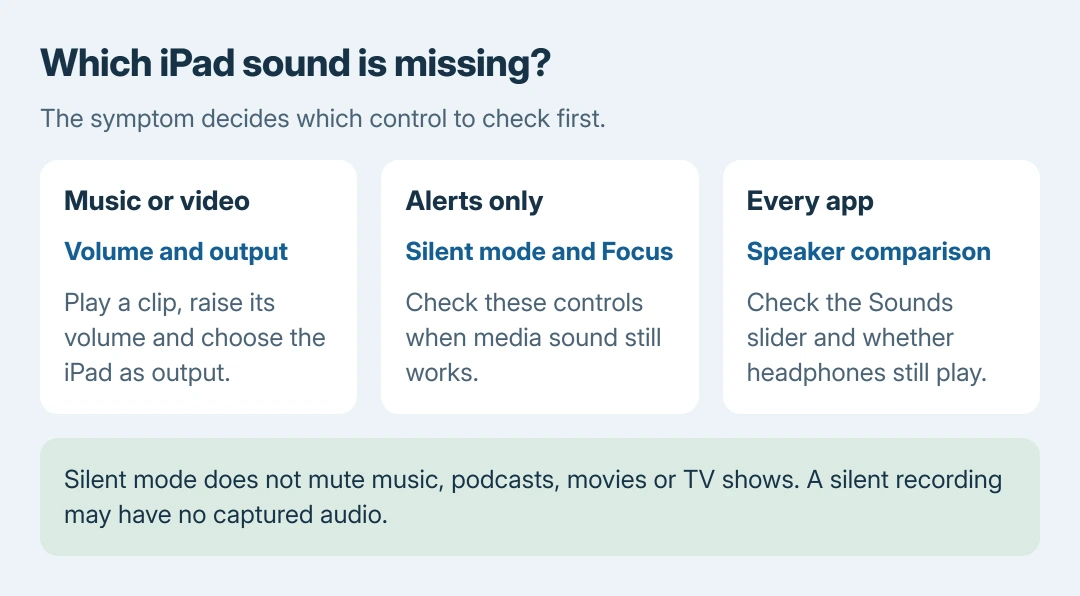
iPad sound not working in a movie needs different checks from silent alerts. Start the clip, raise Control Center's volume slider, then check its output. Audio may be reaching headphones or another speaker.
For silent alerts while music still plays, turn off Silent mode instead. Apple's iPad guide specifically says Silent mode does not mute music, podcasts, movies or TV shows.
Raise the volume while the missing audio should be playing
Start a familiar song or video, then drag downward from the screen's top-right corner. Raise the volume slider gradually. This adjusts the playback level without guessing which physical button raises it.
Apple says the side buttons control media volume during playback and ringer or alert volume at other times. Its iPad volume guide explains that distinction.
Status: iPadOS volume, playback destination and Apple speaker-service guidance reviewed October 26, 2026. These are documented controls; no iPad audio test was performed here.
On some iPads the physical buttons change roles when the device rotates. The model-specific button guide covers that behavior. A button moving the wrong way does not establish a speaker failure.
If audio returns, the playback level was the setting to correct. If the slider rises but the iPad stays silent, check where it is sending the sound before changing alert settings.
Bring playback back from another device
While the audio plays, open Control Center's playback controls and tap the Playback Destination button. Select the iPad instead of an available Bluetooth speaker or headphones.
Apple documents the output selector in its Bluetooth playback instructions. Check the selected accessory; it can remain connected even when it is across the room.
Disconnect wired headphones or an audio adapter for the speaker check too. Play the same clip again. Sound returning after the output changes points to routing or the accessory, rather than missing audio in the clip.
If other videos play normally but one recording is silent, inspect the recording itself. The iPad recording instructions explain the separate microphone choice for narration and app capture restrictions.
Restore alerts without changing media playback
Open Control Center and make sure Silent mode is off. For notifications suppressed by a Focus, open Settings > Focus > Do Not Disturb and check whether it is enabled.
Apple's speaker troubleshooting includes both checks. If only notifications were missing and they return, there is no reason to reset the iPad for a movie-audio problem it never had.
In current iPadOS, check Settings > Sounds under Ringtone. Alerts normally follow that slider. If Match Ringtone Volume is off under Alerts and System Sounds, adjust that section's own slider.
Apple's Sounds guide documents these separate levels. On older versions, the combined ringtone-and-alert control can look different.
For sound that is merely too quiet, current iPadOS also offers Settings > Sounds > Volume Limit under Built-In Speaker. Check whether an intentional maximum is set. Raise playback carefully rather than starting at full volume.
The volume-limit menu can vary with software version. It is a check for limited loudness, not an explanation for every completely silent speaker.
Check the speaker when every app stays silent
Remove a case or covering that blocks the speaker openings. Apple states that a dirty opening can be cleaned with a small, clean, dry, soft-bristled brush. Keep the cleaning on the opening rather than inserting tools into it.
In Settings > Sounds, move the slider under Ringtone and listen. Older versions may call this Ringtone and Alerts. Apple's service guidance says absent sound there, or a dimmed speaker button, can mean service is needed.
Apple's call comparison uses FaceTime on iPad. If saved audio plays normally but calls crackle or drop out, retry on a working connection. Reception trouble can affect a call even when the speaker works.
Our stopping point is persistent speaker silence across these checks. Tell Apple Support which iPad and iPadOS release are affected, and whether headphones play normally. Those details distinguish speaker failure from silenced alerts.
The Short Version
Test media volume during playback, then select the iPad as the output. Check Silent mode and Focus for missing alerts. If the speaker stays silent across apps and the Sounds test, arrange Apple support or service.

Isaac Smith is the founder and editor of PC Glance, a website that covers computers, laptops, and technology. He is a tech enthusiast and a computer geek who loves to share his insights and help his readers make smart choices when buying tech gadgets or laptops. He is always curious and updated about the latest tech trends.