
iPad Bluetooth trouble can affect accessory pairing or just its companion app. Start in Settings > Bluetooth with the accessory charged and in pairing mode. If only the app fails, check its Bluetooth permission.
These are separate controls. A working Bluetooth connection does not automatically give every app access to nearby accessories.
1. Make the accessory discoverable
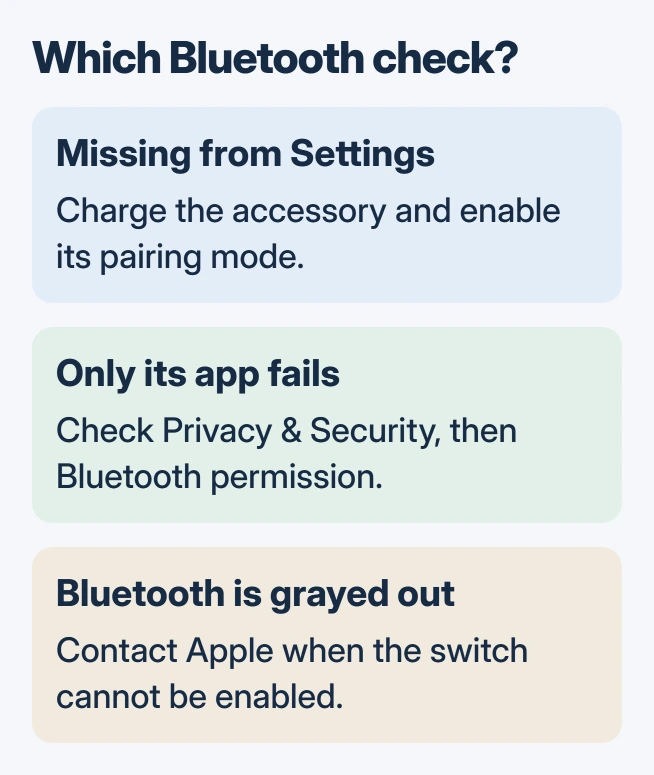
Keep the accessory beside the iPad, switch it off and on, then enable its discovery or pairing mode. Use the maker's instructions for the button combination; switching the power on may only reconnect it to a previous device.
Apple says to check power, proximity and discovery in its Bluetooth connection troubleshooting. Replace depleted batteries or charge the accessory before repeating the attempt.
Status: Apple's iPad pairing and Bluetooth permission instructions checked November 1, 2026. The steps are vendor-documented; no accessory was paired or tested.
In Settings > Bluetooth, enable Bluetooth and tap the accessory when it appears. Follow any code prompt using the accessory's manual. A connection that completes here shows that discovery and pairing succeeded.
Apple documents iPad pairing in the iPad accessory guide. For a keyboard case, first identify how it connects to the iPad; some use contacts instead.
2. Allow Bluetooth for the accessory's app
Open Settings > Privacy & Security > Bluetooth. Find the companion app and enable its switch if that app needs to discover or communicate with the accessory. Return to the app and retry its connection screen.
Apple states that apps request this permission separately in its Bluetooth privacy explanation. Change a previously refused permission here.
An app missing from the list may not have requested access yet. Open its accessory-setup feature and follow the maker's instructions. Do not assume every music app needs this switch: Apple exempts many ordinary Bluetooth audio uses.
If the headphones connect but playback is silent, check the iPad's selected audio destination. That is a playback problem to check before discarding a successful pairing.
3. Replace a pairing that used to work
For a previously paired accessory, tap its information button in Settings > Bluetooth, then choose Forget This Device > Forget Device. Put the accessory back into discovery mode and select it again.
Forgetting AirPods also clears their pairing across devices signed in with that Apple Account. Apple's iPad guide specifies that consequence, so expect to reconnect them afterward.
When the accessory pairs with another device but refuses the iPad, Apple's troubleshooting route is to unpair it from the other device and retry. Check its compatibility with the manufacturer if the iPad still cannot connect.
Test the accessory's actual function after reconnection, such as typing or playing audio. A connection label alone does not establish that every feature works.
Stop when the iPad's Bluetooth control is unavailable
Contact Apple if the Bluetooth switch itself is grayed out. Apple directs users to support when Bluetooth cannot be enabled, no accessories connect, or the accessory maker has confirmed its hardware works.
Our recommendation is to record the iPad model, iPadOS release, accessory model and exact failed step. Those details help Apple or the accessory maker decide which side needs attention without an unnecessary tablet reset.
The Short Version
Check accessory discovery in Bluetooth settings, then app permission when only the companion app fails. Re-pair a remembered accessory if needed. A disabled Bluetooth control or failure with every accessory calls for Apple Support.

Isaac Smith is the founder and editor of PC Glance, a website that covers computers, laptops, and technology. He is a tech enthusiast and a computer geek who loves to share his insights and help his readers make smart choices when buying tech gadgets or laptops. He is always curious and updated about the latest tech trends.