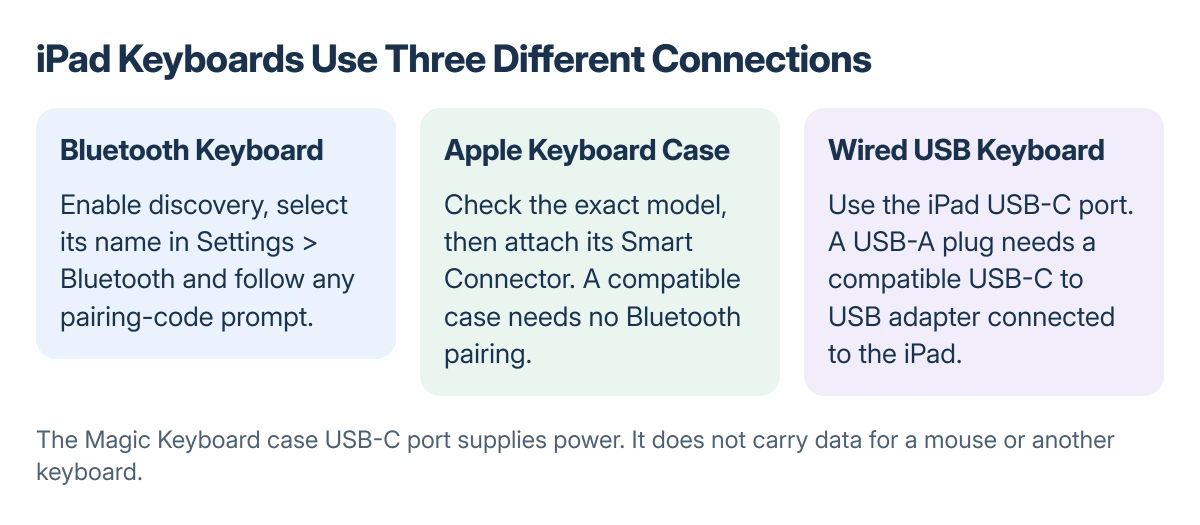
An iPad can use a Bluetooth keyboard, a compatible Apple keyboard case or a wired USB keyboard. The setup depends on how the keyboard connects.
Pair Bluetooth models in Settings > Bluetooth. A Magic Keyboard for iPad or Smart Keyboard uses the Smart Connector instead. A wired model connects to the iPad's port, with a suitable adapter when needed.
Check which Magic Keyboard you have before starting. Apple's separate desktop keyboard pairs differently from a case that holds the iPad.
In this guide
Identify the connection before opening Settings
Check the model name, power switch and pairing control. A separate Bluetooth keyboard needs its maker's pairing procedure; a compatible Apple case connects through the iPad's contacts.
Match the keyboard case to the exact iPad model, not just its screen size. Apple publishes separate compatibility lists because similar-looking iPads do not necessarily use the same keyboard.
Before ordering a case, match the iPad's model code to its full hardware name.
Status: Apple's Bluetooth, USB-C, Magic Keyboard and Smart Keyboard instructions checked 22 October 2026. No iPad accessory was connected or tested.
Check the required iPadOS version as well as the model list. Apple lists a higher minimum for the Magic Keyboard for iPad Air than for some older keyboard combinations.
Pair a Bluetooth keyboard
Charge the keyboard or fit working batteries, then turn it on. Use its pairing button or key combination to put it into discovery mode. Turning it on alone does not always make it discoverable.
On the iPad, open Settings > Bluetooth and turn Bluetooth on. Tap the keyboard's name when it appears in the devices list.
Apple says a Bluetooth accessory may require a PIN or passcode. Follow the prompt and the keyboard maker's instructions rather than entering an arbitrary code.
After pairing, type a short sentence in a note. Text appearing in the active field confirms that keystrokes are reaching the iPad, which a connected label alone cannot show.
Once typing works, build your course folders and lecture-note routine before relying on the keyboard for a full class.
Apple documents discovery, pairing and forgetting an accessory in its iPad Bluetooth instructions. Keep the keyboard close during setup.
If the keyboard is missing from the list, check its pairing mode. A model already linked to a computer may need its device-switching controls, which vary by keyboard.
A Logitech case that used to type needs the Combo Touch or Slim Folio checks, selected according to its connector and power arrangement.
For an accessory that stays unavailable, separate pairing from app access before changing unrelated iPad settings.
Attach a Magic Keyboard for iPad
Place the keyboard on a flat surface with its hinge away from you and its Apple logo on top. Open the lid, then position the compatible iPad so its rear cameras meet the keyboard's camera cutout.
The magnets hold the iPad in position and the Smart Connector makes the keyboard connection. Apple states that the case needs no pairing, separate charging or power switch after attachment.
The case's USB-C port charges the iPad; it does not connect a mouse or keyboard. Do not run a cable from that charging port to the iPad's USB-C port.
For Smart Keyboard and Smart Keyboard Folio, align the three contacts and fold the cover into its typing position. The older Smart Keyboard uses a different connector location from Smart Keyboard Folio.
A connected case with a trackpad can open iPad item menus using two fingers once its secondary-click setting is enabled.
Connect a wired keyboard to a USB-C iPad
Plug a USB-C keyboard into the iPad's USB-C port. For a keyboard with a USB-A plug, attach a compatible USB-C to USB adapter to the iPad, then connect the keyboard.
Apple's USB-C port guide lists keyboards among supported USB devices. Use the iPad's port; the Magic Keyboard case's USB-C port supplies power only.
This USB route is for iPads with USB-C. For a Lightning iPad, confirm a supported adapter with Apple or the keyboard maker before buying one.
For a larger presentation screen, connect the iPad to a TV using AirPlay or a suitable HDMI video adapter.
When a connected keyboard still will not type
For an Apple connector case, remove another protective case if it obstructs the contacts. Apple's keyboard troubleshooting steps call for checking compatibility, updating iPadOS and cleaning the contacts with a soft, lint-free cloth.
For a desktop Magic Keyboard or another Apple model that stays silent, match the keyboard repair to its connection before repeating iPad case-pairing steps.
An explicit accessory-not-supported warning needs compatibility and connector checks, while an unlock request concerns wired-access permission.
Reconnect it and restart the iPad if needed. A previously working case whose pointer or clicks fail has a separate Magic Keyboard trackpad troubleshooting path.
Hardware keyboards can also change onscreen keyboard behavior. For the onscreen keyboard covering typed text, check the display and layout issue separately.
For a failed setup, give the accessory maker the keyboard model, iPad model and iPadOS version. They can use those details to check compatibility and the correct pairing or connector procedure.
The Short Version
Bluetooth keyboard: enable discovery, open Settings > Bluetooth, select its name and follow any code prompt.
Compatible Apple keyboard case: align its Smart Connector and typing position. Do not search Bluetooth for a case that has no pairing function.
On a USB-C iPad, connect the wired keyboard to the iPad itself, using a compatible adapter for a USB-A plug.
Where to Next
Verify typing in a simple note before changing shortcuts or buying another accessory. If it fails there too, follow the support route for the actual connection type.