
The quickest way to find out which iPad you have is to read Model Name in its About settings. For an exact match, tap Model Number to reveal the A-number and compare it with Apple's identification list.
An iPad that will not unlock can still have its model number printed on the hardware. The location depends on the model, so a blank back panel does not end the search.
Read the model name and reveal its A-number
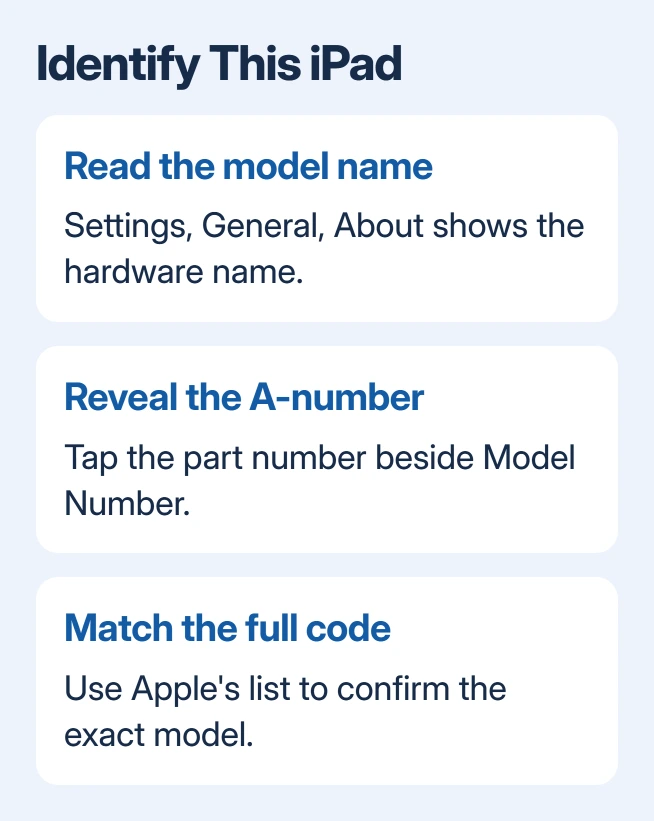
Open Settings, choose General, then open About. Read Model Name, including the size, generation or chip name shown with it. The editable Name field is a separate label and does not identify the hardware.
Apple documents these fields in its iPad information guide. The value initially beside Model Number is actually the part number. Tap that value to display the model number instead.
Status: Model identification documented by Apple, reviewed November 1, 2026. Settings and physical markings are supported routes; no iPad was inspected here.
Copy the A-number carefully. For example, Apple's list identifies A2696 as an iPad (10th generation). Other codes can identify cellular versions of the same generation, so use the complete code rather than its first few digits.
Match the code to Apple's model list
Open Apple's iPad identification list and search the page for the code. On a computer, Ctrl+F on Windows or Command+F on Mac opens the browser's page search.
Read the heading containing the match. It supplies the model family and generation or chip designation. The entry also distinguishes relevant Wi-Fi and cellular variants and includes physical details for comparison.
Keep the full model name when checking accessories. A screen-size label alone is not enough for choosing an iPad keyboard case, because its connector and camera opening must fit too.
The listed release year describes that model, not the date this particular iPad was bought. Storage capacity and color can help confirm an entry, but neither replaces the model code.
Identify an iPad that cannot open Settings
Remove its protective cover and inspect the back in good light. Apple says some iPads have the number there in its physical model-number instructions.
For an iPad without that marking on the back, Apple directs you to look inside the USB-C or Lightning connector. The number is on the connector's upper side, nearest the display. Use bright overhead light; do not insert a tool.
Leave the tablet assembled while reading its markings. If the printing is unreadable, ask Apple Support or an Apple service provider to help identify it before ordering a case or replacement part.
Once the model is known, a missing setting can make sense. The iPad volume-button options differ by hardware, even when two tablets run the same iPadOS version.
The Short Version
Read Model Name in About, reveal the A-number by tapping Model Number, and look up the complete code with Apple. When Settings is unavailable, check the back or the connector marking for that model.

Isaac Smith is the founder and editor of PC Glance, a website that covers computers, laptops, and technology. He is a tech enthusiast and a computer geek who loves to share his insights and help his readers make smart choices when buying tech gadgets or laptops. He is always curious and updated about the latest tech trends.