
When an iPad mini won't open apps, try opening Settings before deleting anything. If Settings works, you can check updates and work on the affected app. If the tablet ignores every tap, start with the frozen-iPad checks instead.
On an older mini, check which iPadOS version the app needs too. Reinstalling won't help if your mini can't run that version.
1. Compare the failing app with Settings and another app
Tap Settings, then try another installed app. Check whether the problem app opens and closes, stays on a loading screen, or doesn't react when you tap it. Save any error message, especially one that names a required iPadOS version.
If Settings works, the whole iPad hasn't frozen. Work through the app fixes next. If no app or system control responds, use the frozen iPad procedure before trying to change or remove apps.
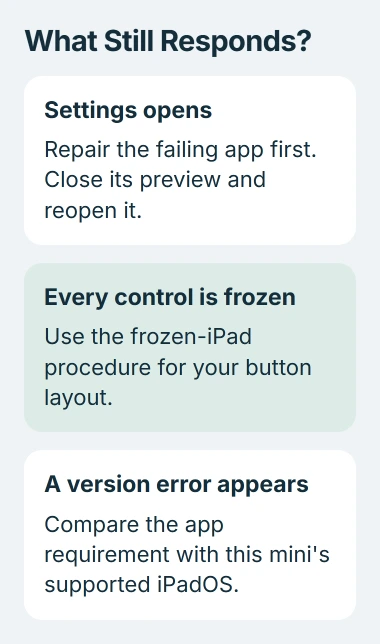
If an app opens but can't sign in or load its feed, it has launched. Send its developer the connection or account error shown on screen so they know where it gets stuck.
Try tapping controls in another part of the screen too. If icons in one physical area ignore taps while controls elsewhere work, have the touch screen checked before deleting the apps in that area.
2. Close the affected app and open it again
On a mini without a Home button, start at the screen's bottom edge, swipe upward, then pause near its center. On a mini with a Home button, press Home twice for the app switcher.
Find the problem app's preview and swipe that preview upward to close the app. Go back to Home and tap the app's icon. This stops the stuck app without deleting its saved data.
Apple recommends closing the affected app in its app-opening instructions. Close that one app rather than making a habit of sweeping every preview away.
If the app stays open, try what failed before, such as opening the same note or project. Check that your work opens, rather than stopping at the welcome screen.
If the app closes so quickly that no preview remains, restart the mini next. If the preview won't move and the rest of the tablet stops responding too, use the frozen-device procedure linked earlier.
3. Restart the mini using its own button layout
For a mini without a Home button, hold either Volume key together with Top until the shutdown slider appears. Release the buttons, drag the slider, and wait 30 seconds. To turn it back on, hold Top until you see its Apple logo.
For a Home-button mini, hold Top alone to display the slider. Turn it off, wait 30 seconds, then hold Top to start it. Unlock with your passcode and test the affected app before changing another setting.
Use this normal restart if the shutdown slider works. A forced restart is for an iPad that won't respond; you don't need that button sequence just because one app is misbehaving.
If several apps work again after restarting, see how they behave during normal use. If just one fails again right away, check for its update next. If several keep failing, tell device support which apps are affected.
4. Update the app and check the mini's supported software
Open App Store, tap your profile picture, then open App Updates on the current layout. Install an offered update for the affected app. Older App Store layouts show the available updates directly on the account page.
Next open Settings > General > Software Update. After a backup, connect the mini to power and Wi-Fi and install a compatible update if offered. The version you can install depends on which mini you have.
Open Settings > General > About to check Model Name and your installed software version. The iPad model identification steps explain how to check its generation if the name isn't clear.
Open the app's App Store listing and read Compatibility in its information section. Compare the iPadOS version it needs with the version on your mini. Not every app supports every mini.
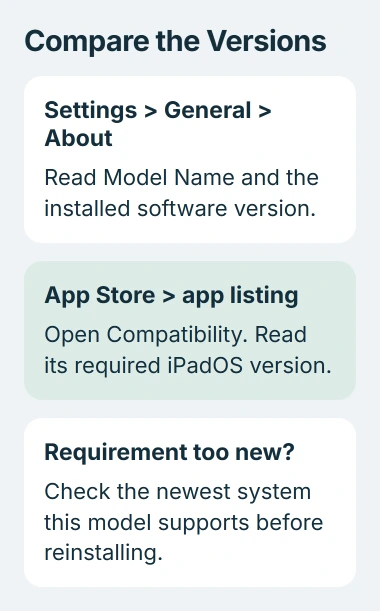
Check the supported models in the current iPadOS download instructions. An older mini can have its latest available update and still be unable to run the iPadOS version an app requires.
If the app needs a version your mini can't run, ask the developer about another way to use it or an alternative. A factory reset won't let an older mini run a system version it doesn't support.
5. Review storage before removing the app
Open Settings > General > iPad Storage. Let the list finish loading, then read any storage warning and the suggestions shown.
If storage is almost full, start with something you can download again, such as a movie you no longer need.
Tap an app in the storage list to see how much space it uses and what you can remove. Offload App keeps saved documents and data, removing just the app's software. Delete App removes both the software and that saved content.
I'd check what's being removed before accepting a cleanup suggestion or choosing Delete App. Check export or backup options if the app holds your only copy of notes, drawings, recordings or documents.
Open the app again after freeing space. If it still closes but other apps work, reinstall that app next. No single amount of free space makes every app launch.
6. Reinstall only after protecting that app's work
Check that your important work has synced, been exported or is in a backup you can use. When the app closes too soon for you to save projects stored on the iPad, check its developer's instructions first.
Delete the affected downloaded app, then find it again in the App Store and redownload it. Sign in if the app requires an account and check whether the same screen now opens normally.
If it still won't open, tell its developer what happens and include your mini model, iPadOS version and app version. If several built-in apps fail together, ask device support for help and say which system controls still work.
The Short Version
Compare apps, close the problem app and restart. Check app updates, the iPadOS version your mini can run and storage. Save your work before reinstalling. If your mini can't run the software an app needs, ask about another way to use it.
Checked November 5, 2026.

Isaac Smith is the founder and editor of PC Glance, a website that covers computers, laptops, and technology. He is a tech enthusiast and a computer geek who loves to share his insights and help his readers make smart choices when buying tech gadgets or laptops. He is always curious and updated about the latest tech trends.