

Yes, Bluetooth mice and compatible USB mice work with iPad, including models that use a USB receiver with the right adapter.
Pair a Bluetooth model in Settings > Bluetooth; for a wired model, connect it through the iPad's USB-C or Lightning port with suitable hardware.
Normal mouse and trackpad support requires iPadOS 13.4 or later. The connection type matters more than the mouse's brand, although some models have features that don't work fully on iPad.
In this guide
Choose Bluetooth, a cable, or a USB receiver
Check the mouse's connection method before buying an adapter. A Bluetooth mouse pairs through Settings without a receiver. A wireless mouse that only talks to its own USB receiver needs that receiver plugged into the iPad.
Some mice support both methods. Choose Bluetooth if you want to leave the port free for charging, or use the receiver if that's the connection your model provides. Check the specifications to tell which wireless method it uses.
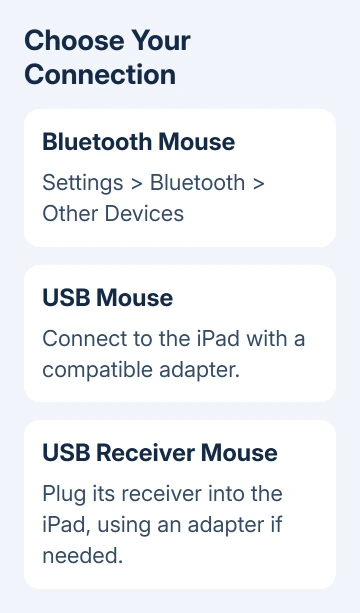
Check the iPad's installed version under Settings > General > About. Apple says mouse and trackpad support needs iPadOS 13.4 or later. A connected mouse produces a circular pointer.
Adding a USB adapter won't help if your iPad can't run a supported iPadOS version. Check its software before spending money on connection hardware.
Pair a Bluetooth mouse
Charge the mouse or fit working batteries, switch it on, and follow its pairing instructions. If your mouse has channels for several devices, select an unused one for the iPad.
Open Settings > Bluetooth on the iPad and turn Bluetooth on. Keep that screen open and tap the mouse when it appears under Other Devices. Wait for it to show as connected, then move it to check for the pointer.
For Magic Mouse, check that it has charge and its power switch is on. If the pairing process asks for a PIN, enter 0000 and tap Pair. Don't assume that PIN applies to a different manufacturer's mouse.
A mouse already paired to a Mac or another iPad may need to be unpaired there first. On a current Mac, open System Settings > Bluetooth, Control-click the mouse, and choose Forget.
On macOS 12.5 or earlier, use System Preferences > Bluetooth and Remove.
Once the iPad shows it as connected, click an app icon. If the app opens, the mouse is controlling the iPad, rather than just appearing by name in the Bluetooth list.
If it won't appear, repeat the pairing procedure on the intended device channel.
Connect a USB mouse or wireless receiver
On a USB-C iPad, a mouse with a suitable USB-C connection can connect to that port. A USB-A mouse or USB-A receiver needs a compatible USB-C adapter or hub that supports data.
On a Lightning iPad, use an appropriate Lightning-to-USB adapter. Check that the adapter works with your mouse and iPad. An adapter that only charges the iPad can't carry the mouse's input.
Plug in the mouse or its receiver, switch the mouse on, and move it. There isn't a Bluetooth pairing step for a mouse communicating through its USB receiver. Looking for that model in Other Devices won't help unless it also has Bluetooth.
If the iPad reports that an accessory needs too much power, use a suitable powered adapter or hub according to its maker's instructions. Avoid buying several random adapters before checking the exact port and mouse connection you have.
For a receiver mouse that still does nothing, check the battery and its receiver channel. The Logitech mouse connection guide explains why a working mouse can remain on the wrong device channel.
Set pointer speed, scrolling, and secondary click
With the mouse connected, open Settings > General > Trackpad & Mouse. Adjust Tracking Speed until a comfortable movement reaches the intended part of the screen. This changes pointer movement, rather than how far a page scrolls.
Set Natural Scrolling to the direction you prefer. Try it in a long Settings list or document immediately so you can judge the movement. You don't need to copy another person's preference if the opposite direction feels natural to you.
Open Secondary Click and choose the side you want to use. On iPad, a secondary click does the job of a long press: try it on a Home Screen app icon to see its menu.
You can also hold Control on a connected keyboard while clicking to make a secondary click.
The first-generation Magic Mouse doesn't support scrolling or other gestures in iPadOS. A moving pointer with missing scrolling on that model is a compatibility limit, rather than a Natural Scrolling setting you missed.
For pointer appearance, open Settings > Accessibility > Pointer Control. Adjust pointer size, contrast, or color there. Scrolling Speed is also in this section, separate from Tracking Speed in the mouse controls.
Use the pointer without losing touch controls
The pointer starts as a circle and changes shape around some controls and text. It can become a text insertion marker in a document or highlight an app control. Those changes are part of iPad's pointer behavior.
It also hides after a short period without movement. Move the mouse to bring it back before assuming the connection has dropped. Pointer Control offers an automatic-hide setting if you want to change that behavior.
Touch remains useful alongside the mouse. You can tap the screen for a quick action, then return to the pointer for selecting text or working in a document.
Using a mouse doesn't mean you have to treat every task like you're on a desktop computer.
If the onscreen keyboard isn't showing, tap the keyboard control at the lower right and choose the option to show it. For a second input device, the iPad keyboard connection guide explains Bluetooth, USB, and keyboard cases.
When a connected mouse still won't work properly
For a Bluetooth mouse that disconnected after being switched off or moved away, bring it close, switch it on, and click. If it won't reconnect, check the battery and whether another paired device has taken the connection.
For buttons or scrolling that remain unsupported, check the mouse manufacturer's iPad compatibility information for your particular model.
Ask whether its receiver, extra buttons, and scrolling work on your installed iPadOS version before replacing hardware.
The Short Version
Use Bluetooth pairing or a compatible USB connection on an iPad running iPadOS 13.4 or later. Check for the circular pointer, then adjust Trackpad & Mouse and Pointer Control.
USB receivers need adapters, and first-generation Magic Mouse scrolling isn't supported.
Checked November 12, 2026.
 If you have any business, I can build it online






