

The fix for a Logitech iPad keyboard depends on its connection. Combo Touch needs its Smart Connector contacts lined up; a Bluetooth model such as Slim Folio needs its own power and Bluetooth pairing.
Check the model name first, then try typing a short line in Notes. That tells you whether the keyboard has stopped working everywhere or only in one app.
1. Match the repair to the keyboard model
Read the keyboard's label and check which iPad model it fits. Cases can look similar but be made for different iPad generations, so fitting around your tablet doesn't mean it's the right model.
For Combo Touch, start with the contacts and check that the case sits squarely. It connects through the iPad's Smart Connector, so searching the Bluetooth list won't fix it.
For Slim Folio, check Bluetooth and the keyboard's own power. Other Logitech models can have different batteries, charging ports and pairing buttons. Match the instructions to the name printed on yours.
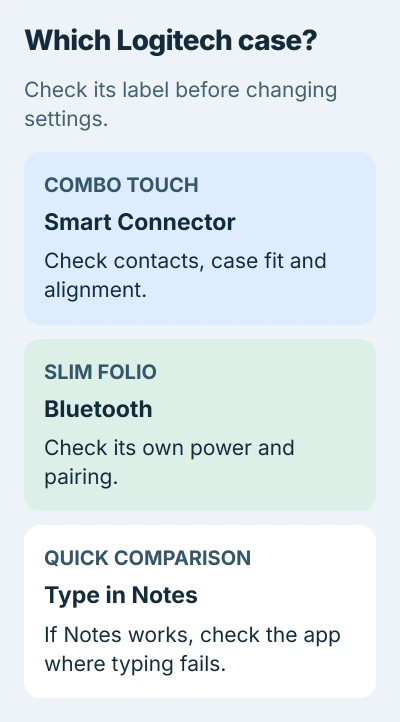
Open Notes, create a new note you can delete afterward, and tap its text area before typing. If typing works in Notes but fails elsewhere, keep the keyboard connected and check the affected app's editing mode or update it.
If nothing types in either app, follow the checks for your keyboard's connection next. The onscreen keyboard disappearing doesn't tell you whether the attached keyboard works.
For wired and other keyboard types, use the general iPad keyboard connection guide. The checks here cover Logitech's Smart Connector and Bluetooth cases.
2. Reseat Combo Touch and check its contacts
Detach the keyboard and lift the iPad out of the case if it isn't sitting squarely. Check that nothing is trapped around the holder or between the contact surfaces, then fit the tablet fully back into its case.
Logitech recommends checking contacts and case alignment first. Follow its Combo Touch repair steps.
Use a soft, lint-free cloth to clean the Smart Connector contacts you can reach, then reconnect the keyboard in its typing position. It should attach gently and sit flat; don't scrape the contacts or force the wrong case to fit.
Type in Notes again before changing software settings. If reconnecting restores typing, check whether normal movement disconnects it again. Tell support if it does, since the contacts or case fit may be the problem.
If the keyboard works but the trackpad doesn't, tell support. Losing both is different from trouble with a pointer setting or one damaged key.
3. Put Slim Folio into its active typing position
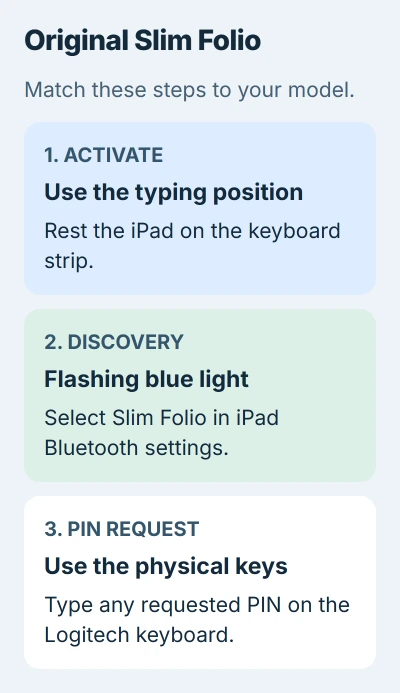
On the original Slim Folio covered by the pairing instructions, rest the iPad on the keyboard's magnetic strip to turn it on. That model doesn't have a separate On/Off switch.
Its light first glows green. It flashes blue rapidly when the keyboard is ready to pair through Bluetooth, then stays solid blue once connected. The light tells you whether it's powered up and ready to pair.
These original Slim Folio steps describe one model. Other generations and Slim Folio Pro can have different power controls.
If the light stays off, follow your model's instructions to check its replaceable batteries or charge it if it's rechargeable. Don't assume your iPad charges a Bluetooth keyboard through the case.
If the light comes on but you still can't type, keep the tablet in its typing position and try pairing next. Folding the case into another position can turn off the keyboard.
4. Pair the Bluetooth model again when needed
Open the iPad's Settings > Bluetooth and check the keyboard's entry. If it appears as connected, try switching the keyboard off and back on using its own controls before removing the saved pairing.
If a previously paired keyboard won't reconnect, tap the information button beside its name and choose Forget This Device. Put the keyboard into discovery mode so the iPad can find it, then select it from the available devices.
On the original Slim Folio, use the Bluetooth connection key to let another iPad find it. If you see a PIN during pairing, type that number on the physical Logitech keyboard instead of the tablet's touchscreen.
Apple's Bluetooth accessory checks also cover keyboards connected to other devices. Unpair it from the other nearby device, then try connecting it to this iPad again.
Keep the keyboard close while pairing. If your iPad can't connect to any Bluetooth accessory, tell support. If only this keyboard fails, continue with the model and update checks next.
5. Restart the iPad, then check available updates
Shut down the iPad normally, turn it back on, and reconnect the keyboard. This clears a temporary problem on the iPad without removing your files or the keyboard's settings.
If the whole tablet is frozen, use the iPad restart procedure for its button layout. A Home-button model and an iPad without that button use different forced-restart sequences.
Then open Settings > General > Software Update and install an available iPadOS update. Try typing in your Notes test again after startup to see whether anything changed.
For Combo Touch, open Logitech Control on the connected iPad. If it offers a firmware update, follow the instructions with the keyboard connected. Firmware is the keyboard's built-in software.
I'd finish the connection checks before looking for updates. Tell support if moving the case disconnects the keyboard, even when an update is available.
6. Give support the connection result
Contact Logitech if the case is made for your iPad but still won't type after these checks. Give them the keyboard's exact model, your iPad model and iPadOS version, and say whether any keys work in Notes.
For Combo Touch, describe what happens after reseating. For Slim Folio, report the indicator color and whether pairing completes. Tell support whether all keys, just a few keys or only the trackpad have stopped working.
If other Bluetooth accessories fail too, or the iPad's touchscreen won't respond, contact Apple Support as well. Erasing your iPad isn't a useful first step for one accessory that won't work.
The Short Version
Combo Touch needs aligned contacts; Slim Folio needs power and Bluetooth pairing. Identify the model, compare typing in Notes, then restart the iPad and check the updates for that keyboard.
Checked November 5, 2026.

Isaac Smith is the founder and editor of PC Glance, a website that covers computers, laptops, and technology. He is a tech enthusiast and a computer geek who loves to share his insights and help his readers make smart choices when buying tech gadgets or laptops. He is always curious and updated about the latest tech trends.