
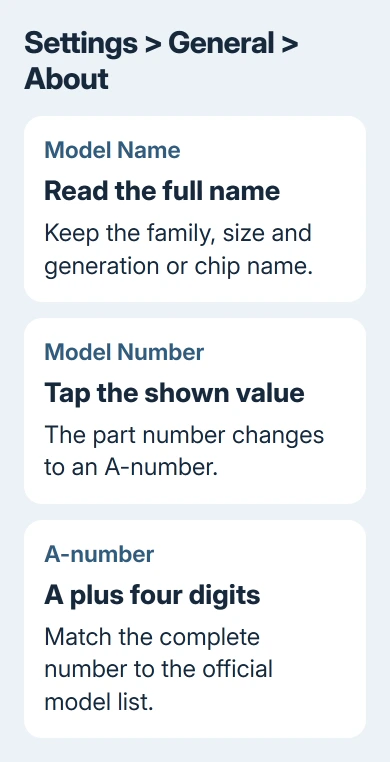
The quickest way to find your iPad's generation is Settings > General > About > Model Name. For an exact match, tap Model Number until it shows an A followed by four digits, then match that number to the official iPad model list.
A generation number only makes sense with the iPad family and, for some Pro models, its screen size. Use the complete name to check cases, keyboards, Pencils and replacement parts.
Start with the name in About
Open Settings, tap General, then About. Look for Model Name. The separate Name field at the top is editable. Someone can rename a device without changing which iPad it is.
Write down the whole Model Name. It may include a generation, a chip name or a screen size. Don't shorten an iPad Air or iPad Pro to a numbered standard iPad just because the descriptions share a number.
The iPad information guide explains the About screen's device information. The installed software release and the hardware model are different details.
For example, an iPad running a newer iPadOS release doesn't become a newer hardware generation. An operating-system number tells you which software is installed, not the year the tablet was designed.
If Model Name tells you what you need, save the full name. If a compatibility list asks for an A-number, or the wording doesn't include a familiar generation, continue with Model Number.
Reveal the hardware identifier in Model Number
On the same About screen, find Model Number. It can initially show a part number rather than the A-number you need for the model list. Tap it to reveal the model number beginning with A.
Apple's model-number instructions explain this switch. Copy all four digits after the A. A single changed digit can point to a different size, generation or cellular version.
Don't use Serial Number for this lookup. The serial identifies your individual iPad, while the A-number tells you which version of that model it is. Keep the serial private when asking others to identify the generation.
Leave the About screen open while you compare it with the list on another device, or make a private note of the A-number. No settings change or extra identification app is needed.
If a seller or repair shop supplied only a part number, ask them for the A-number and full Model Name. That avoids guessing from a sales description that may have omitted the screen size or connectivity variant.
Match the number to the correct iPad family
Open the official Identify your iPad model list. It groups models into iPad Pro, iPad Air, iPad mini and iPad. Search the page for your complete A-number.
On a computer, press Ctrl + F on Windows or Command + F on Mac and type the number. On an iPad, use the browser's Find on Page command. Read the model heading that your number appears under.
Write down that heading and the version beside your number. An iPad family can have several A-numbers for Wi-Fi, Wi-Fi + Cellular and regional versions. Several numbers under one heading don't mean several different generations.
These examples show how exact matching works:
| Model number | Model listed |
|---|---|
| A2602 | iPad (9th generation), Wi-Fi |
| A2696 | iPad (10th generation), Wi-Fi |
| A2270 | iPad (8th generation), Wi-Fi |
Use those examples only if your number matches exactly. For any other number, read its own entry in the model list rather than choosing the nearest-looking identifier.
The entry also lists details such as capacity, display features and connector type. Use those as a second comparison when buying a used tablet or checking a description that doesn't match the device in front of you.
Keep screen size and chip names in the answer
Some newer models are identified by chip name rather than a simple numbered generation. A model such as iPad (A16) should keep that wording when you look for compatible accessories or support information.
Keep the full name for iPad Air (M2) or an iPad Pro identified by size and chip. Don't turn the chip's number into a generation number. A chip name and a generation number describe different things.
Older iPad Pro generations also depend on size. The official list includes iPad Pro 11-inch (4th generation) and iPad Pro 12.9-inch (6th generation). Calling both simply an iPad Pro leaves out information an accessory seller needs.
I'd save the full model heading and A-number together. That short note is more useful for future repairs and purchases than remembering a generation number without its family.
When a shop's label uses different wording, give the seller your A-number and ask them to confirm compatibility in writing. Don't choose a case only because the advertised diagonal screen measurement looks close.
Find the number when Settings isn't available
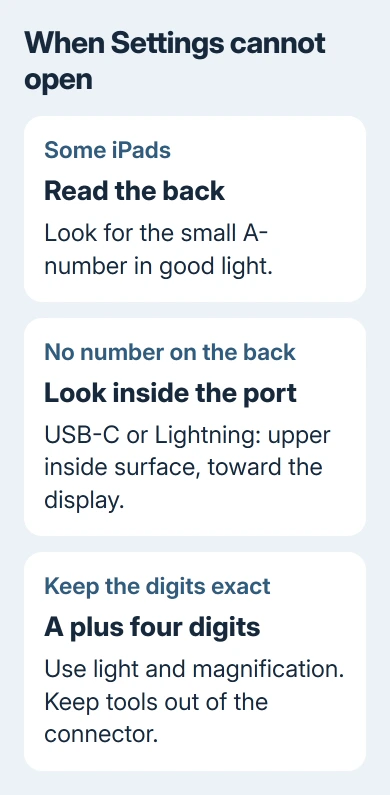
Remove any case covering the back and read the small device markings in good light. Some iPads have their A-number on the back. Use a magnifier if needed rather than guessing at a faint digit.
If your iPad has no model number on the back, the model-number instructions say to look inside its USB-C or Lightning connector. The marking is on the upper side, toward the display. Shine light in and look without inserting tools.
An original box or receipt can be a useful cross-check, but make sure it belongs to this tablet. A box swapped during a secondhand sale can describe a different device even when the iPad fits inside it.
If the iPad is locked, the printed A-number can still tell you which model it is. It doesn't remove the passcode or Activation Lock. Identification and recovering access are separate tasks.
Use the exact model for accessories and service
For a keyboard that connects through the metal contacts on the iPad, check the supported model list using the complete name. The Logitech iPad keyboard checks explain why matching the keyboard and tablet matters before reconnecting them.
For a charger or other device that triggers a warning, use the iPad accessory connection checks. Knowing the generation helps, but the connection, accessory requirements and installed software still matter.
If no list entry matches, recheck the digits and confirm you're using Model Number rather than the serial or part number. Ask Apple Support to identify the iPad from those markings if they're damaged or unreadable.
For a used purchase, ask the seller for a clear view of About showing Model Name and the A-number. A listing that supplies only a personal device name or iPadOS version hasn't answered the hardware question.
The Short Version
Use About in Settings to read the model's name and reveal its A-number. Match it to the official list and keep the full family, size and chip or generation name.
Checked November 9, 2026.

Isaac Smith is the founder and editor of PC Glance, a website that covers computers, laptops, and technology. He is a tech enthusiast and a computer geek who loves to share his insights and help his readers make smart choices when buying tech gadgets or laptops. He is always curious and updated about the latest tech trends.