

An iPad can record muffled sound or silence when a microphone is blocked or an app lacks permission. Remove the case and compare both cameras first. If both recordings are clear, check the affected app or accessory next.
One silent calling app, a quiet headset and missing screen-recording narration need different fixes. Follow the section that matches what fails rather than resetting every audio setting on the iPad.
In this guide
1. Uncover the microphones and compare both cameras
Take off the case, film or screen protector for the check. Check the microphone openings for debris and gently remove anything loose that's blocking them. Keep pins and other tools out of those openings.
Open Camera, select Video, and record yourself speaking toward the front camera. Switch to the rear camera and make a second recording while speaking toward that side. Play both clips and listen for a clear voice.
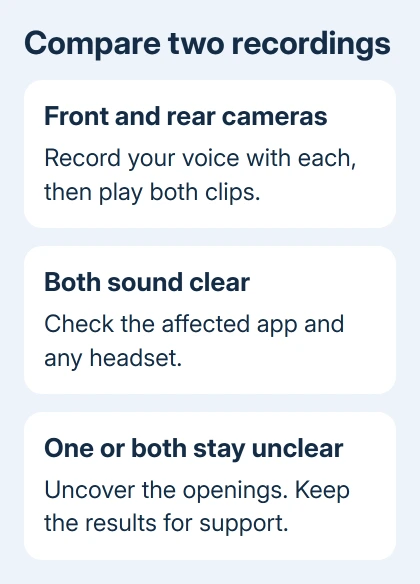
Apple says to compare both cameras in its iPad microphone procedure. It also calls out hands, cases and screen protectors covering microphone openings on several newer iPad models.
That includes iPad (10th generation), iPad (A16), recent iPad Air M2, M3 and M4 models, and iPad Pro M4 and M5 models. Check how you hold the iPad when a voice becomes muffled in landscape.
A protector needs an opening over the front microphone where the model requires it. Microphone locations differ between iPad models. A case that fits around the camera can still cover a different opening.
If both recordings sound clear, continue with the app check. If only one stays muffled with the case or protector removed, keep both recordings for support. They can help you explain which side sounds wrong.
Before judging a silent recording, make sure a familiar video plays audibly too. The iPad playback checks help separate a speaker or output problem from a microphone that didn't capture sound.
2. Give the affected app microphone access
For one app that records silence while Camera sounds normal, open Settings > Privacy & Security > Microphone. Find the app and turn access on. Return to it and start a fresh recording or call.
On older iPadOS versions, the section may be named Privacy instead of Privacy & Security. Use its Microphone list. The list shows apps that have requested access, rather than every installed app.
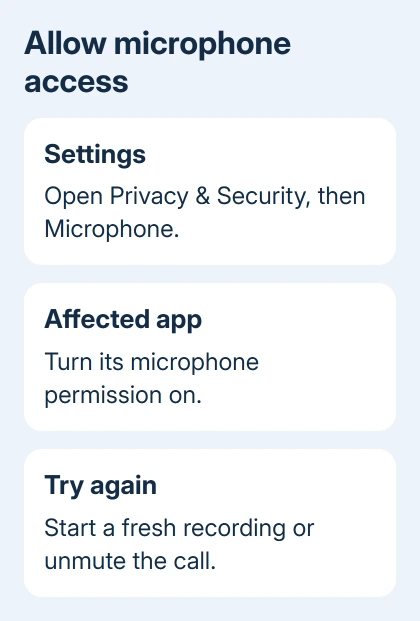
If the app isn't listed, try its recording feature and answer a permission prompt if it appears. When it already has permission, or still doesn't appear, ask the app developer for help with that feature and your iPadOS version.
During a call, check the app's own microphone or mute button too. A muted call can stay silent even though iPadOS permits microphone use. Turn that control back on and have the person on the call check whether they can hear you.
An orange indicator shows microphone use without camera use. A green indicator appears when the camera is used, including with the microphone. These privacy indicators show use, not recording quality.
For one app that still fails, tell its support team whether both Camera clips have sound and whether its microphone permission is enabled. That's more useful than reporting only that the iPad microphone is broken.
3. Check the headset separately
Disconnect wired headphones, USB audio accessories and any external microphone. For Bluetooth headphones, disconnect them through Settings > Bluetooth. Try the affected recording or call again with the iPad on its own.
If your voice returns, check the accessory and its connection. Confirm the headphones include a microphone, its opening isn't blocked and the connector is firmly seated. A case can stop a plug from going fully in.
Try another compatible headset when one is available. If a second headset works in the same app, the original accessory is the part to check. The headphone microphone checks use that comparison before replacement or service.
Give support separate results for the iPad's microphones and the accessory. A clear Camera recording made without a headset doesn't tell you whether the headset microphone works, and replacing the iPad won't repair a damaged headset cable.
4. Enable narration for a screen recording
Screen recording has its own microphone switch. To open Control Center, drag downward starting at the display's upper-right edge. Touch and hold Screen Recording, turn Microphone on, then start the recording.
Make a short sample and speak after the countdown. Stop it and replay the saved video before making a long explanation. Even with narration on, an app can restrict the sound or video included in a screen recording.
The iPad screen recording steps explain the recording control and saved file. If the built-in Camera clips are clear but narration was off, you don't need a microphone repair for that silent screen capture.
5. Restart, then install an available iPadOS update
If the problem affects more than one app after those checks, restart the iPad normally. Without a Home button, press and hold Top together with either volume button. When the shutdown slider appears, let go and drag it.
With a Home button, press and hold Top on its own. Drag the shutdown slider when it appears. With either type of iPad, wait 30 seconds, then hold Top again. Let go of Top once the Apple logo appears.
Once the iPad starts up, try the feature that failed again. A restart keeps your data and gives the apps a fresh start. I'd do this before removing an app that contains recordings you haven't saved elsewhere.
Before an update, make a backup. Check Settings > General > Software Update, install an available compatible release and test again. Updating can help with software faults; it won't clear a blockage or repair a damaged microphone.
Arrange service for recordings that remain unclear
If the front and rear Camera recordings are still unclear with accessories disconnected and openings uncovered, ask Apple Support for an iPad microphone assessment. Give the model, iPadOS version and which of the two clips sounds wrong.
Keep a sample recording that shows the problem, using a clip without private conversation in it. If only one third-party app fails while both Camera clips are clear, take those results to that app's developer instead.
The Short Version
Uncover the microphones and compare both Camera recordings. For clear clips, check app permissions, mute and accessories. Enable Microphone for screen narration. Restart and update, then seek service if Camera audio stays unclear.
Checked November 10, 2026.
 If you have any business, I can build it online






