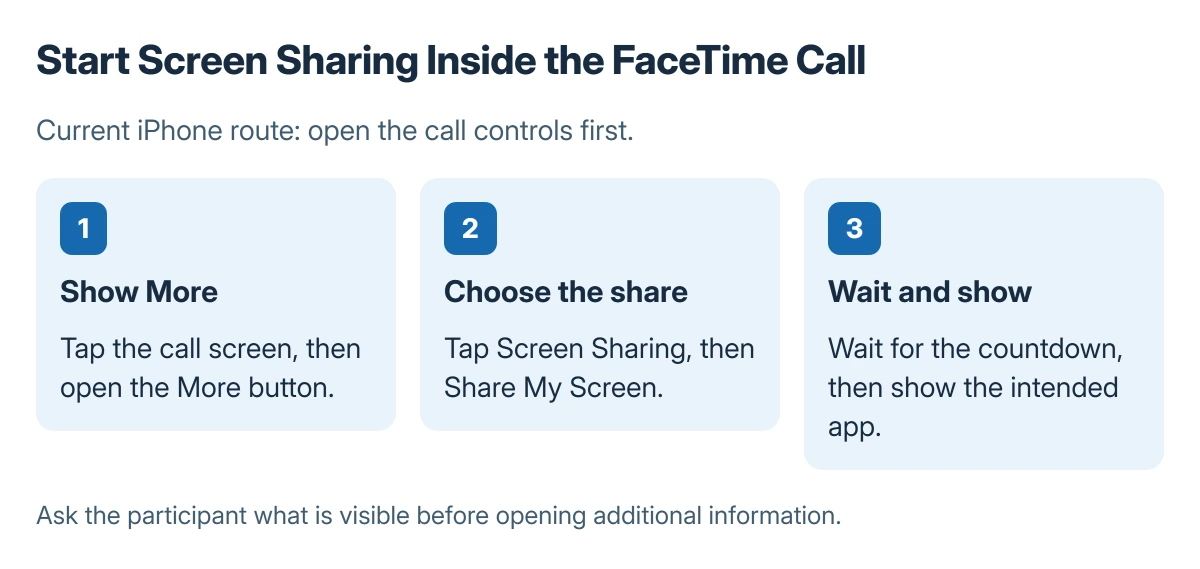
FaceTime screen sharing on iPhone starts inside an active call. Show the call controls, open More > Screen Sharing, and tap Share My Screen. A short countdown begins before the screen is shared.
The controls here follow Apple's current iPhone guide. A FaceTime guest joining from an Android or Windows browser cannot use the web version for screen sharing.
In this guide
Prepare what the other person should see
Open the page or app needed for the discussion and close unrelated private material. Explain what will be shown before beginning, particularly when helping someone with an account or document.
Apple documents the current path in its iPhone screen-sharing instructions. Start an ordinary FaceTime call first; the Screen Sharing control belongs to the call interface.
If that call cannot connect, check FaceTime's call settings before looking for sharing controls.
Status: the iPhone call-control route is documented by Apple and checked 23 October 2026. Screen sharing was not operated; menus can differ on older software.
Tap the screen if the controls are hidden. Choose More, then Screen Sharing > Share My Screen. Apple says the countdown runs from 3 to 1 before sharing begins.
Return to the intended app after sharing starts. Ask the participant to confirm what is visible before opening additional information, so the explanation follows the same screen at both ends.
For a tablet you own, compare the iPhone-to-iPad viewing options before treating a FaceTime call as a personal mirroring connection.
For a tablet demonstration to keep and replay, make an iPad recording instead of a live share.
To keep one visible moment instead, take a FaceTime screenshot and inspect its framing before sharing the saved picture.
Stop the share when the demonstration ends
Reopen the FaceTime controls. Choose More, then Stop next to Screen Sharing. Ending the FaceTime call also ends its screen share.
For Notes beside a small call window, use Picture in Picture; switching apps doesn't itself mean the screen share has ended.
To remain in the call while hiding the camera, pause FaceTime video and check the microphone separately.
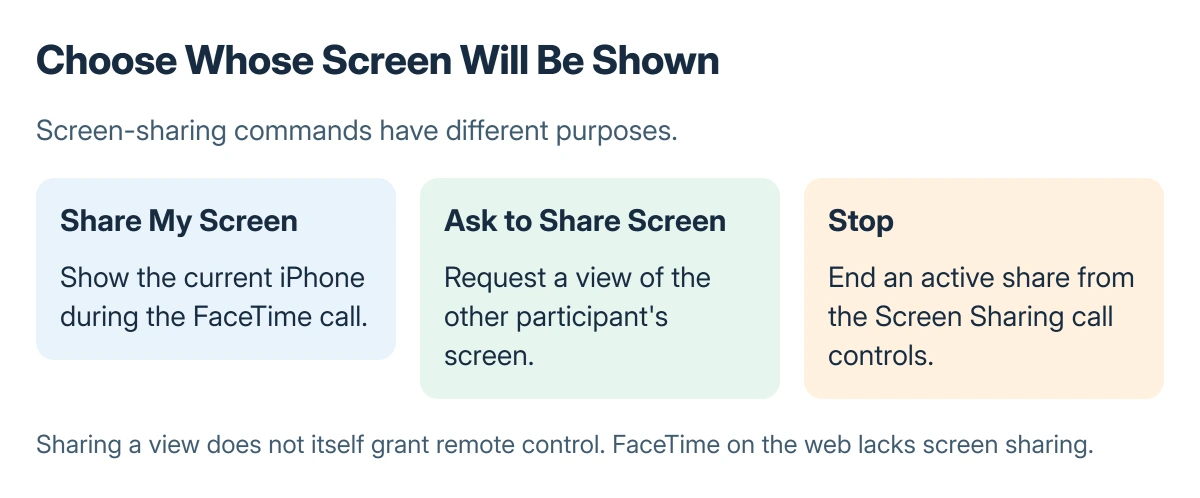
Apple states that Ask to Share Screen is a separate choice in the same menu. Select it when the other person needs to demonstrate their device instead.
Sharing a view is also different from allowing remote control. Do not accept an additional control request unless that access is intended and the participant is trusted.
For a camera view from Ray-Ban Meta glasses, check the supported calling app before looking for that camera in FaceTime.
For hands-on help, request FaceTime remote control after the screen share begins and have its owner approve access.
For guidance without control access, draw on the shared FaceTime view; the temporary marks show the other person which area you mean.
Match the missing control to the participant platform
Apple's web-call documentation excludes screen sharing and SharePlay from browser FaceTime. Ask which device and app the other participant is using before troubleshooting a missing option.
For a black self-view, check the iPhone front-camera guidance. When a contact's call shortcut launches another app, use the wrong-app calling checks first.
For supported Apple devices that still lack the menu, record the software versions and check Apple's current feature requirements with support. Avoid changing unrelated camera or network settings without a matching symptom.
The Short Version
During an iPhone FaceTime call, use More, Screen Sharing and Share My Screen. Stop sharing from the same controls when finished. Web FaceTime guests do not have screen-sharing support.
Where to Next
For a support conversation, stop sharing before entering passwords or moving to private material unrelated to the problem.