
Drawing on FaceTime works on a shared screen during a one-to-one call. Ask the other person to share their iPhone or iPad screen, open the shared view, then point or draw with your finger. The marks disappear after a few seconds.
For a drawing you want to keep, sketch in Notes while sharing your own screen instead. FaceTime's temporary marks help explain where to tap; they aren't a saved drawing placed over the camera picture.
In this guide
Choose whose screen needs the drawing
Use an iPhone or iPad to draw while viewing the other person's shared screen in a one-to-one FaceTime call. The person showing an app shares their device's screen. The person watching draws temporary marks to highlight an area.
For example, ask someone to share Settings if you need to circle a switch on their phone. Sharing your own screen would show your Settings instead, which may have a different layout or options.
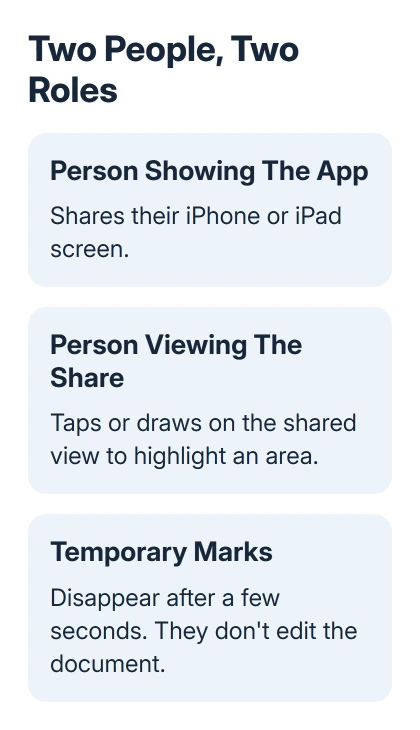
Apple's FaceTime screen-sharing instructions describe tapping, drawing, and writing during a one-to-one call. The marks last a few seconds, so use them alongside a short spoken explanation.
Keep this separate from drawing in a document. A circle on the shared view highlights an area of the screen; it doesn't edit the photo or add ink to the open note. The person sharing still chooses what to open and change.
If the call hasn't connected, use the FaceTime call checks first. Drawing depends on a working screen share that supports drawing, so camera effects and app permissions won't create a shared screen by themselves.
Have the other person start screen sharing
On current iPhone software, ask the person sharing to tap the active call to show its controls. Open More > Screen Sharing > Share My Screen. Wait for the countdown from 3 to 1, then open the app you want help with.
For the current iPad route, show the call controls, open More, and choose Screen Sharing > Share My Screen. Use the screen-sharing control shown by that software version if the call layout differs.
On the iOS 18 call layout, the sharing route uses Share Content > Share My Screen. The control's appearance can differ from the current More menu, so follow the sharing label instead of relying on the icon alone.
If you are the helper on a current iPhone, More > Screen Sharing > Ask to Share Screen sends a request. The other person needs to start the share; opening the request menu doesn't show their phone until they agree to share.
The FaceTime screen-sharing guide covers starting and ending the share in more detail. Once the app is visible at both ends, continue with the drawing on that shared view.
Before starting, close private material unrelated to the conversation. The viewer can see most of the shared screen. Keep the demonstration on the app or page you actually intend to show.
Open the shared view and draw with your finger
Tap the window displaying the other person's shared screen to focus on that view. Touch the area you want to highlight. Use a brief tap to point, or trace a small circle around the control you're describing.
Draw slowly enough for the other person to follow your explanation. A short word or a circle is usually clearer than handwriting a whole instruction across a small phone screen. Say the control's label while marking it.
Wait for the mark to disappear before highlighting a different place. This keeps the demonstration easy to follow, especially when the other person is scrolling or switching from one settings page to another.
The temporary marks disappearing after a few seconds is expected. There isn't a save step for those annotations in this procedure. For a drawing that lasts, use an app that stores the drawing itself.
I'd keep the shared page still while pointing out a control. A circle made just as someone scrolls is harder to match to the right item, even when the drawing feature is working normally.
Ask the person sharing to perform the next tap. They keep control of their device during an ordinary screen share, while your marks show which part of the screen you're discussing.
Leave remote control off when pointing is enough
Drawing doesn't require permission to operate the other device. A request for Remote Control asks for more access. If it appears and you only need pointing, the person sharing can choose Don't Allow.
Screen sharing continues after they choose Don't Allow, and the viewer can still tap, draw, or write to highlight areas. This is useful when the person sharing wants guidance while making every actual change themselves.
Remote control has separate device, contact, and regional requirements and needs iOS 18 or iPadOS 18 or later. A missing remote-control option doesn't automatically explain a failure of temporary pointing.
Only approve remote control if you want to give that extra access. It can allow the other participant to open apps, change settings, delete items, and send messages. A drawing-only explanation doesn't need that permission.
To end an approved control session while continuing the conversation, use its Stop control. Keep the distinction clear between stopping control, stopping screen sharing, and hanging up the call.
Use Notes when the drawing should remain
Open Notes on the device whose screen you'll share and create or open a note. Tap Markup, then choose a pen, pencil, or marker and a color. Draw with a finger, or use Apple Pencil on a compatible iPad.
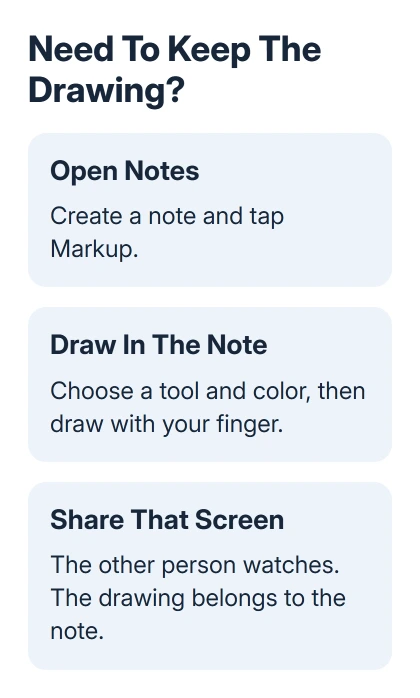
Share that device's screen so the other person can watch the sketch develop. This time, you're drawing in the note itself. The viewer's temporary pointing marks are still a separate layer of guidance on the shared view.
Tap the chosen drawing tool again to change thickness or opacity. Use the eraser for corrections and Undo if needed. Keep useful drawings in an iCloud note or a note stored on the device, where you can use those drawing features.
Sharing the screen shows the note; it doesn't automatically invite the other person to edit that note. If both people need to keep changing the same document afterward, set up the app's collaboration separately.
Stop sharing or check a missing drawing feature
On current iPhone software, reopen More and tap Stop next to Screen Sharing. Hanging up ends screen sharing too. Confirm the share is off, then open any unrelated material.
If marks won't appear, confirm it's a one-to-one call and that the other person's screen is actually shared. Update both Apple devices through Settings > General > Software Update, then call again and restart screen sharing.
If drawing still doesn't work, contact Apple Support under FaceTime. Give both device models and software versions, say who is sharing, and explain whether the shared view works but finger marks don't.
The Short Version
Have the other person share their screen in a one-to-one FaceTime call, then open the shared view and draw with a finger. Marks fade after seconds. Remote control is separate; use Notes while sharing your own screen for a drawing to keep.
Checked November 12, 2026.






