

The iPad can use one wallpaper for both screens or a different picture behind the apps. Open Settings > Wallpaper > Add New Wallpaper to choose the image, then decide how the two screens should look.
In this guide
Choose the picture and the screens that use it
Apple documents the iPad wallpaper settings with two finishing choices. Decide whether the image belongs behind the clock, the app icons, or both before saving it.
Status: Wallpaper, photo framing and saved Lock Screen controls checked against Apple's iPad guide on October 29, 2026. Available effects depend on the iPad and software.
- Open Settings > Wallpaper > Add New Wallpaper.
- Tap Photos for an image from the library, or choose a built-in collection.
- Adjust the preview, then tap Add.
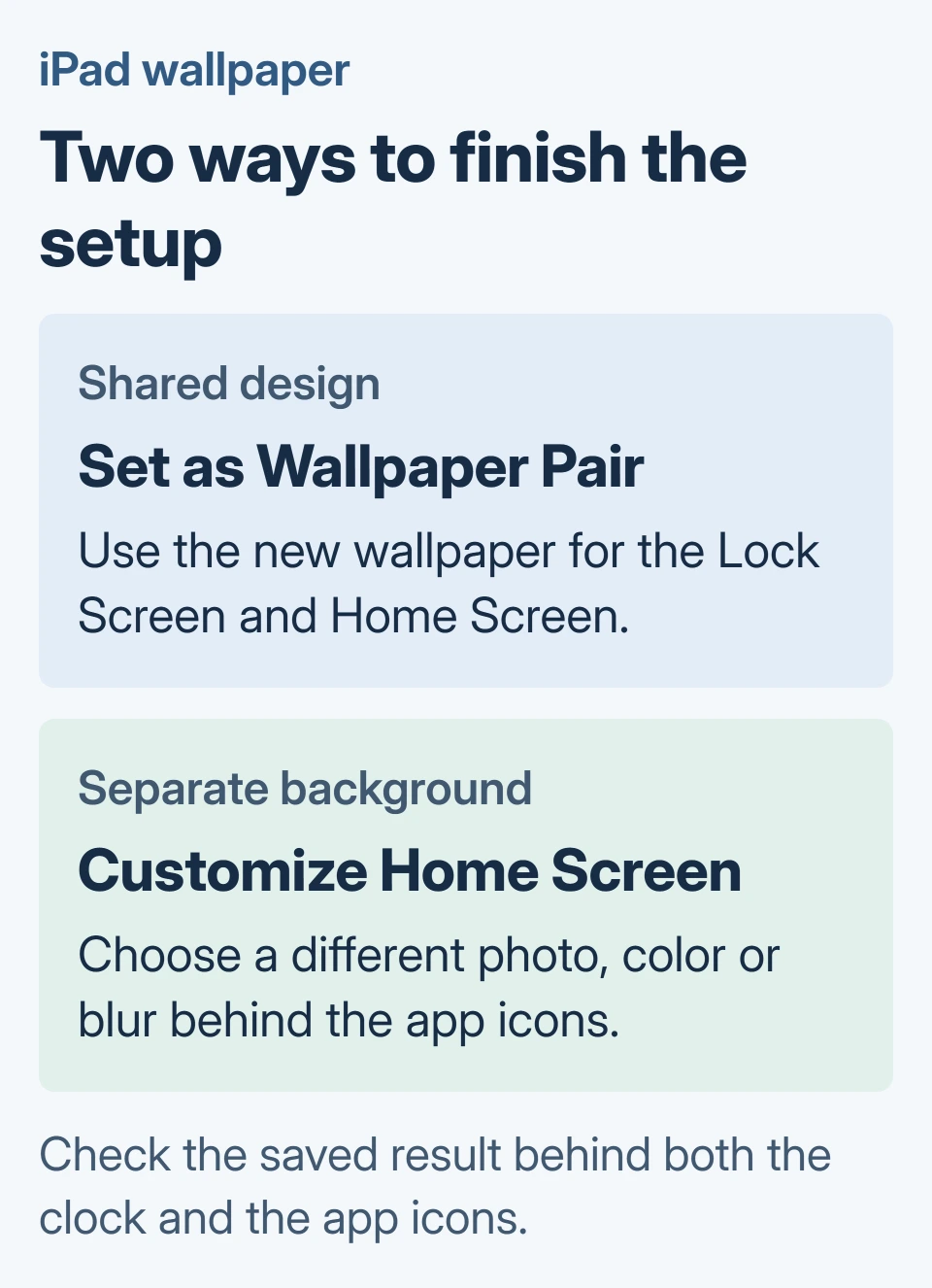
- Select Set as Wallpaper Pair to use the new design for both screens, or Customize Home Screen to change the background behind the apps separately.
The separate Home Screen controls offer a color, another photo and Blur. Apple says Blur makes the app icons stand out; turn it off when a sharp background matters more.
If a collection is missing from the first screen, scroll through the gallery. Some choices have a Get button to download them.
Frame a photo before saving it
Apple's custom Lock Screen guide describes pinching open to enlarge the photo, dragging with two fingers to move it, and pinching closed to reduce the zoom.
Keep the subject clear of the clock and any widgets in the preview. For a face near the edge, try a less tightly cropped original if repositioning still cuts it off.
After saving, inspect the actual Home Screen with icons present. Then lock the iPad with its top button and wake it to check the other view.
Our suggestion is to review both portrait and landscape if the tablet is used both ways. Reopen the wallpaper editor when the saved result hides an important part of the picture.
Once the background fits, build an Android-inspired iPad layout with widgets and familiar app positions.
Reuse or edit a saved Lock Screen
Press the top button to show the Lock Screen, then touch and hold the screen. Swipe to the saved design you want and tap it to switch. Choose Customize when that existing design needs editing.
For duplicates you no longer use, delete the saved iPad wallpaper from the gallery while keeping its original photo.
If the gallery does not open, touch and hold again and enter the passcode when asked. Creating another wallpaper is unnecessary when the desired design is already saved.
Apple states that linking a Lock Screen to a Focus makes its wallpaper switch automatically with that Focus. An unexpected background change can therefore come from the saved association.
In the Lock Screen gallery, inspect the Focus control for that design. Check that relationship before replacing a wallpaper that otherwise looks right.
For a phone as well as a tablet, the iPhone wallpaper guide covers its screen choices. Do not expect every effect shown on a newer iPhone to appear on an older iPad.
If the clock displays the wrong hour, correct the iPad's time settings before changing its visual design.
If Add or Customize still cannot save a normal photo, contact Apple Support with the iPad model, iPadOS version and the stage that fails. A missing optional effect alone does not show that wallpaper setup is broken.
The Short Version
Pick the image in Wallpaper settings, check its framing and choose which screens should use it. Review the saved result behind the clock and app icons, then check any linked Focus if it changes unexpectedly.
 If you have any business, I can build it online






