Apple Music artwork can stay blank or wrong on an iPhone when the Mac's album changes haven't synced. Check the affected songs' Artwork tab first, then refresh the music through Sync Library or Finder, whichever you're already using.
A subscription library and music copied by cable need different steps. Don't switch between them just to refresh a cover, because that can replace the music already stored on your phone.
In this guide
1. Check the artwork on the actual songs
Open Music on your Mac and choose Songs in the sidebar. Select an affected track, then choose Song > Get Info > Artwork. Check the image there instead of judging it from the library's album tile.
The tile tells you what Music is displaying for the album. Checking individual songs tells you whether the tracks you're transferring have the intended picture. Start with one album so you can follow its result on the iPhone.
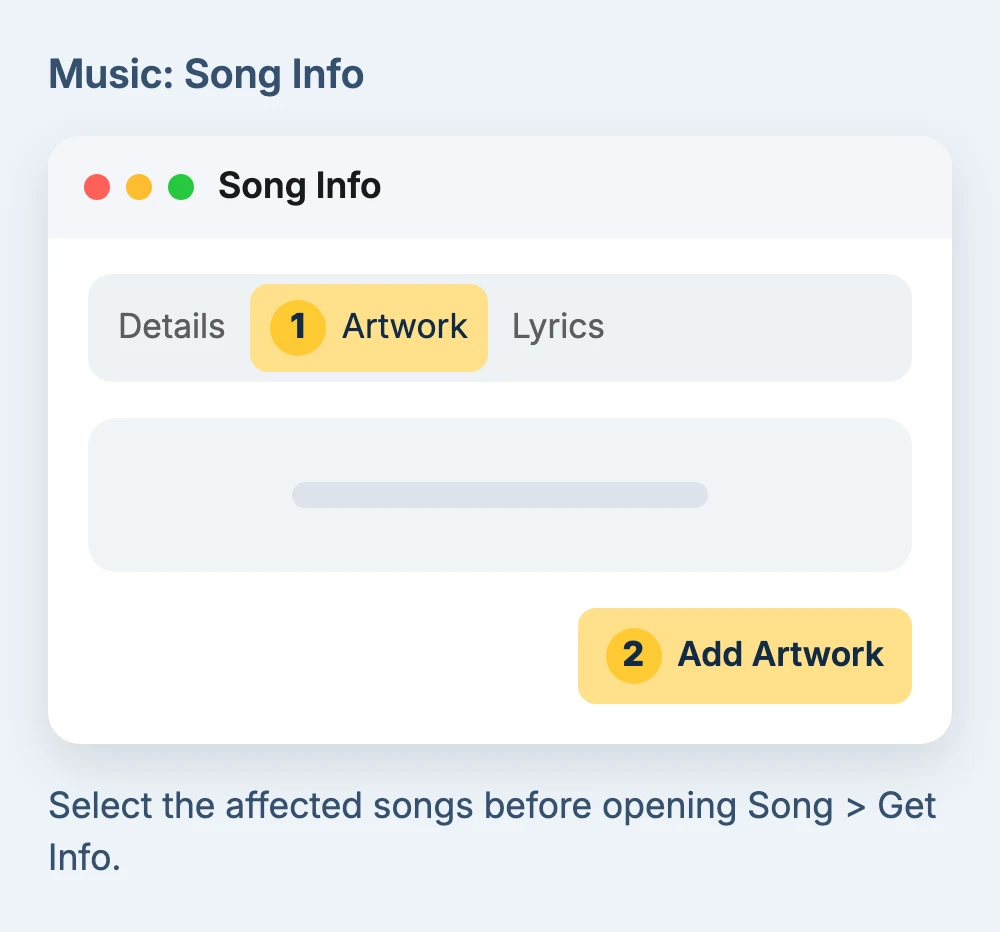
For a missing picture, click Add Artwork, choose the image and click Open. Dragging an image into the artwork area also works. Apple says both methods work in its artwork instructions.
JPEG and PNG images are supported. WAV tracks need conversion to another audio format before artwork can be added. If the affected files are WAV, convert them before trying Add Artwork again.
Select the other songs from the same album and check them too. Don't select unrelated albums together when applying one cover. Once the affected tracks have the right artwork, follow the steps for the way you copy those songs to your phone.
For covers missing across purchased music, File > Library > Get Album Artwork can retrieve available store artwork. It retrieves store images rather than your custom picture. Use the Artwork tab when you want a particular cover.
2. Choose the sync route you're already using
Sync Library needs a subscription, either Apple Music or iTunes Match, to make the library available through your account. Finder syncing copies selected music from the Mac to the iPhone, usually with a cable.
If songs appear on your iPhone without connecting it to the Mac, check the subscription route first. If you choose albums in Finder and click Apply to copy them, go to the Finder section instead.
Before changing library settings, back up the original files, including recordings and irreplaceable CD imports. Syncing a subscription library isn't a backup of those originals.
If Sync Library is missing, check that you have the required subscription and that Music is signed into the account with that subscription. Locally transferred music can carry artwork without a subscription.
3. Update a subscription library from the Mac
In Music, open Account and check the signed-in Apple Account. Use the same subscription account on the iPhone. Family members' separate accounts don't become one music library.
Choose Music > Settings > General, select Sync Library, and confirm with OK. If it's already selected, leave it selected for this check. Choose File > Library > Update Cloud Library after saving the artwork changes.
Leave the Mac online until that update finishes. An Updating Cloud Library entry at the bottom of Music's sidebar lets you check progress. Larger libraries can take longer, so don't make another library change mid-update.
On an iPhone with a current iOS version, open Settings > Apps > Music and check Sync Library. Older iOS versions put Music directly in Settings. Check the account inside Music through the profile picture and Account Settings as well.
After the Mac finishes updating, open the same album in the iPhone's Library. Compare its songs and cover with the Mac. If tracks themselves are missing or gray, check their cloud status before treating this as artwork alone.
On the Mac, choose Songs > View > Show View Options and enable Cloud Status and Cloud Download. A Waiting status means the song hasn't finished syncing. An exclamation mark means Music needs the original file located.
If the Mac's list seems to have lost other information too, restore the Rating column separately. Showing or hiding columns changes the view; it doesn't refresh an iPhone's cover art.
4. Refresh music transferred through Finder
Connect the iPhone, then open Finder on the Mac. Click its iPhone entry in the sidebar. Accept any trust prompts on the devices. On macOS Catalina and later, Finder handles this transfer rather than the Music app's library window.
Open the Music tab. Check Sync music onto iPhone and the selection containing your affected album. Click Apply; if the transfer doesn't begin, click Sync. Wait until the transfer finishes before disconnecting.
The Finder syncing steps explain that a device syncs with one music library at a time. Stop at an Erase and Sync warning unless this Mac contains the music you intend to replace it with.
Once the transfer completes, open the album on the phone. Check whether the album copied but kept the wrong cover, or never reached the phone at all. Note which happened; it helps tell an artwork problem from a transfer that didn't finish.
If Finder doesn't offer manual music syncing because Sync Library is in use, return to the subscription steps. Don't turn the service off simply to make the cable controls appear. That would change how the phone receives its library.
5. Leave the disruptive library reset until last
Apple's missing-library steps include turning Sync Library off and back on after checking accounts, connectivity and the cloud update. That removes your music downloads, so you'll need to download those songs again.
I'd leave that reset until the earlier checks are finished, especially with a large offline collection. It can refresh a subscription library, but the support procedure doesn't promise to repair every wrong artwork image.
A blank Home tab is another Music fault with its own checks. Check the album in Library to see whether the artwork is fixed. Home's recommendations won't tell you that.
If the artwork still differs, contact Apple Support about Music library syncing.
Include your iOS version, macOS version and transfer method (Sync Library or Finder). Say whether the tracks are imports or subscription songs, and name one album that always shows the wrong cover.
The Short Version
Check the affected songs' Artwork tab, then refresh the existing transfer method. Update Cloud Library for a subscription library or sync the album through Finder. Back up original music before resetting library settings.
Checked November 27, 2026.
 If you have any business, I can build it online