The iPhone Unavailable message follows incorrect passcode attempts. Wait out the timer if you know the code. If you forgot it, check the previous-passcode option on iOS 17 or later before choosing an erase route.
Without that option, regaining access means erasing the iPhone and setting it up again. You can restore saved data from a backup afterward, but it doesn't let you bypass the lock or bring back unsaved information.
In this guide
1. Wait for the timer if you know the correct passcode
Read the full lock-screen message. A try again time means the phone is temporarily blocking another attempt. Leave it until that time passes, then enter the passcode you know is correct.
Stop guessing combinations. Further incorrect attempts can lead to a longer lockout or the point where erasure is required. Check whether you changed the passcode recently before entering a code from memory.
An iPhone passcode is the numeric or alphanumeric code used to unlock this device. Your Apple Account password is different, and entering it on the passcode screen won't unlock the phone.
If the correct passcode works after the wait, you're finished. If you can't remember the passcode or the phone won't let you try again, choose a recovery method that matches its iOS version and the buttons on the screen.
2. Use the previous code after a recent passcode change
On iOS 17 or later, Passcode Reset gives you up to 72 hours after a passcode change to regain access using the previous code. The previous code must still be valid; this won't work if you chose to expire it early.
From the unavailable screen, tap Forgot Passcode?, then Enter Previous Passcode when offered. Enter the old code and follow the instructions to set another new passcode immediately.
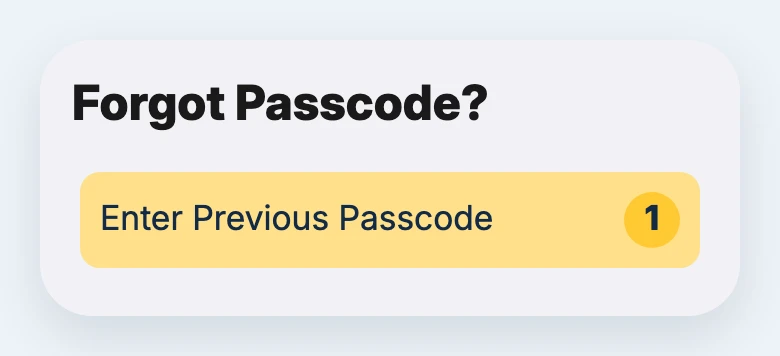
Whether this option appears depends on the phone's state and connection. Apple's previous-passcode instructions explain the network, account, and Find My requirements. An older iPhone release doesn't have this iOS 17 feature.
I'd check this before choosing any erase command. It can regain access without wiping the phone when you changed the code recently and still remember the old code.
If the option isn't offered or the old code no longer works, you'll need to erase the phone. The 72-hour period isn't a general window for recovering any forgotten passcode; it's tied to a recent change.
3. Erase from the lock screen when the option is available
This route needs iOS 15.2 or later, Find My already enabled, an active cellular or Wi-Fi connection, and your Apple Account password. Erasing permanently removes the phone's current data and settings.
On iOS 17 and later, tap Forgot Passcode? on the unavailable screen, then choose Start iPhone Reset. Enter your Apple Account password to sign out, then choose Erase iPhone to confirm.
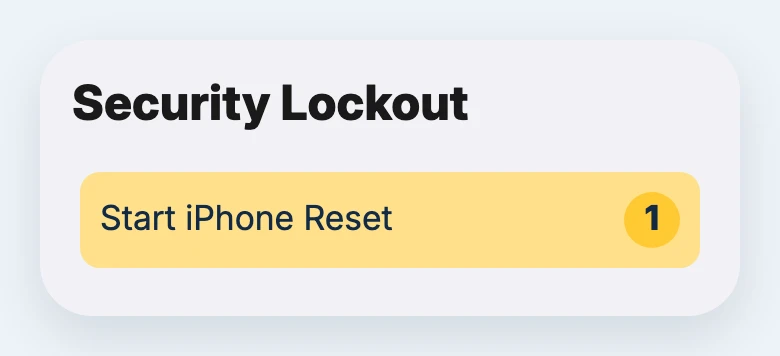
With an eSIM on iOS 17 or later, the process can let you retain the eSIM or remove it along with the phone's data. Choose the option that fits whether you're keeping the line on this phone.
On iOS 15.2 or iOS 16, look for Erase iPhone instead of Forgot Passcode. Continue with the reset, using your Apple Account password at the password prompt. For an eSIM on iOS 16 or earlier, ask your carrier for a setup QR code first.
The manufacturer's reset-without-a-computer procedure covers these version differences. If the required button never appears, use the computer route rather than repeatedly entering incorrect codes to chase it.
Once erasure finishes, follow the setup screens. Choose an available backup during setup if you have one. For a replacement-device setup, the iPhone transfer without iCloud guide explains the available transfer methods.
4. Put the iPhone into recovery mode with a computer
Have an internet-connected Mac or Windows PC ready, plus a suitable cable for the iPhone. On a current Mac use Finder; on Windows use Apple Devices. Older setups may use iTunes.
Shut down the iPhone first. With Face ID, keep Side and one volume control pressed until you get the power-off slider. With a Home button, a long press of its power button brings up the slider. Move that slider across the screen.
Plug the cable into your computer first. As you connect its other end to the powered-off iPhone, immediately hold the model's recovery button and keep holding it through the Apple logo.
- iPhone 8 and newer models, plus SE (2nd/3rd generation): keep Side pressed.
- iPhone 7/7 Plus: keep Volume Down pressed.
- iPhone 6s and older models, plus SE (1st generation): keep Home pressed.
Let go when the computer-and-cable graphic replaces the logo. That is recovery mode. Stopping at the Apple logo starts the phone normally and won't give the computer the recovery connection it needs.
If the buttons don't work, this procedure can't reach recovery mode. Book passcode-reset help with an Apple Store or a service location listed as an Apple Authorized Service Provider. Explain that a button isn't responding.
5. Restore the phone, then recover saved data during setup
In Finder, select the iPhone under Locations and allow the accessory connection if asked. Choose Restore when offered Restore or Update. Updating alone doesn't remove a forgotten passcode.
In Apple Devices on Windows, choose the connected iPhone from the sidebar, choose Trust if asked, then open General and select Restore. Continue through its prompts, allowing the software download and phone restore to finish.
If recovery mode ends while a download runs longer than 15 minutes, wait for downloading to complete. Power down again, use your model's recovery button during reconnection, and resume restoring.
Wait until the iPhone reaches the Hello screen. Disconnect it and follow setup. Restore an iCloud or computer backup if one is available; the backup's date determines how recent its saved information is.
Activation can still require the Apple Account used with Find My. Activation Lock stays in place after erasure. Recover the account through the official account-recovery process if you can't sign in.
For an account-password problem, the reset without an Apple ID password guide explains the account and Activation Lock requirements. Restoring the phone doesn't change which Apple Account owns it.
If the restore fails, write down the error and ask support for help restoring from recovery mode. If you don't have a computer, ask Apple Support to arrange reset help at a service location.
Once the previous-code option is ruled out, the supported recovery methods for a forgotten passcode require erasing the phone.
The Short Version
Wait out a timer if the correct passcode is known. Check the 72-hour previous-code option on iOS 17 or later before erasing. Otherwise, reset from the lock screen or restore with a computer, then recover an available backup during setup.
Checked November 29, 2026.
 If you have any business, I can build it online