Yes, you can see your Apple ID password without changing it if you've saved a copy. Open Passwords, unlock it and search for your Apple website login. An iCloud sign-in alone doesn't create a readable password entry.
Current software uses the label Apple Account for what older devices call Apple ID. A password manager can show a saved website password. Being signed in to your account in Settings doesn't give you that same view.
In this guide
Look for a saved login on your iPhone
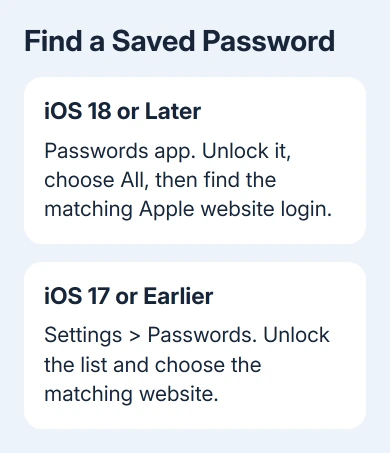
On iOS 18 or later, open the Passwords app. Unlock it with Face ID, Touch ID or your device passcode, then choose All so the search isn't limited to a shared group.
Search for Apple and check entries for sites such as account.apple.com, appleid.apple.com or icloud.com. You won't necessarily have an entry for any of them. A password has to have been saved before it can appear.
Open the matching account and check its username. A family member's login or an old account can look similar. Reveal the password field for the entry that uses the email or phone number you use for your Apple login.
Apple's saved-password instructions show how to view saved website and app passwords. Viewing a saved password doesn't change the password you use to sign in.
The passcode that unlocks Passwords is your device passcode. It isn't the Apple Account password you're trying to find. The same distinction applies when Touch ID or Face ID unlocks the list.
Keep the revealed password off screenshots and shared screens. Copy it directly into the sign-in field if needed, then leave the password manager when you're finished.
Find the password list in older iPhone Settings
For iOS 17 and earlier, the list is in Settings > Passwords. Unlock the list with Face ID, Touch ID or your passcode. Select the matching website or app to see its saved login.
Check the email or phone number before using the password. A saved iCloud password for another account won't work for the account shown in Settings.
If the list shows a shared group rather than all stored passwords, return to the full Passwords list. Searching inside a smaller group can make an existing login appear to be missing.
A search with no results doesn't mean your account lacks a password. It means this password list doesn't contain a matching saved entry. Continue on another device where you might have saved that login.
For an iPad, use the equivalent Passwords app on iPadOS 18 or later, or Settings > Passwords on earlier versions. Open the saved password list, rather than the account's Change Password screen.
Check your Mac's password list
On macOS Sequoia or later, open Passwords, unlock it with Touch ID or your Mac user password, then select All. Search for the Apple website and select the matching account.
Move the pointer over the password to reveal it. Check the username alongside it before copying anything. The Mac login password used to unlock this app is separate from your saved Apple Account password.
On macOS Sonoma or Ventura, open Apple menu > System Settings > Passwords, unlock the list and select the account. Open its details to see the saved password.
Safari also offers saved passwords on those older systems through Safari > Settings > Passwords. Unlock the list, select the website and open its details. On older Safari releases, the menu may be called Preferences.
If an older Mac's menus differ, use its Safari password list rather than assuming the current Passwords app is installed. That standalone app arrived with Sequoia.
I'd check a Mac you've used for account sign-ins before starting recovery. It can hold a saved website login even when a search on the phone turns up nothing.
Check the rest of your saved passwords
In Passwords, inspect Deleted if you removed an entry recently. On an older iPhone, the equivalent location is Settings > Passwords > Recently Deleted, where available.
If you use multiple Apple devices, check whether iCloud Keychain is enabled. It keeps stored passwords available across approved devices. It doesn't recover an account password that was never saved in the first place.
Also check any other password manager you normally use. Search its own saved-login list for the account website and match the username. A password saved in a browser or another manager needn't be in Apple's Passwords app.
If you've forgotten the account name, find your Apple ID email or phone number first. That avoids trying a correct saved password against the wrong account.
An entry can also be outdated if the account password changed without its saved copy being updated. Seeing letters in a password field tells you what was stored, not whether the account still accepts them.
What Settings can show, and when a reset is necessary
The account page in Settings > your name > Sign-In & Security provides account and password-management controls. Change Password starts a change; it isn't a button that reveals the existing password.
Don't edit a saved Passwords entry just to see whether it fixes the account. Editing the stored text and changing the account's actual password are separate actions. A mismatch between them can make later sign-ins harder to understand.
If a saved password is rejected, check that its email or phone number matches your account before trying again. Repeated guesses won't make an old stored password current.
When no saved copy exists and you can't remember the password, use the Apple Account recovery options. A trusted device can help change it; account recovery is the fallback when those easier methods aren't available.
For a work-managed account, ask the administrator which recovery process applies. For a personal account, give Apple Support the sign-in message and whether you still have access to a trusted device. Don't send them a revealed password.
The Short Version
Reveal a saved Apple website login in Passwords or the older Settings list, matching its username to your account. An iCloud sign-in doesn't expose the password. Without a stored copy, a forgotten password requires a change or recovery.
Checked November 13, 2026.