FaceTime's Sensitive Content Warning can be turned off in Settings > Privacy & Security > Sensitive Content Warning. Switch off the FaceTime control there if it's offered, or use the main switch to disable warnings across supported apps.
For a child account, a similar warning can come from Communication Safety in Screen Time. Check which feature is active before changing anything: the ordinary privacy switch and a family's Screen Time controls aren't the same setting.
In this guide
Change FaceTime's warning setting on iPhone or iPad
Open the device's main Settings app, choose Privacy & Security, and scroll to Sensitive Content Warning. This control isn't inside FaceTime's camera, microphone, or notification permissions.
Look at the apps listed on that page. If FaceTime has its own switch, turn that switch off to change FaceTime while keeping the other listed protections on. Leave the main switch on when you want those other app warnings to continue.
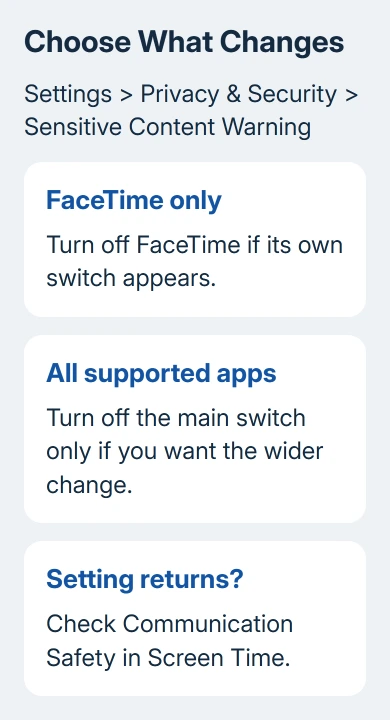
If the version on your device doesn't offer a separate FaceTime choice, the main Sensitive Content Warning switch controls the feature as a whole. Turning it off also removes this protection from the other supported apps on that device.
Apple's Sensitive Content Warning instructions describe the Privacy & Security location and app-by-app controls. Check the actual list on your device rather than expecting every system version to show the same apps.
Return to that page after changing it and check that the switch you changed stays off. If the original warning came from a different app or a different device, changing this iPhone's setting won't necessarily change that other screen.
Keep one warning separate from disabling the feature
When a blurred image or video has a Show control, that option lets you choose to view the item. This leaves the warning system enabled for later content. Use it to open one item without changing the settings.
Read what the alert says before choosing an option. The warning also offers safety resources and blocking controls. An option to report content sends a report; it isn't a button for changing which images trigger future warnings.
I'd use the single-item choice when only one ordinary image has been flagged incorrectly. It avoids changing the behavior of Messages, AirDrop, and other supported apps just to open that one item.
If a live call has been interrupted, check the warning shown on that device before you start another call. A saved video-message warning and a live-call interruption happen in different places, even though both can involve FaceTime.
Turning off the setting on your device doesn't disable a warning shown on the other caller's device. Ask the other caller to check their device's warning settings too. Repeatedly ending and redialing the call doesn't change that preference.
Check Communication Safety when the switch returns
Communication Safety can turn on Sensitive Content Warning automatically. On your own iPhone, open Settings > Screen Time > Communication Safety and check whether it's on. It can turn the privacy feature on without separate setup.
For a child's device managed through Family Sharing, the parent or guardian should open Settings > Screen Time, select the child, and choose Communication Safety. That adult can review it and enter the Screen Time code when requested.
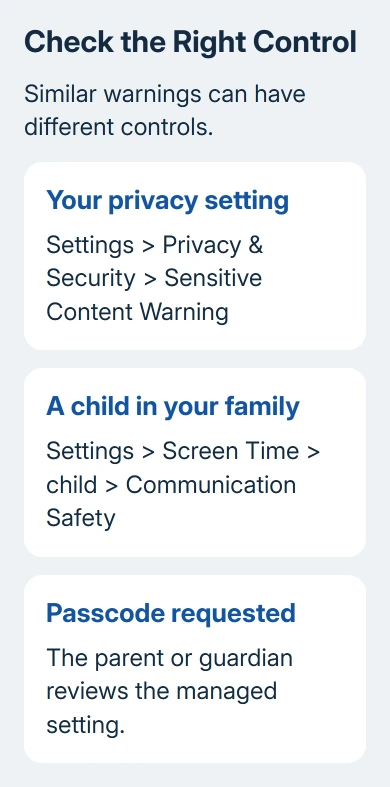
The Communication Safety controls explain the family route and supported devices. For child accounts, available choices and defaults depend on age, region, and software version.
Don't change the account's birthday or erase the phone to make a switch available. Ask the family organizer to review the child's settings. For unavailable controls, the Screen Time restriction checks address that problem separately.
After you or the family organizer changes the setting, return to that device's privacy page. You'll have checked both parts: Screen Time, which can turn protection on, and the privacy control, which shows whether it's active.
Match the steps to the system version and device
Sensitive Content Warning requires iOS 17 or later or iPadOS 17 or later. An older system won't have the same privacy switch. Check Settings > General > About for the installed version before following instructions for a newer release.
On supported current iPhone and iPad releases, the feature covers FaceTime calls and video messages. iOS 27 and iPadOS 27 add detection of gore and violence; those extra checks apply to video messages, not live calls.
That distinction matters if the warning changed after an update. A video message can now be flagged for a type of content that wasn't checked by an older version. It doesn't mean FaceTime's microphone or network connection has failed.
On a Mac, the general control is under Apple menu > System Settings > Privacy & Security > Sensitive Content Warning. Check the services listed there. Mac FaceTime isn't in the current list of supported services.
For an Apple Watch, supported detection includes FaceTime video messages. Turning on the iPhone feature also enables it on a paired Watch. Start in the phone's settings; the Watch doesn't have an iPhone-style video-call screen.
Separate a content warning from a paused or failed call
A warning names sensitive content or offers a choice about viewing it. A call that says Paused, loses video after an app switch, or has a connection error needs another check. The FaceTime paused-video guide explains the camera behavior.
If the warning keeps appearing, note whether it happens during a live call or when you open a recorded message. Write down the device model, system version, exact wording, and which of the two settings pages has an enabled switch.
Ask Apple Support about that specific warning if it keeps appearing even though the correct switch stays off. For a managed child account, involve the family organizer so support can check the Screen Time settings with them.
The Short Version
Open Privacy & Security, then Sensitive Content Warning. Disable FaceTime alone when listed, or the main switch for all supported apps. If Communication Safety controls the warning, review Screen Time with the parent or guardian.
Checked November 12, 2026.