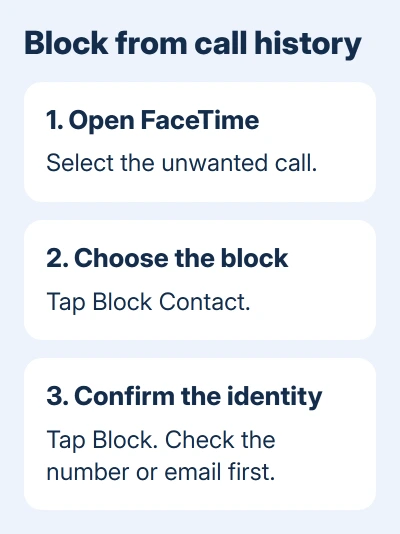
Block an unwanted FaceTime caller through the call history: open the call, choose Block Contact, and confirm Block. For calls from changing numbers, use Silence Unknown Callers instead of blocking each address.
Group calls have their own blocking controls. Choose the section that matches a single caller, an unwanted group, or unknown callers in general. Silencing keeps a call quiet; it isn't the same as blocking the contact.
In this guide
Block the caller from the FaceTime call history
Open FaceTime and find the unwanted call. On the current iPhone interface, tap the call, choose Block Contact, then tap Block. Check the call's number or email before confirming, especially when several entries look similar.
The FaceTime blocking instructions also cover blocking while a call is ringing or already connected. You don't need to answer an unwanted call to block it.
An older FaceTime history layout may show an Info button beside the entry. Tap it, scroll through the contact details, and select Block this Caller > Block Contact. Different iOS releases use different labels and call-history layouts.
For the current ringing-call interface, tap the notification's left side, then Join FaceTime in the screen's top area, followed by Block Caller. Use the history route if you'd rather wait until ringing stops.
During a connected call, tap the displayed phone number or email, then Block Caller > Block. Tap the FaceTime window first if the address is hidden. This blocks the caller instead of just ending the conversation.
I'd use the history entry when the call isn't urgent. It gives you time to read the address and avoids accidentally blocking the wrong contact while a notification is moving across the screen.
Stop an unwanted Group FaceTime call
A group invitation can involve several unfamiliar addresses. Blocking only the person who first called isn't always the choice you want, so current FaceTime versions let you block people from the group call together.
While the group call is ringing, expand the notification by tapping its left side. Tap the people count at the top, then choose Block All Participants if all members of that invitation should be blocked.
During the call, tap the people count and choose Block Unknown Participants or Block All Participants, depending on which option fits. Read that choice carefully when the group also contains contacts you want to keep.
After the call ends, open the group entry in FaceTime history and use Block All Participants. This is useful when the ringing stopped before you could expand the notification.
These group controls are available in iOS 26 and iOS 27. Older releases can have a different interface. Without the group controls, open individual call details to block each unwanted address.
Blocking doesn't prevent someone from creating another account or using another address. If the next invitation comes from another address, try the unknown-caller settings. Blocking one number won't stop calls from a different one.
Silence callers who aren't recognized
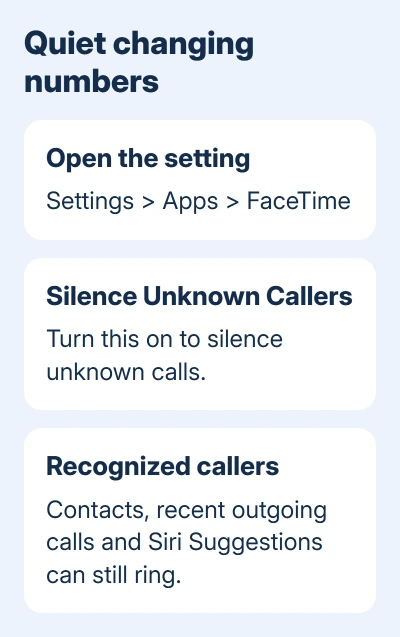
Go to Settings > Apps > FaceTime, then turn on Silence Unknown Callers. On iOS 17 and earlier, FaceTime's settings are directly under Settings > FaceTime, without the Apps menu.
Unknown calls are silenced, sent to voicemail, and kept in the recent-call list. Recent outgoing calls, your contacts, and Siri Suggestions are exceptions that can ring. A number can still ring even if it isn't in Contacts.
Save an expected caller's number or email in Contacts before relying on this setting. Otherwise, a legitimate first-time call may be quiet too. Check recent calls when you're waiting for someone who hasn't called you before.
On versions with filtering, Unknown Callers puts missed calls and their voicemails in a separate history list. Open FaceTime's filter control to view it. Filtering organizes call history without blocking the person.
The FaceTime Spam option silences calls identified as spam and moves them to the Spam list on supported versions. Its absence on an older installation doesn't mean individual blocking has stopped working.
FaceTime settings only control FaceTime calls. For unwanted calls that arrive through the Phone app, check that app's own unknown-caller and blocking controls.
Check exactly which identity is blocked
On iOS 26, open Settings > Privacy & Security > Blocked Contacts to review the centralized list. A caller can use a phone number or an email address, so compare the incoming call details with the identity you actually blocked.
If a known person has another number or email, add that information to their contact card. Apple's personal-safety instructions recommend this when someone is trying another identity after being blocked.
The block applies across Apple devices using your Apple Account. It doesn't automatically create a block in a separate messaging or social app. Use that app's own control if the same person reaches you there.
Blocking also affects sharing: Find My people sharing stops, and the person can receive a notification that location sharing ended. Check who can see your location if that notification affects your safety plan.
To undo a block, open the call entry and choose Unblock Contact. For a group entry, open the participant's details first. Unblocking allows that contact to reach you through the affected Apple communication apps again.
Report spam and handle an ineffective block
For an unknown caller, touch and hold the call-history tile and choose Report Spam when that command is available. Reporting sends a spam report. To stop calls from that number or email as well, block the caller.
If an entry is definitely blocked but calls still arrive from that same identity, record the iOS version and compare the full number or email in both places. The blocked-contact troubleshooting guide handles that failure.
To stop all FaceTime calls, open Settings > Apps > FaceTime and turn FaceTime off. The FaceTime disable guide covers other receiving devices too, so another device doesn't keep ringing.
When contacting Apple Support, give your iOS version, say whether it's an individual or group call, and name the blocking option that's missing or isn't working.
The Short Version
Block an individual through their FaceTime call entry. Use the people-count controls for unwanted groups, and Silence Unknown Callers for changing identities. Check the full number or email when a blocked caller seems to return.
Checked November 15, 2026.