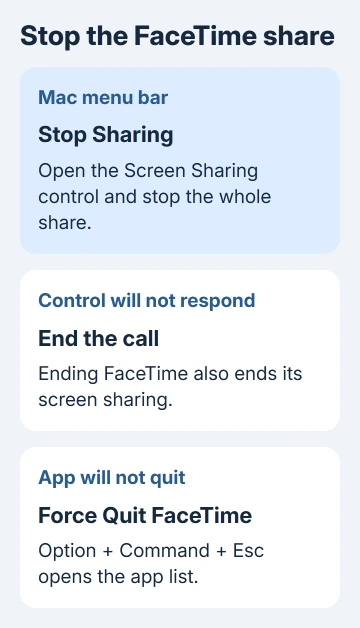
Stop a FaceTime screen share from the Mac's menu-bar sharing control, then choose Stop Sharing. If that control won't respond, end the FaceTime call; ending the call also ends its screen sharing.
A camera preview, an iPhone Mirroring window, and an AirPlay mirror use different controls. Check which one is still visible before changing settings, especially when the sharing icon remains after the call has already ended.
In this guide
1. Stop the whole FaceTime share from the menu bar
Move your pointer against the Mac screen's upper edge to reveal a hidden menu bar. Click the Screen Sharing status button, then choose Stop Sharing. Use the menu-bar control even if the FaceTime window is behind another app.
Apple explains the separate window and whole-screen controls in its FaceTime guide.
Choose the whole-share control to remove the other participant's view of your desktop.
Check with the other participant: are fresh changes on your desktop still visible to them? A frozen last picture and a live view are different situations. Keep private windows closed until you're satisfied the live share has stopped.
If you shared several windows, closing a single window can leave you unsure which others are still shared. Open the sharing control and stop the complete share instead of closing app windows one by one.
To stop sharing just one window, Currently Sharing lists what is being shared and offers removal controls. That is useful when continuing a presentation, but it isn't necessary when the goal is to end all sharing.
If the menu doesn't open, the button does nothing, or the other person still sees live changes, move directly to ending the call. Don't spend time adjusting camera effects to stop a desktop share.
2. End the call when Stop Sharing won't respond
Bring FaceTime to the front and select the call's End control. Disconnecting the call ends both its screen share and any remote-control session linked to it. The other participant can end the call from their side too.
Check that the call has disconnected. A FaceTime window still being open doesn't mean a call is active; look at the call controls and whether you're still connected to the other person.
If FaceTime itself is stuck, try FaceTime > Quit FaceTime. If normal quitting fails, press Option + Command + Esc, select FaceTime, then choose Force Quit and confirm.
Force Quit closes FaceTime when the app can't respond to the normal quit command. Use it after the regular controls fail, then check whether the remaining indicator disappears.
Reopen FaceTime only when you're ready for another call.
If the other caller's iPhone also freezes, use the FaceTime freezing guide for that device. A phone's restart controls differ from the Mac controls used here.
If the call has ended but the menu-bar indicator remains, use the restart step next. The icon alone can't tell you whether another app is sharing or the control is stuck.
3. Restart the Mac if the sharing indicator stays stuck
Save any unfinished documents outside FaceTime, then choose Apple menu > Restart. This closes the current session and ends the running call. Use this normal restart procedure with either an Intel processor or Apple silicon.
After signing back in, check the menu bar before making another call. If the indicator has gone, start a fresh call only when needed. Share one unimportant window and verify that Stop Sharing works before showing anything private.
For a completely frozen Mac that won't accept Restart, press and hold power, releasing it once the computer shuts off.
Wait briefly, then press power again. Save forced shutdowns for a Mac that accepts no other input, since unfinished changes can be lost.
A MacBook's Touch ID key doubles as its power button. This shutdown method works for a frozen Intel Mac or an Apple silicon Mac.
A restart ends the current session, but the problem can return. If the indicator returns without a new FaceTime share, note which app the menu names and whether another conferencing app is open.
Don't disable unrelated Sharing services or remove your Apple Account to clear an icon. First identify the app and session the indicator describes. That tells you whether you're dealing with FaceTime or another remote-access feature.
4. Separate screen control, the camera, and other mirroring
Allow Control governs whether the other participant can operate your Mac in a FaceTime share that supports remote control. Turning that off stops their control, but it doesn't stop them seeing the shared screen.
Use Stop Sharing to end the view too.
Similarly, turning the camera off affects your camera video. It doesn't end an existing desktop share.
The FaceTime video-pause guide covers keeping the call connected while hiding the camera image.
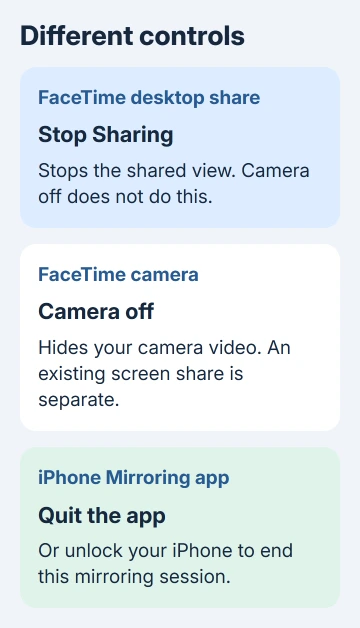
To end a session in the Mac app called iPhone Mirroring, quit the app or unlock your iPhone. This is the feature that lets you operate the phone in a Mac window; it isn't FaceTime's desktop-sharing control.
For an iPhone sending its screen through AirPlay, open Control Center, tap Screen Mirroring, and choose Stop Mirroring.
On a Face ID iPhone, start at the upper-right corner and swipe downward; on a Home-button iPhone, swipe up from the bottom.
If the iPhone itself is sharing inside FaceTime, use the FaceTime controls, tap the screen-sharing control, then Stop beside Screen Sharing. Ending that FaceTime call also ends its share.
On a Windows laptop, joining FaceTime through a browser works differently: FaceTime on the web doesn't provide screen sharing or SharePlay. Leave the call if needed, then check any separate app responsible for a visible desktop share.
Get help if a fresh call repeats the fault
Open System Settings > General > Software Update after saving your work, then install any offered macOS update. On older macOS versions, find Software Update in System Preferences.
Then share an unimportant window briefly and try stopping the share again.
If Stop Sharing fails again, contact Apple Support for Mac > FaceTime. Give them the macOS version, Mac model, whether you shared one window or the whole screen, and whether ending the call removed the indicator.
Explain that the screen-sharing control keeps failing to respond. If another app is named in the menu, send that detail instead of calling every persistent sharing indicator a FaceTime fault.
The Short Version
Choose Stop Sharing from the Mac's menu bar. End the FaceTime call if that fails, force quit an unresponsive FaceTime app, and restart for a stuck session indicator.
Camera video, remote control, AirPlay, and iPhone Mirroring have separate controls.
Checked November 15, 2026.