
iCloud Drive can stop syncing when files have broken permissions, and Finder has a built-in Repair button for that fault.
Open iCloud Drive in Finder and check its error banner first; an Out of Space or Waiting to Upload status needs a different response.
Don't erase your local iCloud folder to clear a disabled-sync message. Read the banner and the affected file's status before changing account settings, so you can address the problem the Mac is reporting.
In this guide
1. Use Finder's Repair button when the banner offers it
Click Finder in the Dock, then select iCloud Drive in its sidebar. Look at the message at the top of the folder. A permissions-related syncing error can show a Repair button and a warning beside iCloud Drive.
Apple's permissions repair instructions describe this exact control. Click Repair in the error message.
The Mac repairs the affected permissions and resumes syncing those files or folders.
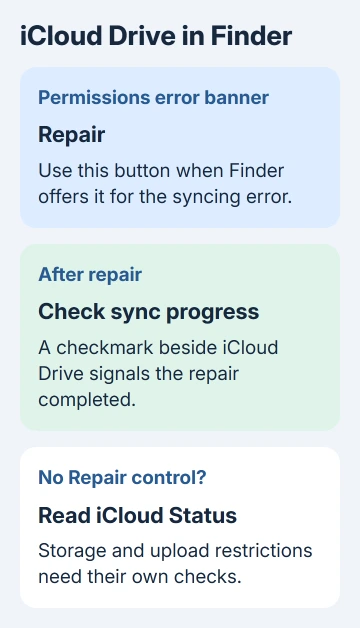
Permissions decide which account can read or change a file. When those permissions are wrong, a visible file can still fail to sync. Finder's Repair button fixes that access problem without rebuilding your whole cloud library.
After the repair finishes, look for the checkmark beside iCloud Drive and confirm that the affected items start syncing. Keep the Mac connected while that happens. Large uploads can still take time after the permissions are repaired.
If the message has no Repair button, don't substitute a Terminal permissions command. Continue with the exact status check next. Repair is meant for the permissions error shown in that banner.
2. Read the file's status before treating the whole drive as broken
Open the affected folder in Finder and switch to View > as List. Choose View > Show View Options, then select iCloud Status. The status column shows whether a file is waiting to upload or can't be stored.
Waiting to Upload means the item hasn't reached iCloud yet. Out of Space means there isn't enough available iCloud storage for it. Neither status by itself means the file's permissions need repair.
Ineligible means iCloud can't store the item. The current Finder guide says this is usually because an individual file or folder exceeds iCloud Drive's 50 GB limit. Check the item's size before trying account resets.
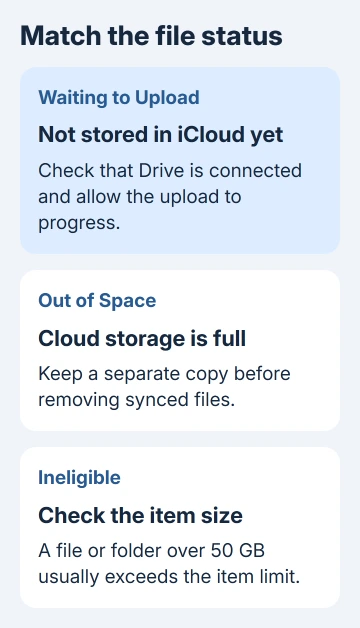
For an oversized item, keep a local copy and split the material into smaller files or folders before uploading. Don't delete the only copy while attempting to reduce its size. A failed upload isn't an extra backup.
Try uploading the same file after you've dealt with the limit shown. If other files upload but that one remains ineligible, check that item's size and status instead of changing the connection settings on every device.
A file showing a download control is different again: it can be stored in iCloud without a downloaded local copy. Open or download the item when you need it on this Mac.
3. Check iCloud storage and the account used on this Mac
Open Apple menu > System Settings, select your name, and choose iCloud. Read the storage information. A nearly full plan and a full Mac disk are separate limits, so make sure you're looking at iCloud's storage meter.
If iCloud is full, decide which material you need to keep first.
Deleting something from Drive can also delete the copies synced to your other devices. Download and copy important material to a separate location before using deletion to free cloud space.
The Mac also needs room to work with local files. Check System Settings > General > Storage if ordinary downloads or saving documents fail as well. More cloud storage won't expand the Mac's internal disk.
For macOS Monterey 12 or earlier, the account controls are in System Preferences > Apple ID > iCloud. Use Finder's Repair button only if it appears in the error message on your Mac.
Compare the Apple Account shown here with the account on another device that has the expected files. Files stored under another account won't appear just because both devices have iCloud Drive enabled.
If storage and the account are correct, check whether this Mac is actually set to sync Drive. Stay signed in while checking these settings. Sign out only if support has a reason to recommend that step.
4. Restore the Drive setting if this Mac is disconnected
In macOS Ventura 13 and newer, open System Settings > your name > iCloud, then Drive or iCloud Drive, depending on the version. On versions that group app controls, use See All to find it.
For macOS 13.3 or later, turn on Sync this Mac if it's off. Earlier Ventura controls use Turn On. On Monterey 12 or earlier, select iCloud Drive in System Preferences' iCloud list.
These are the version differences in the iCloud Drive setup instructions.
Once enabled, return to Finder and check whether the expected folders appear and the affected file progresses.
Leave Desktop & Documents Folders separate from this check. That setting decides whether those two folders join iCloud Drive; it isn't a universal repair switch for an existing error banner.
If those folders seem to have vanished, follow the missing Desktop files checks before changing their syncing setting.
Recovering access to the files comes before reorganizing where they live.
I'd use Finder's targeted Repair button before changing a working account's sync setup. It fixes the error shown without changing where your local copies are stored.
5. Check a moved Home folder when Drive won't enable
A Mac account moved to another disk can prevent iCloud Drive setup. The setup guide requires the Home folder on the internal disk and also rules out a disk that doesn't use APFS. APFS is the Mac's current disk format.
This matters if the error began after relocating your account or migrating storage. Tell Apple Support where the Home folder lives and which disk format it uses. Ask them how to move it back safely before trying setup again.
Don't drag the active Home folder to a new location yourself. That folder contains the account's files and settings; changing it needs a proper backup and the correct account procedure.
6. Escalate a persistent error with the right details
Save your open work and restart the Mac if the error persists after its matching check. Open Finder again and record whether the banner returns immediately, appears on one folder, or only appears after sleep.
For the specific pattern where syncing works until the Mac sleeps, use the after-sleep iCloud Drive guide.
That sleep-related problem needs different checks from Finder's permissions error.
If Repair fails or repeatedly returns, contact Apple Support under iCloud > iCloud Drive. Provide the exact banner text, macOS version, available iCloud storage, and whether the same file appears on another device.
Ask support to check the permissions-related Drive error and the result of Finder's Repair action. If the banner never offered Repair, say that too. That helps support address your error rather than troubleshoot a slow upload.
The Short Version
Use Repair in Finder's iCloud Drive banner when it's offered. Otherwise, match the file's status to storage, size, or a disconnected Drive setting. Keep local-only files safe and send a recurring permissions error to iCloud Drive support.
Checked November 15, 2026.





