To turn off phone notifications on Mac, disable Allow notifications from iPhone in System Settings > Notifications. The phone keeps its own alerts. Ringing calls and Live Activities use separate switches.
Closing iPhone Mirroring isn't enough. Once mirroring has been set up, the Mac can keep receiving iPhone alerts even when that app isn't open and the phone isn't nearby. Choose the control for the kind of interruption you're seeing.
In this guide
Stop mirrored iPhone alerts on this Mac
Choose Apple menu > System Settings, then select Notifications in the sidebar. Open Allow notifications from iPhone on the right. Turn off the main switch with that name.
The switch should now be off. A notification that was already delivered can remain in Notification Center, so judge the change by new alerts rather than by an old banner still listed there.
Mirroring needs iOS 18 or newer and at least macOS Sequoia 15. The Mac must use Apple silicon or include the T2 Security Chip. Supported Intel Macs use the same controls. On an incompatible Mac, check its own app or call settings.
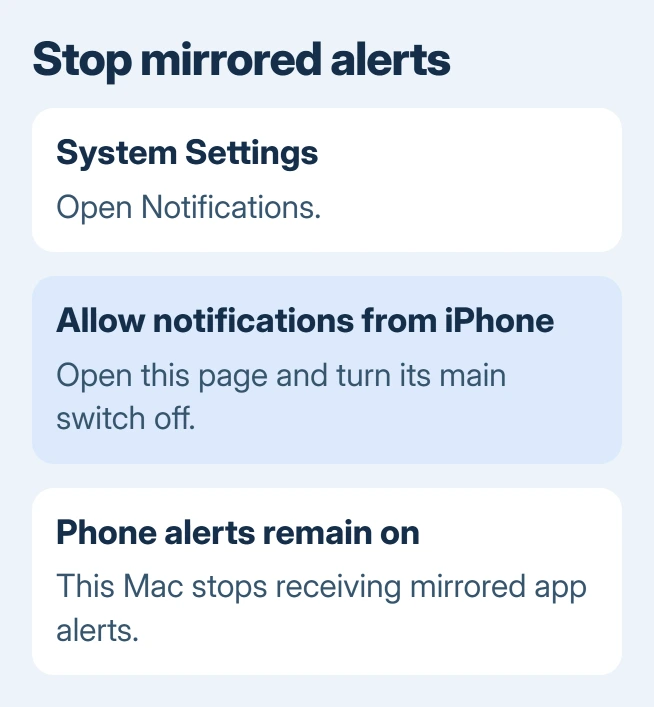
Apple says these notification controls handle mirrored alerts, individual apps, and Live Activities. Use the main notification switch to stop ordinary iPhone app alerts from reaching this Mac.
An iPhone notification has a small iPhone badge over its app icon. A normal Mac app notification doesn't become a mirrored phone alert just because the same app is installed on both devices.
That distinction matters if the switch seems to do nothing. Check which app sent the next new notification. If it comes from the Mac's own app, change that app's entry in System Settings > Notifications instead.
For a temporary quiet period, the Mac notification-silencing guide explains Do Not Disturb and app sounds. Blocking mirrored alerts is more useful when the Mac should stop receiving that stream permanently.
Keep useful iPhone apps and block the rest
Leave the main Allow notifications from iPhone switch on if you still want some phone alerts. In that same settings page, review the individual iPhone apps and turn off the ones you don't want appearing on the Mac.
For example, keep a delivery alert while blocking a social app. This changes what the Mac receives without requiring you to disable the app's notifications on the phone you carry with you.
If an app's row says mirroring is disabled from your iPhone, open that app's notification settings on the iPhone. The Mac can't turn these alerts on when your iPhone is set to block them.
If the row names a locally installed Mac app, that's the app sending these alerts. It doesn't send you an extra copy from the iPhone app. Open the Mac app's own notification entry to change those alerts.
I'd block the individual sender when only one app is bothering you. It keeps useful phone alerts available and helps you recognize whether the next alert belongs to the phone or computer.
Turn off Show on Mac from the iPhone
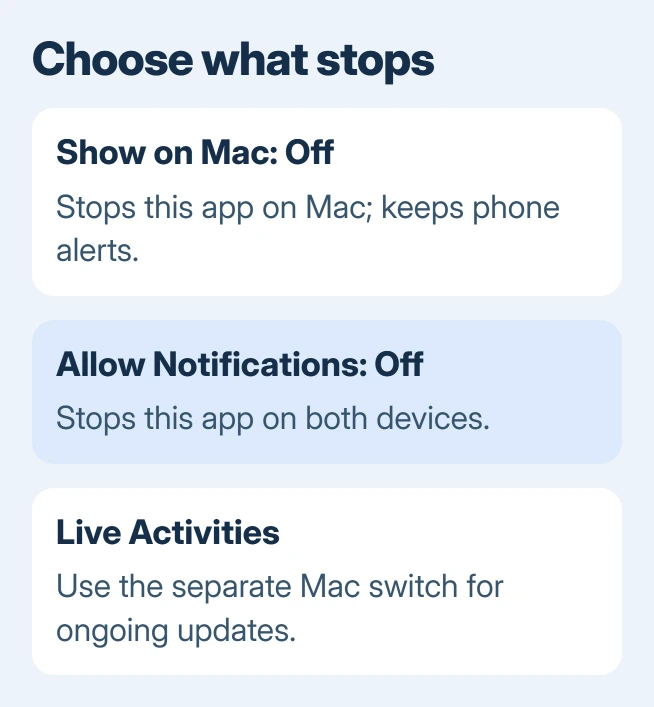
On the iPhone, open Settings > Notifications and select the app. Turn off Show on Mac to stop that app's notifications from appearing on a Mac while keeping its iPhone notifications available.
Leave Allow Notifications enabled if you still want that app to notify you on the phone. Turning that permission off stops the app's notifications on both the iPhone and Mac, which is a broader change.
Use the app's actual name rather than changing a similarly named service. Messaging apps, calendar apps, and browser websites can all create alerts, but their notification permissions belong to different entries.
Then wait for a new message or event from that app. Check that the phone still receives it and the Mac doesn't. This is a better check than repeatedly reopening an old item from Notification Center.
If the unwanted sender is a website in Safari, use the Safari notification controls. That permission can keep producing Mac alerts without any connection to iPhone Mirroring.
Stop Live Activities in the menu bar
A changing delivery status or other ongoing activity in the Mac's menu bar can be a Live Activity rather than an ordinary banner. Starting with macOS Tahoe 26, this feature has its own switch.
Return to System Settings > Notifications > Allow notifications from iPhone. Turn off Allow Live Activities from iPhone if you don't want ongoing iPhone activities appearing in the Mac's menu bar.
To dismiss only the current activity, click it for more detail. Move the pointer over the expanded activity and click its close button. That removes this activity for its duration rather than turning off the whole feature.
On the iPhone, Settings > Apps > [app name] > Live Activities controls whether that app uses Live Activities. Changing this affects the activity on the phone too, so use the Mac switch when only the computer should be quiet.
Older macOS releases don't necessarily have the Live Activities switch. Don't hunt for a control introduced with Tahoe on a Sequoia Mac. The ordinary mirrored-notification controls are the relevant settings there.
Stop the Mac ringing for phone calls
Incoming cellular calls use a separate Continuity feature. A ringing Mac after mirrored app notifications are disabled doesn't mean the notification switch failed. Check Calls on Other Devices in the phone's calling settings.
On a current iPhone, open Settings > Apps > Phone > Calls on Other Devices. Turn off the switch for the Mac you want to stop ringing. Turning off Allow Calls on Other Devices disables calling across the entire device list.
On older iOS layouts, Phone appears directly in Settings, without the Apps submenu. Open Settings > Phone > Calls on Other Devices there. Use the device list to make the smallest change that fits your goal.
FaceTime calls made directly to the Mac are another source of ringing. If those also need to stop, review FaceTime's own notifications and account settings. Disabling relayed iPhone cellular calls doesn't sign you out of FaceTime.
Remove the Mac's mirroring access entirely
For a Mac that should no longer receive anything through iPhone Mirroring, use the iPhone. Open Settings > General > AirPlay & Continuity > iPhone Mirroring and find that computer in the list.
Swipe left on the Mac's name and tap Delete. That Mac can no longer receive the iPhone's notifications or Live Activities unless iPhone Mirroring is set up with it again. This also disconnects the Mac from iPhone Mirroring.
This is useful for a computer you stopped using. For your everyday Mac, the individual notification controls usually leave fewer features to set up again later.
If new alerts persist, tell Apple Support the app name, iPhone badge status, system versions, and which switch you turned off. Explain whether these are banners, ongoing activities, or calls so they can check the relevant feature.
The Short Version
Disable the main mirroring-notification switch for ordinary phone alerts. App-specific, Live Activities, and cellular-call controls handle narrower changes. Remove the Mac's mirroring access to end that relationship entirely.
Checked November 15, 2026.