
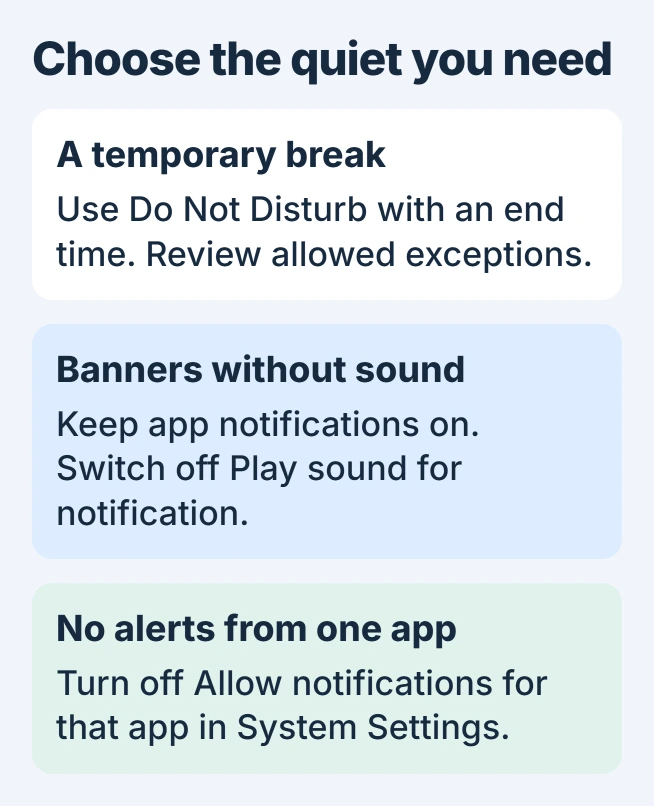
For a quiet stretch on a Mac, open Control Center and enable Do Not Disturb for a chosen duration. This pauses interruptions without making you switch every app's notifications off and remember to restore them later.
To keep an app's banners while removing its sound, change that app in Notifications settings instead. Focus exceptions also matter: an allowed person or app can still interrupt a Do Not Disturb session.
Start a temporary Do Not Disturb session
Click Control Center in the menu bar, open Focus, then choose Do Not Disturb. Select a duration such as For 1 hour. The active Focus is highlighted and its icon appears in the menu bar.
Apple documents that confirmation in its Focus on/off instructions. To finish early, return to the Focus list and click the active choice again.
Status: macOS 27 Focus and notification controls checked November 1, 2026, against Apple's Mac User Guide. No Mac notification or account setting was changed.
An alternative shortcut is Option-click the date and time in the menu bar. Apple says this toggles Do Not Disturb. Check the Focus indicator afterward so an already active session is not accidentally switched off.
Remove the sound from one app
Open Apple menu > System Settings > Notifications. Under Application Notifications, select the app. Leave Allow notifications enabled and turn off Play sound for notification if that option is available.
Apple states that this switch controls the app's notification sounds in its Notifications reference. Visual alerts still depend on the selected locations and styles.
To stop that app's notifications altogether, switch Allow notifications off. This also dims its other notification options. Repeat only for apps whose alerts should remain off after the quiet session ends.
For an unfamiliar website among those apps, use the Mac website-notification removal steps. Silencing all of Messages or Mail is unnecessary when one unrelated site is sending the alerts.
Check exceptions if Do Not Disturb still lets alerts through
In System Settings > Focus > Do Not Disturb, inspect Allowed People and Allowed Apps. Read whether each list allows selected entries or silences selected entries; these choices have opposite effects.
Review allowed callers and Allow repeated calls, then the Time Sensitive Notifications setting for apps. Apple's Focus setup guide describes these routes through an active Focus.
On supported Macs, Intelligent Breakthrough & Silencing can let important notifications through. Turn that option off for a predictable Do Not Disturb session, then review the explicit people and app exceptions.
Critical alerts have their own permission under an app's Notifications settings. Apple says they can appear with Focus active. Review the purpose before disabling a critical warning, particularly one from a safety-related Home accessory.
Keep the quiet session on the intended device
Under System Settings > Focus, turn off Share across devices if this Mac's Focus should operate independently. Apple's Focus-sharing instructions tie syncing to the same Apple Account.
For a recurring quiet period, open Do Not Disturb and choose Add Schedule in Set a Schedule. Choose Time, set the start, end and days, then save with Done. Review the schedule when alerts seem to stop unexpectedly.
If notifications stay silent after Focus ends only while a dock is connected, use the Mac dock notification checks. That separate display-sharing rule can suppress them too.
If an unwanted alert still arrives, record its app, time and active Focus. Give Apple Support those details and the macOS version so an allowed exception can be distinguished from a setting that failed to apply.
The Short Version
Use timed Do Not Disturb for a break, or an app's sound switch for silent banners. Check Focus exceptions and device syncing when the result differs from what you intended.

Isaac Smith is the founder and editor of PC Glance, a website that covers computers, laptops, and technology. He is a tech enthusiast and a computer geek who loves to share his insights and help his readers make smart choices when buying tech gadgets or laptops. He is always curious and updated about the latest tech trends.