Missing Mac notifications often come from an active Focus or an app whose alerts are disabled. Turn off Focus through the menu-bar controls, then check that app in System Settings > Notifications.
An alert sitting in Notification Center without a pop-up needs a display-style change. Missing iPhone alerts need the separate iPhone Mirroring controls. Start with what's missing before changing every app's settings.
In this guide
1. End the Focus that's silencing new alerts
Select Control Center in the menu bar, then open Focus. If Do Not Disturb, Work, Sleep or another Focus is active, turn it off. Keep your Mac awake and have someone message you through the affected app.
Don't judge this change by an old message. The useful result is a fresh notification arriving after Focus is off. If it does, the app can deliver alerts and Focus was stopping them.
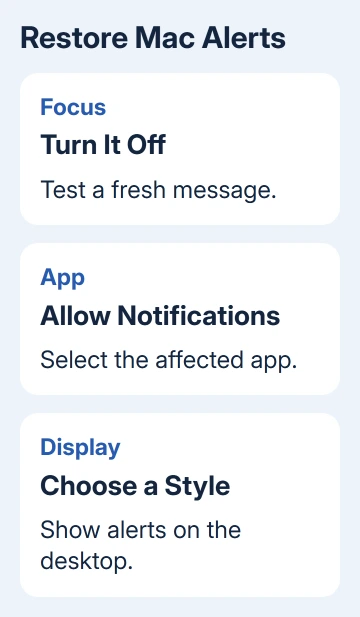
If Focus comes back on later, open System Settings > Focus, choose that Focus, and check its schedule. A time, location or app trigger can re-enable it after you manually turn it off.
Check Share across devices in Focus settings too. With sharing enabled, a Focus started on your iPhone can silence the Mac. Decide whether you want that connection rather than turning Focus off on each device.
For a Focus you want to keep, review allowed apps and people. The Mac silence controls explain exceptions and timed sessions. Continue if alerts still fail with Focus off.
2. Restore permission and desktop presentation for the app
Open Apple menu > System Settings > Notifications, then select the affected app under the application list. Turn on Allow notifications. Other notification choices can be dimmed until that main permission is enabled.
Choose a desktop style. Current layouts list Desktop, Notification Center and Lock Screen, with Temporary or Persistent presentation. Older layouts offer None, Banners and Alerts.
On those older layouts, choose Banners for a temporary pop-up or Alerts for one that stays until dismissed. None leaves you without the desktop banner you're expecting, even though other notification controls may remain enabled.
Apple explains permission, display, sound and previews in its notification reference. Enabling an app doesn't choose every place its alerts should appear.
Click the date and time in the menu bar to open Notification Center. If the missing item is there, delivery happened. Check how alerts appear and whether Focus is on before signing out of accounts or reinstalling the app.
Send another new alert after changing the style. If it reaches the desktop, keep the chosen style and stop there. For an application missing from that list, launch it and respond to any notification permission request.
3. Separate a hidden preview from a missing notification
An alert that shows the app name but hides the message text is a privacy setting, not a delivery failure. In the same app's notification settings, inspect Show previews.
Choose When Unlocked if you want to read messages while using your Mac but hide their text on the locked screen. Never conceals previews, while Always can show them even when you're not logged in.
For sound, enable Play sound for notification if that app offers it and check the Mac's output volume. A visible banner with no sound needs that audio check; changing preview privacy won't make it audible.
Check the output device if headphones, a display or a dock recently took over sound. A notification can be working while the sound plays through equipment you're not listening to.
If the missing content belongs to a collapsed group in Notification Center, expand the group. Grouping changes how delivered notifications are organized; it doesn't turn on an app whose notification permission is disabled.
4. Check the condition that makes alerts disappear
When notifications work at the desk but disappear while the display sleeps, inspect the main Notifications page's options for a sleeping display and the locked screen. Choose when you want your Mac to show alerts.
Screen sharing has a separate notification control. If connecting a dock causes the failure, use the dock-specific fix.
Allowing alerts while sharing can put your messages in front of other people. Make the choice before a presentation, rather than testing with a private conversation during the call.
Repeat the same trigger after changing its setting. Test sleep-related alerts with the screen asleep and a sharing-related fault with the same sharing setup. Testing at your normal desktop won't tell you whether either setting worked.
5. Use the iPhone controls for mirrored alerts
Mirroring needs macOS Sequoia 15 or newer on an Apple silicon or T2-equipped Mac, plus iOS 18 or newer. Sign both devices in under one Apple Account, with two-factor authentication enabled. Other Macs need their native app alerts.
iPhone Mirroring isn't currently available in EU countries. A message about regional availability won't go away by changing the app's notification switch.
On a Mac already set up for iPhone Mirroring, open System Settings > Notifications > Allow notifications from iPhone. Turn the main option on, then enable the individual iPhone app if it has been switched off.
If the Mac says the iPhone has disabled mirroring, open Settings > Notifications on the iPhone, choose that app, and check Allow Notifications and Show on Mac. The first switch allows alerts; the second forwards them.
That notification row appears after successful mirroring setup. If it's missing on a compatible Mac, open Applications > iPhone Mirroring, follow its setup prompts, then reopen Notifications settings.
An app installed on the Mac delivers notifications through its Mac version instead of duplicating the iPhone version. Check the Mac app's settings in that case. Also keep the iPhone turned on for its forwarded notifications.
Live Activities have their own option starting with macOS Tahoe 26. A missing live status in the menu bar doesn't necessarily mean ordinary message notifications are disabled.
6. Take a one-app failure to the app's own controls
Open the affected app's settings and look for notifications, muted conversations or account-specific alerts. A muted chat can stay quiet while another chat in the same app works, so test more than one sender when that distinction matters.
Restart the app after saving its changes. If every app stays quiet after the system checks, restart the Mac and install an available macOS update through System Settings > General > Software Update.
For one failing app, ask its support team about account notification delivery. For a Mac-wide failure, send Apple Support your macOS version, affected apps and whether Notification Center receives the alerts.
I'd include what happened with Focus off when you contact support. It tells the person helping you much more than a list of switches changed without a new-message test.
The Short Version
Turn off Focus, allow the app, and select a desktop style. Check previews and sound separately. Use the iPhone Mirroring controls for forwarded alerts, and check sleep or sharing settings when that condition causes the failure.
Checked November 12, 2026.
 If you have any business, I can build it online