
Your Mac has gone quiet. No Messages, no Mail, no calendar alerts, and no obvious reason for it. Then you notice it only happens when the dock is plugged in.
That is not a coincidence, and it is not a fault either.
macOS hides notifications when it believes something is capturing your screen, and I will show you what is convincing it of that.
Why a dock counts as watching you
Many USB-C and USB-A docks that drive extra displays use DisplayLink, which works differently from a plain video cable.
Instead of passing a video signal through, its software reads the pixels on your screen and sends them over USB to the monitor.
To do that, macOS makes it ask for Screen Recording permission.
Plugable, which sells these docks, says so plainly:
> "While no actual recording or observation occurs, macOS interprets the DisplayLink-based docking station or USB graphics adapter as actively 'observing' the screen."
And they name the consequence in the next line: "By default, macOS suppresses notifications when the screen is being 'shared.'"
Nothing is spying on you. The permission is what the driver needs to paint your second monitor, and the suppression is a privacy feature firing on a technicality.
It is not only docks. A Mac administrator hit the same silence in February 2025 while making ordinary screen recordings on macOS Sequoia, and ruled out Focus before finding this setting.
A word on how solid this is before you act on it.
The mechanism is documented by Apple and by the company that makes the docks, so there is no guesswork about why a DisplayLink dock would behave this way.
What is thinner is the tie to the Tahoe complaint threads: in the one Apple discussion on it, a single owner proposed this cause in November 2025 and exactly one other confirmed it.
The setting takes ten seconds, and the permission list further down tells you in one look whether it applies to you.
Set the display-sharing row to Allow Notifications
- Open System Settings, then click Notifications in the sidebar.
- Under Notification Center, find the row for when mirroring or sharing the display.
- Set it to Allow Notifications.
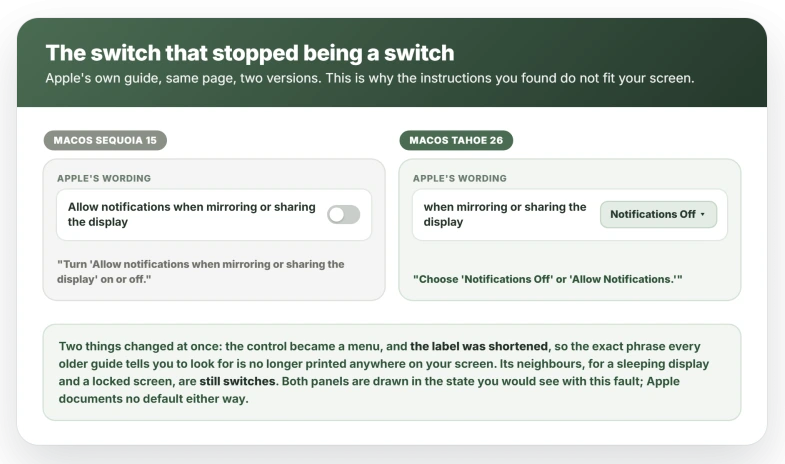
Two choices, not on and off. In macOS Sequoia this row was a switch, which is why guides written for Sequoia and earlier tell you to flip something that is not there.
Apple's own Mac User Guide carries both wordings at the two versions of the same page: Tahoe says "Choose 'Notifications Off' or 'Allow Notifications'", where Sequoia said "Turn 'Allow notifications when mirroring or sharing the display' on or off".
Apple shortened the label too, so the exact phrase you are hunting for is no longer printed on screen.
One consequence to accept before you do this. The setting is not scoped to your dock. There is one row, and it governs every case macOS counts as capturing the screen.
Set it to Allow Notifications and banners will also appear during a genuine screen share or a recording, which is the situation the feature was built for.
If you present or record regularly, either set it back to Notifications Off before the call and change it again afterwards, or leave it off and accept the silence while docked.
The two rows over it can do the same thing
While you are in that column, look at the two rows sitting over it.
when display is sleeping and when screen is locked are ordinary switches, and either one turned off produces the same silence with no dock involved at all.
That matters more for docked Macs. A machine parked on a desk with the lid shut spends most of its day locked and with a display asleep, meeting those conditions far more often than a laptop you carry around.
It is also why the mirroring row is so easy to miss. Your eye runs down a column of switches and slides past the one control that is a menu.
Check what is actually holding the permission
Open System Settings, click Privacy & Security, then Screen & System Audio Recording. That list is the apps allowed to record your screen, your system audio, or both.
A DisplayLink dock will have put DisplayLink Manager there, switched on, because the driver cannot paint your second display without it.
Seeing it there tells you the driver has the access it needs to read your screen, which is why macOS treats the dock as an active observer for as long as it is driving a display.
Expect other names there too, and do not read them as culprits.
Zoom, Teams and any screenshot tool hold the same permission, but they only read the screen while you are actually sharing, so an idle Zoom silences nothing.
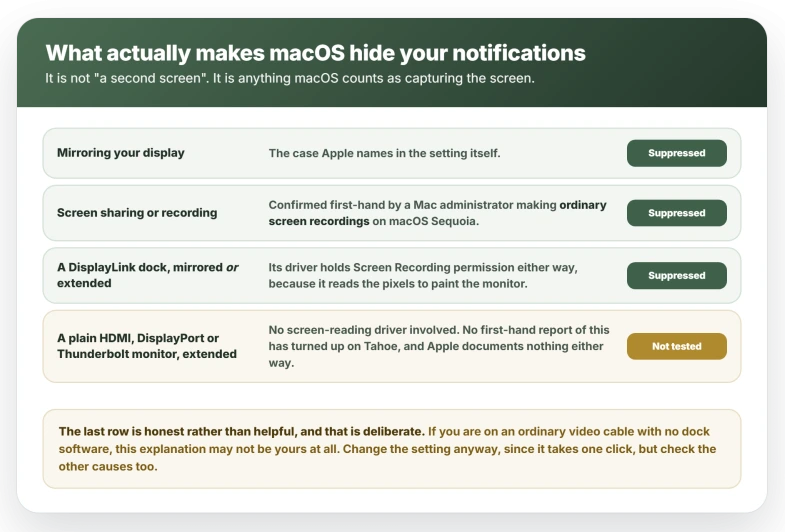
If you use a plain HDMI, DisplayPort or Thunderbolt monitor. No first-hand report of that setup has turned up on Tahoe and Apple documents nothing either way, but the two things that make a dock trigger this are both absent: a plain cable installs no screen-reading driver, and an extended desktop is neither mirroring nor sharing.
If that permission list holds nothing but apps you already know, this is probably not your cause.
Changing the setting takes a moment, so try it, but expect no difference and work through the other causes further down.
What to expect once it is set
Send yourself a message from your phone, or wait for one to arrive. A banner is the confirmation.
The row stays visible whether or not anything is currently capturing the screen, so if you cannot find it at all you are in the wrong pane rather than waiting for it to appear.
If notifications still come back only when you unplug, this setting was not the mechanism. The dock may be involved some other way, but the screen-capture explanation is ruled out in one step.
Three faults that get called the same thing
Notifications not arriving while Notification Center still opens normally. That is what the display-sharing row fixes.
Notification Center refusing to open at all, sometimes alongside Siri not responding and widgets missing from the desktop. A different fault with different causes.
Widgets have their own discussion, where one owner restored them by force quitting the Dock in Activity Monitor and another replied that the same step did nothing for him.
The Notifications pane in System Settings failing to open. A third thing again, reported separately by two owners in autumn 2025.
The setting will not touch the second or third of those.
Tahoe moved and reshaped a fair amount of this furniture, and icons disappearing from the menu bar is the same story in a different corner of the screen.
Other reasons a Mac goes quiet
Two of these are more common than the dock, and neither takes a minute.
A Focus mode arriving from another device. Apple states it plainly: with one Apple Account across your devices, switching a Focus on or off anywhere switches it everywhere, and Share across devices ships on.
So a Do Not Disturb you set on your iPhone silences the Mac. Check the Mac in Control Center, where an active Focus shows its name and icon.
Turn the propagation off on the iPhone at Settings, Focus, Share Across Devices, the same switch that sends calls to voicemail on iOS.
One owner on Tahoe 26.2 in January 2026 reported that toggle dimmed and unreachable, leaving Focus stuck on, though she noted the trouble began before her Tahoe upgrade and the discussion closed without a confirmed fix.
Per-app settings. In System Settings, Notifications, under Application Notifications, every app carries a separate switch and a separate style. One set to no banners stays quiet whatever the display is doing.
If the trouble started when you attached a monitor rather than a dock, that is a different area again, and an external monitor not being detected has its own causes on Tahoe.
What does not help
- Restarting the Mac. The setting survives a reboot, which is the point of a setting. If a restart brings notifications back briefly, look at Focus rather than at this.
- Unplugging and replugging the dock. It restores notifications while unplugged, which looks like a fix and is really just the trigger going away.
- Restarting Notification Center from Terminal. Suggested in the same discussion, and the owner who asked said nothing suggested there worked for him.
- Disabling the dock's driver, or revoking its Screen Recording permission. Plugable notes that without that permission the displays do not work properly, so this trades your second monitor for your notifications. The setting gets the same result and keeps both.
- Reinstalling macOS. One owner did a clean format and reinstall in October 2025 and reported it brought his Notification Center back. He was chasing a dead Notification Center rather than this setting, so it is not a route to this fix, only a measure of how far people go before finding a menu.
Status: as of macOS Tahoe 26.6 the two-option control is what Apple documents, and Apple has published nothing tying DisplayLink docks to this. Recheck the wording each point release.
Why do my Mac notifications stop when I connect my dock?
Because docks that drive displays through DisplayLink need Screen Recording permission, and macOS suppresses notifications when it thinks the screen is being shared.
Set System Settings, Notifications, Notification Center, "when mirroring or sharing the display" to Allow Notifications.
Will my messages show on screen when I share my display?
Yes, once you change this setting, and that is one to plan for. The row is not scoped to docks.
It covers every case macOS treats as capturing the screen, so a genuine screen share or recording will show banners too. Set it back to Notifications Off before you present if that matters.
Does a second monitor stop Mac notifications?
Only if something is capturing the screen.
Mirroring does it, screen sharing and screen recording do it, and a DisplayLink dock does it even in extended mode because its driver reads the screen to paint the display.
A plain HDMI, DisplayPort or Thunderbolt monitor on an extended desktop installs no such driver, and no first-hand report of that setup has turned up on Tahoe.
The Short Version
- macOS hides notifications when it believes something is capturing your screen. That is a privacy feature doing its job.
- A DisplayLink dock triggers it because its driver holds Screen Recording permission to paint the extra display.
- Fix: System Settings, Notifications, Notification Center, set when mirroring or sharing the display to Allow Notifications.
- On Tahoe that control offers two named choices, not the switch older guides describe, and the label was shortened, so the phrase you are searching for is not on screen.
- The row is not scoped to docks. Turning it on also shows banners during real screen shares and recordings.
- The two rows over it, for a sleeping display and a locked screen, are switches that cause the same silence with no dock at all.
- Screen recording alone does it too, confirmed first-hand on macOS Sequoia.
- Holding the permission is not the same as using it. An idle Zoom silences nothing; the dock driver reads the screen the whole time a display is attached.
- It does not explain a dead Notification Center, missing widgets or an unopenable Settings pane.
Where to Next
If your notifications only vanish when the dock is connected, that is not a coincidence and it is not a fault.
macOS is hiding them because it believes your screen is being captured, and something in that chain is telling it so.
Calls are the other thing that quietly stops working on a Mac. The Phone app not working on Tahoe covers what has to be switched on at both ends.
If you find the culprit, come back and name it, because this one is poorly documented and other people are hunting for the same answer.
And if a website you never meant to allow shows up in Notifications, Safari's Deny setting removes it.

Isaac Smith is the founder and editor of PC Glance, a website that covers computers, laptops, and technology. He is a tech enthusiast and a computer geek who loves to share his insights and help his readers make smart choices when buying tech gadgets or laptops. He is always curious and updated about the latest tech trends.