
You open Notifications in System Settings and find a name you never added, something like ematerayands.com. It sits among your apps, and nothing tells you where it came from.
It is not part of macOS. I found the forum thread on that exact name and checked Apple's Safari pages, which explain both how it got there and how to clear it.
What the owner found
The question was simple: "What is ematerayands.com, which shows up in Notifications (OS Tahoe)?"
A Level 10 volunteer answered: "ematerayands.com is a website domain, not an Apple system service or macOS component". Another owner hit a snag, in their words: "It's only in notifications not website, so i cannot remove it".
So there are two jobs: silence it, then take it off the list.
The owner later found out what the site was doing: "This ematerayands.com site was sending malicious notifications, with an embedded link to renew antivirus software that I do not use".
So do not tap a notification like that, and never pay for a renewal it offers. Deny the site first, using the steps that follow. That advice is ours.
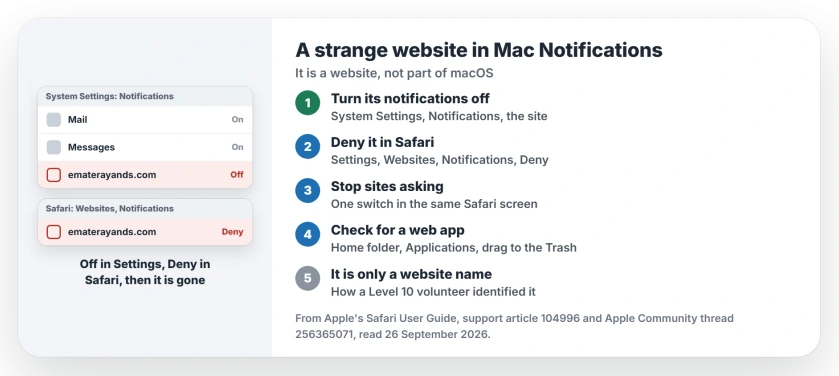
Status: macOS Tahoe with Safari, checked 26 September 2026. A website in Notifications got permission through Safari. Turning it off and denying it in Safari clears it, Apple says.
1. Why a website can notify you at all
Websites can ask to send you notifications, and a click on Allow is enough. The volunteer put it plainly: "Safari allows websites to send notifications, including when Safari is not open".
Apple's own guide says the same, and that the alerts arrive even when you are not on the site. A pop-up you clicked weeks ago can be the whole story.
2. Turn its notifications off first
This stops the alerts straight away. In System Settings, click Notifications, find the website under Application Notifications, and turn off Allow Notifications.
A timed Mac Focus session can silence trusted apps during a break without changing their individual alert settings.
The volunteer's steps match Apple's: open Notifications in System Settings, click the domain, and switch Allow Notifications off.
3. Deny it in Safari to remove it from the list
Turning it off leaves the name in place. Apple's Safari guide explains: "The website remains in the list in Notifications settings".
Apple's fix is to "deny the website permission to send notifications in Safari settings". In Safari, choose Settings, click Websites, then Notifications, and set the site to Deny. The name then drops off the list.
4. Stop sites from asking in the first place
In the same Safari screen, turn off the option that lets websites ask to send notifications. Apple says that "From now on, when you visit a website that wants to send you notifications, you aren't asked".
That one switch prevents the next strange name from appearing. Sites you want alerts from can still be allowed by hand.
5. Not in Safari's list? Look for a web app
If you cannot find the site in Safari, check for a web app. Apple says web apps are "saved to the Applications folder of your home folder", and each one handles its own notifications.
In Finder, choose Go, then Home, open Applications, and drag any web app you did not make to the Trash.
Apple notes web apps appear in Notifications under their own name. So this fits best when the listed name is not a web address. That reading is ours.
Other Mac notification problems
If your Mac's notifications stop when you use the Dock, the Dock notifications page covers that bug. And if pop-ups on your iPhone keep saying your phone has a virus, the fake virus warning page explains what they are.
What is ematerayands.com in my Mac's Notifications?
A volunteer identified it as a website domain, not part of macOS. Websites land in that list after you allow their notifications in Safari.
How do I remove a website from Notifications on a Mac?
Turn off Allow Notifications for it in System Settings, then set it to Deny in Safari, under Settings, Websites, Notifications. Apple says denying it removes it from the list.
Is a website in my Notifications a virus?
The volunteer described it as a website domain that Safari lets send notifications. Deny it and stop sites asking, and it cannot send you more alerts.
How do I stop websites asking to send notifications?
In Safari, open Settings, click Websites, then Notifications, and turn off the option that lets websites ask for permission.
The Short Version
- The name is a website, not macOS.
- It got in through a Safari Allow click.
- Turn its notifications off in System Settings.
- Deny it in Safari to clear it from the list.
- Stop websites asking in the same screen.
- Check your home Applications folder for web apps.
Where to Next
Open Safari's Websites settings now and look through the Notifications list. Deny anything you do not recognize.
Did a strange site show up in your Notifications too? Tell me its name in the comments. I will add the ones readers find.

Isaac Smith is the founder and editor of PC Glance, a website that covers computers, laptops, and technology. He is a tech enthusiast and a computer geek who loves to share his insights and help his readers make smart choices when buying tech gadgets or laptops. He is always curious and updated about the latest tech trends.