
Your messages arrive, but your iPhone says nothing: no banner, no sound, and you only find them when you open the app yourself.
That usually traces back to one app's notification permission, not the whole phone. I read a thread with 20 Me too clicks where two owners found fixes, and checked them against Apple's notification settings.
How it looks
The opening post summed it up: "Since updating to iOS 26.5.2, I have to open each app to see the messages I've received".
The owner had notifications and Background App Refresh switched on, so the obvious settings looked right. Others joined later with apps like Teams and Telegram.
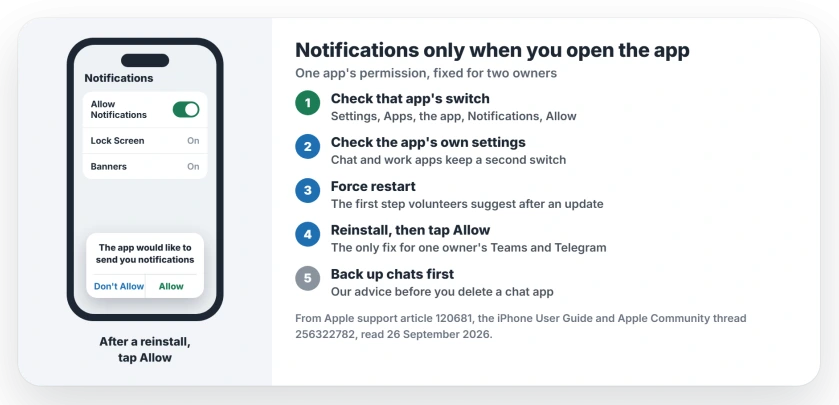
Status: iOS 26.5 and later, checked 26 September 2026. Some apps stay silent until opened, and re-allowing the app's notifications or a reinstall with Allow fixed it for two owners.
1. Check that app's notification switch
Start with the app that stays silent on your phone. Apple's steps are to open Settings, tap Apps, tap the app, then tap Notifications and turn Allow Notifications on.
That was the whole fix for one owner, in their words: "I had to go to settings, apps, messages, then notifications and turn my notifications on".
Apple gives you a useful clue: "If Notifications doesn't appear, the app might not be able to send notifications". In that case, jump to step 4.
2. Check the app's own settings too
Many chat and work apps keep a second switch inside the app. Apple says some apps show a link to their own notification settings at the bottom of the Notifications screen.
I would open it and make sure the app itself is set to notify you. Teams, Telegram and similar apps can mute you there even when iOS says yes; that last point is our reading.
3. Force restart after an update
Volunteers started with a restart, as one Level 10 volunteer put it: "If your iPhone is not behaving as expected after performing a system software update, try a forced-restart".
On a recent iPhone that means volume up, volume down, and then holding the side button down, which takes about a minute in all.
4. Reinstall the app, then tap Allow
For one owner, only this worked: "The only solution that helped me was reinstalling the app. Nothing else helped".
The detail they stressed is the first launch. When the reinstalled app asks whether it may send notifications, tap Allow, so the permission is granted fresh.
Before you delete a chat app, check that its messages are backed up inside the app or in iCloud; that advice is ours.
Other iPhone notification problems
If notifications arrive, but late, the late notifications page covers Focus, summaries and Low Power Mode. And if only one person's messages stay silent, the one-person page starts with their contact card.
Why do my iPhone notifications only show when I open the app?
The app's permission to notify you can get switched off or stuck, often after an update. Turn Allow Notifications back on for that app, or reinstall it and tap Allow.
How do I turn notifications back on for one app?
Open Settings, tap Apps, tap the app, then tap Notifications and turn on Allow Notifications.
Does reinstalling an app fix missing notifications?
It did for one owner when nothing else helped. The key step was tapping Allow when the app asked for permission on first launch.
Will a force restart fix missing notifications?
It is the first step volunteers suggest after an update, and it is quick. If the app stays silent, check its notification switch next.
The Short Version
- One app's permission is the usual suspect.
- Settings, Apps, the app, Notifications, Allow.
- Check the app's own notification settings.
- Force restart after an iOS update.
- Still silent? Reinstall and tap Allow.
- Back up chats before deleting an app.
Where to Next
Pick the app that stays silent and check its switch in Settings right now. It takes under a minute.
Which app went quiet on you? Leave its name in a comment so I can note which apps need the reinstall.

Isaac Smith is the founder and editor of PC Glance, a website that covers computers, laptops, and technology. He is a tech enthusiast and a computer geek who loves to share his insights and help his readers make smart choices when buying tech gadgets or laptops. He is always curious and updated about the latest tech trends.