
You find out hours later that somebody messaged you, while everyone else's texts arrive with a sound. That is a horrible way to miss something that mattered.
The one good thing here is that it narrows the problem right down. One person going quiet rules out anything app-wide.
Open Messages first with me, because where that message is sitting tells you which of the causes you are dealing with.
Open Messages and see whether the message is there
Do this before touching a setting, because it changes what you check next.
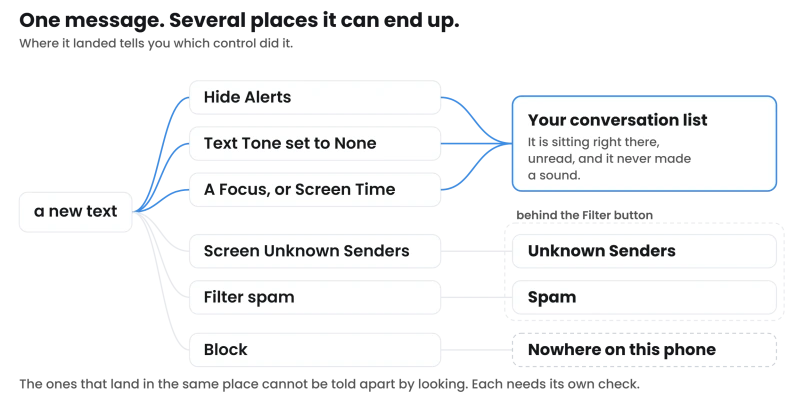
If the message is sitting in the conversation unread, it arrived and your phone chose not to tell you.
If the conversation is not in the list, look in Spam and Unknown Senders behind the Filter button before concluding anything, because a message can be diverted rather than missing.
And if it is in none of those places, it may never have been delivered, which is the one case no setting on this page will fix.
Silencing a message, diverting it and never receiving it are separate problems living on separate screens, which is why they get confused.
The button Apple gives two names
"Swipe left on a conversation, then tap" what Apple's own image calls the Mute button. Tap into the conversation instead and the same control is a switch called Hide Alerts.
Both routes sit on Apple's message notifications page, which gives the second one as "Tap a conversation, tap the contact or icon at the top of the conversation, then turn on Hide Alerts."
Same control, two names. If you have been hunting Settings for something called Mute, Apple documents it only inside Messages.
Doc 108127 is clear that this is narrow: "This stops notifications only for that conversation, not for everything on your iPhone. You still receive all other messages and view notifications for them on your Lock Screen."
One thing to know before you use it on someone.
The note attached to it reads: "Senders receive a note indicating that you have notifications silenced." The identical line sits under switching Messages notifications off entirely, and Apple does not say what the sender actually sees in either case.
A tone set to None, for that one contact only
Their name comes up on the screen and the room stays quiet. A contact can carry their own alert sound, and it can be set to nothing.
Open the conversation, tap the contact icon at the top, tap Info, tap Edit, then Edit Contact Info, then Text Tone.
To silence that person, tap "None below both Haptics and Alert Tones." Apple adds a fallback for a number you never saved: "If you don't see Edit, tap Create New Contact or Add to Existing Contact."
This is one reason the fault survives the sound settings you change in Settings. The tone sits on the contact card instead, so a phone set correctly everywhere else still makes no sound for one name.
Apple files this under changing the notification sound for certain people, so what it removes is the sound and the buzz, not the banner.
Our guide to an iPhone not vibrating runs the same trap from the vibration side: "A contact given a custom tone with no vibration stays quiet while everyone else buzzes, and nothing in Settings will explain why."
The fix for the opposite problem is on the same screen: "To give this contact the option to override a Focus, so any important messages can get through, turn on Emergency Bypass."
Spam filtering was already on when you got the phone
If the conversation is missing from the list rather than silent, start here, because this one needs no decision from you at all.
Apple's spam and blocking page states the default plainly: "Spam filtering is on by default. To turn it on or off, tap" the Filter button, "tap Manage Filtering, then turn on or off" the setting it prints as Filter spam.
And what that does to a message: "When spam is detected, it's moved to the spam folder and doesn't appear in your conversation list."
Older advice, ours included, routes this through Settings. That route still works; the in-app one is what Apple's current page prints.
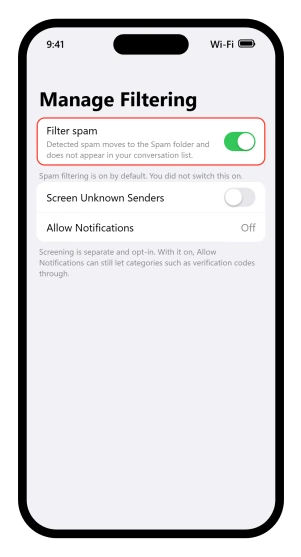
Screen Unknown Senders is a separate switch on the same screen. Apple never prints a default for it, only instructions to turn it on, so check the switch rather than assume it either way.
Apple's screening page says of unknown senders that "you don't get notified about them unless you want to be", and there is a real exception underneath: tap Allow Notifications and you can let categories through, "for example, you can allow notifications for time-sensitive texts, like verification codes."
A third setting on that screen, Text Message Filter, sorts messages into Transactions and Promotions folders, and Apple hangs an oddly specific rule on it: "Text message filtering doesn't apply to any sender you've replied to three times or more." Read that as a note about this filter only.
Apple does not extend the exemption to spam filtering or to screening.
To pull someone out permanently, open the Filter button, tap Unknown Senders, open their message and tap Mark as Known.
The rule otherwise: "Until you mark a sender as known or add them as a contact, any future messages are filtered to Unknown Senders."
If whole conversations went missing rather than one, that is a different article and we have it: where your iPhone messages went after iOS 26.
And if Siri AI announces unread messages from one person that do not exist, the Siri AI messages page covers that fault.
Blocked, which they cannot tell
Blocking is the clean case: nothing arrives and nothing is filed anywhere.
Apple: "When you block a specific contact or phone number, messages from that person or number aren't delivered. The person sending the message doesn't know that their messages are blocked."
Put that next to the muting note further up and the two go opposite ways: Apple says a muted sender is told something and a blocked sender is told nothing.
Check the list at Settings > Privacy & Security > Blocked Contacts, which is also reachable at Settings > Apps > Phone > Blocked Contacts.
Check it even if you are certain, because blocking reaches further than it sounds: "When you block a contact in Messages, that contact is also blocked in Mail, Phone, FaceTime, Calendar, and other apps."
If they are on that list and their texts still arrive, that is its own fault, and our guide to blocked numbers still calling and texting works through it.
When something is choosing who gets through
It works all evening and stops at nine. Or it works at home and fails at the office.
A Focus can allow some people through and silence the rest, without touching the conversation or the contact card.
The screening page points at it in one line: "To pause notifications from Messages, turn on Do Not Disturb or another Focus."
Which list decides is the part people get wrong.
Our guide to a Focus blocking calls names the split: "There is an 'Allowed People' list, which only controls notifications, and a completely separate 'Allow Calls From' control, which is the one that actually decides whether your phone rings." For texts it is the first list that decides, not the second.
"Another way to prevent unwanted messages is to allow messages only from your contacts with Screen Time." That tip is Apple's, and it points at a screen that rarely gets checked when Messages is the symptom.
A person not saved in Contacts then goes silent for a reason sitting outside Messages entirely.
Our guide to Screen Time not working names that control among the switches people confuse.
If it turns out not to be one person
Everything so far has been about one conversation. Some causes are not per-conversation at all, and read the same from the outside.
Turning off Allow Notifications for Messages does it, and Apple attaches that same sender note to it.
There are two doors to that switch and Apple uses both across its pages: Settings > Notifications > Messages on one, Settings > Apps > Messages on another. Both appear on current Apple pages.
Why there are two doors at all comes down to a Settings reorganisation Apple never announced.
Apple names two more on its page for missing Messages notifications.
If the Messages app is open and active, you do not get a notification for each new message. And if you wear an Apple Watch, the alert goes to one device rather than both.
The rule is watch on wrist, watch unlocked, iPhone locked, and missing any one of those keeps the alert on the phone, which our guide to an Apple Watch not getting notifications works through.
Scheduled Summary does something similar without switching anything off.
If Messages sits on that list at Settings > Notifications > Scheduled Summary, its alerts wait for the next batch instead of arriving when sent.
If several people are silent rather than one, I would stop here and treat it as a notifications problem instead, because none of what follows will help you.
If none of this is your phone
All of that assumes the message reached the phone.
A conversation that is in none of those places, and not from a blocked number, was probably never delivered. That is a sending fault rather than a notification fault, and it belongs with iMessage and RCS.
Ask them to send from another app. If that arrives normally, nothing here was the cause.
It is also where page-one advice runs out. Restarting, resetting network settings and toggling iMessage off and on are the usual offers, and none of them touches a per-conversation control.
Make the next one impossible to miss
Set Repeat Alerts and you will notice the next one.
It lives at Settings > Notifications > Messages > Customize Notifications > Repeat Alerts, and the range runs "from Never to 10 Times". Set to Never, you get one chance.
Set to repeat, a genuinely missed one becomes obvious instead of ambiguous.
Status: written against iOS 26.6. Every route was walked on Apple's current pages, and where two Apple pages give different routes to one switch, both are printed rather than one chosen.
Why am I not getting notifications from one person on my iPhone?
Open that conversation and tap the contact icon at the top, then check whether Hide Alerts is on. That silences one conversation and nothing else. If it is off, check the contact card, because a contact whose Text Tone and Haptics are both set to None arrives with no sound and no buzz, whatever your notification settings say.
Does someone know if I mute their messages on iPhone?
Apple says yes. Its note on muting a single conversation reads that senders receive a note indicating you have notifications silenced. Apple attaches the same line to turning Messages notifications off completely, and does not describe what the sender sees. Blocking is documented the other way, as something the sender cannot detect.
Can a Focus stop messages from just one person?
Yes. A Focus can allow some people through and silence the rest, which looks exactly like a fault on one conversation. Check Settings, Focus, then the Focus you actually use, then People. Screen Time can do the same by allowing messages only from your saved contacts.
Why are texts from a new number not showing up at all?
Filters can divert them before any notification happens. Spam filtering is on by default, and detected spam does not appear in your conversation list at all. Screen Unknown Senders, if it is on, sends anyone not in your Contacts to a separate list where you are not notified about them.
The Short Version
- Look in Messages first. A message sitting there unread was silenced. A conversation that is not in the list was diverted.
- Hide Alerts and the Mute button are the same control, reached two ways, and neither is in Settings.
- A contact's Text Tone and Haptics can both be None, which silences that person and nothing else.
- Spam filtering is on by default, and filtered messages do not appear in your conversation list.
- Screen Unknown Senders is a separate switch, and Apple only ever tells you to turn it on, with an Allow Notifications exception for things like verification codes.
- Blocking is undetectable to the sender, in Apple's words, while muting is not.
- A Focus or Screen Time can pick who gets through, without touching the conversation or the contact card.
- Repeat Alerts, at Settings > Notifications > Messages > Customize Notifications, makes the next missed one obvious.
- Emergency Bypass is the switch that makes one person always get through.
Where to Next
Start in Messages rather than in Settings. Whether that message is sitting there unread or missing altogether tells you which half of this page you need, and it takes seconds to look.
Silenced and blocked feel identical from your side, which is the whole difficulty.
If you have been through both halves and one person still comes in silently, tell me what their contact card looks like on your phone and I will help you narrow it.
When every message from one app stays silent until you open it, that app's permission is the place to look.

Isaac Smith is the founder and editor of PC Glance, a website that covers computers, laptops, and technology. He is a tech enthusiast and a computer geek who loves to share his insights and help his readers make smart choices when buying tech gadgets or laptops. He is always curious and updated about the latest tech trends.