
You set a Screen Time limit and the app is being used anyway. Before you decide it is broken, there is a grey note from Apple that explains the whole thing.
Limits can be ignored once they are reached, by default, and Apple says so in writing.
So the question is not why yours failed. It is which switch takes that permission away, and I will show you where it lives.
The switch Apple names, and exactly how far it reaches
That note, on Apple's Screen Time schedules page, links to a section called Block apps during scheduled Downtime.
It is the only blocking control Apple documents for iPhone.
Set a Screen Time passcode first, then open Settings, tap Screen Time, tap your child's name if you are setting this for them, tap Downtime, and turn on Block at Downtime.
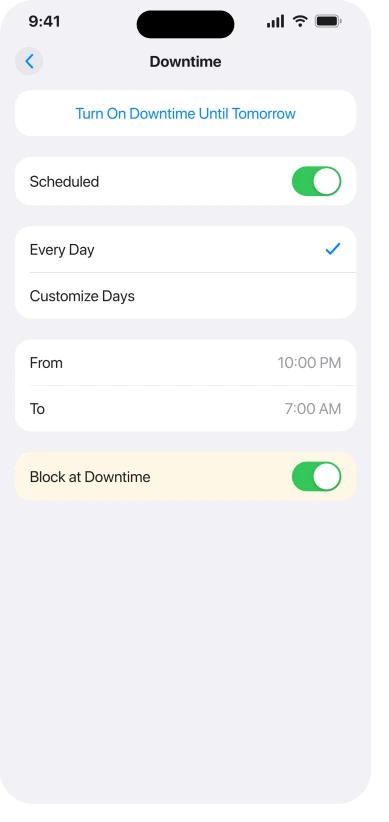
Apple describes both states:
> "When Block at Downtime is turned on, restricted apps can't be opened during downtime: they appear dimmed with an hourglass icon. When Block at Downtime is off, you see a reminder that it's downtime, but you can choose to continue using the apps."
Read the scope carefully, because it is narrower than the note that sent you here. Every sentence Apple writes about this control says during downtime. It governs your downtime hours.
Apple never says it governs an app limit that runs out at four in the afternoon.
Before you turn it on, check Allowed Apps. Apple's warning is direct: "If Messages isn't always allowed, your child may not be able to send or receive messages (including to emergency numbers and contacts) during downtime or after the app limit has expired." Apple asks you to put health and accessibility apps in that list too.
Blocking is real blocking.
The passcode is set at Settings > Screen Time > Lock Screen Time Settings, and Apple offers Screen Time Passcode Recovery on the same page, which lets you reset it with your Apple Account.
Turn that on while you are there.
Already forgotten the passcode? That has its own page, including what to do if recovery was never set up.
On a Mac, Roblox has its own way past a Screen Time limit, and the Roblox page covers what held for parents.
The control for a limit that runs out, and where Apple hides it
Apple's iPhone pages document no blocking control on an app limit itself. That is the gap.
The words "block at end of limit" appear nowhere on the iPhone Screen Time pages, and neither does any button for ignoring a limit.
Apple documents it on the Mac instead, on the Mac App Limits page, where the two controls sit on different screens and do different jobs:
> "Select 'Block at end of limit' if you want to block the app when the limit expires."
That is per limit, not global, and it answers a limit waved away outside downtime hours. On iPhone, look on the limit's own screen after you tap it in App Limits.
Apple has not written that route down, so this article will not pretend it has.
If it is not there, Block at Downtime plus a schedule covering the hours you care about is the documented route to hard blocking.
If nothing at all is happening
Set a limit, set a schedule, and watch neither do anything, and one switch usually explains it. Its name does not sound like an off switch.
Apple's tip: "The easiest way to turn off Screen Time is to turn off App & Website Activity. Turning off App and Website Activity turns off reporting, Downtime, App Limits, and Always Allowed."
That is written as an instruction. Use it as a diagnosis.
Open Settings, tap Screen Time, then tap App & Website Activity. If that screen offers you Turn On App & Website Activity, you have found it.
Everything else on this page needs it on.
If it worked before and stopped
Check the version before you change any setting, because a Screen Time fault that appeared with an update is not a setting you got wrong.
Open Settings > General > Software Update. If you manage a child through Family Sharing, update every device in the group, not only theirs, for the reason in the Family Sharing section further down.
If everything is current and it still fails, Apple has acknowledged nothing for iOS 26 on its Screen Time pages. Report it through Feedback or Apple Support rather than resetting settings that were not the cause.
If limits work on one device and not another
Screen Time does not follow your Apple Account on its own. It follows one setting, and that setting sits off the bottom of the Screen Time screen until you scroll.
Apple: "You can sync your Screen Time settings and reports across your iPhone, iPad, and Mac where you're signed in to the same Apple Account."
Turn on Share Across Devices at Settings > Screen Time, and note Apple's aside that you may need to scroll down to reach it.
The other state is spelled out: "If you turn off Share Across Devices, each device maintains its own separate Screen Time settings." An iPad that ignores an iPhone's limits is a second device keeping its own rules.
If a child's limits are not applying
Apple attaches a requirement to family setups that reads like small print and is not.
> "To make sure that your Screen Time settings sync across all the devices in your family group, update all devices to the latest software version before turning on or changing your Screen Time settings."
Every device in the group, including yours. A parent's phone a version behind can stop settings landing where you expect.
Two more causes in this family:
- The child's account may not be in the group. Screen Time for a child is managed from a parent device once their Apple Account is in the family group. If Family Sharing was never set up, Apple's alternative is to manage Screen Time directly on the child's device, which it supports for children aged 13 to 17 with their own Apple Account.
- The child may know the passcode. Apple provides a way to check: at Settings > Screen Time, tap the child, then Manage Screen Time, which shows when the passcode was last used and on which device. Apple's own tip is to change it, then turn on Downtime for the rest of the day.
Setting a limit again on the child's own device is not wasted, incidentally. Apple documents restrictions, contact rules and downtime as things you can set there.
If your child's requests never reach you
Read this one even if the rest works, because it catches parents who have changed nothing.
The first thing to know is that Messages is not the only channel. Apple: "You can approve or decline a request for additional Screen Time in the Messages app, or in Settings > Screen Time."
So if the messages never arrive, go to Settings > Screen Time, tap the family member, and their requests appear there for you to approve or decline with the passcode.
When you do want them in Messages, Apple lists five checks, and one is unlike anything else in Screen Time:
> "Use iMessage regularly. To get these requests via Messages, you need to have sent and received messages using iMessage in the last 30 days."
A parent who mostly uses another messaging app can therefore stop receiving requests without touching a Screen Time setting. Apple's other four:
- Update your iPhone or iPad, since some requests need current software to answer.
- Add your Apple Account email address to iMessage and check you can send and receive with it.
- Turn on notifications for Messages.
- Sync your iCloud contacts to the device where you want the requests.
If the numbers look wrong or missing
Three reporting behaviors get filed as bugs and are not.
A thin or empty report may need more use. Apple, on a child's summary: "they might need to use their device longer in order to show a report."
Grey blocks are not an error. Apple: "Screen Time activity that doesn't fit into a category may appear grey in your Screen Time summary."
Numbers for the wrong device come from a menu that is easy to miss. Tap See All App & Website Activity, tap Devices, and pick the one you meant.
Week and Day change the range, and you can swipe sideways through your history.
Which Screen Time switch owns your symptom
Screen Time is several switches, not one, and most advice online treats it as one.
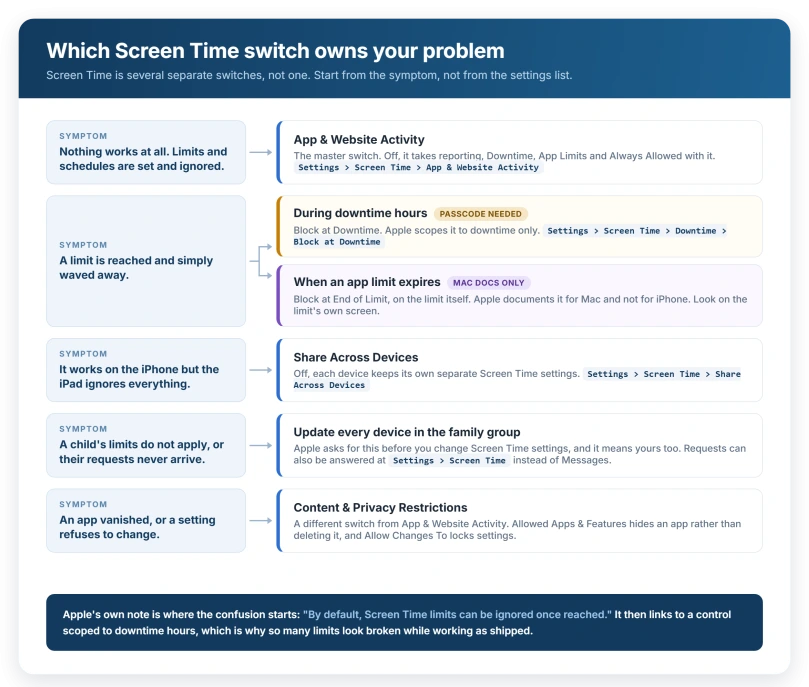
- App & Website Activity is the master switch for reporting, Downtime, App Limits and Always Allowed. This is not the same thing as Content & Privacy Restrictions.
- Content & Privacy Restrictions, at Settings > Screen Time > Content & Privacy Restrictions, is what blocks apps, downloads, websites and purchases and locks other settings. Under Allowed Apps & Features a switched-off app is hidden rather than deleted, and under Allow Changes To a Don't Allow is why a setting refuses to change. Our guide to location sharing breaking after iOS 26 walks that exact route for a dimmed Share My Location row, and our Home Screen guide lists every category Apple puts inside it.
- Always Allowed, at Settings > Screen Time > Always Allowed, is the list of apps and contacts that stay reachable during downtime and after a limit expires. Apple requires iCloud contacts to be on for the contacts half, at Settings > [your name] > iCloud, then See All next to Saved to iCloud, then Contacts.
- Communication Limits decide who can be reached through Phone, FaceTime, Messages and contacts.
What does not help
- Deleting and re-adding an app limit. Nothing about a fresh limit changes whether it can be ignored.
- Restarting the iPhone. Enforcement is a setting, and none of Apple's Screen Time pages connect a restart to it.
- Assuming a grey block is a glitch. Apple documents grey as activity that does not fit a category.
- Turning Screen Time off and on. Switching off App & Website Activity turns off reporting along with Downtime, App Limits and Always Allowed, so you lose the working parts to test the broken one.
- Turning on Apple Intelligence, or blaming it. It has no role in Screen Time enforcement.
Status: current for iOS 26.6. Apple documents that Screen Time limits can be ignored by default, scopes Block at Downtime to downtime, and names no per-limit blocker on its iPhone pages.
Why is Screen Time not working on iOS 26?
Start with App & Website Activity, the master switch, because Apple says turning it off also turns off reporting, Downtime, App Limits and Always Allowed. If that is on, the likeliest answer is that nothing is broken: Apple ships limits so they can be ignored once reached, and blocking is a separate setting you have to turn on.
How do I stop Screen Time limits being ignored?
Set a Screen Time passcode, then turn on Block at Downtime under Settings, Screen Time, Downtime. Apple scopes that control to downtime hours only. For a limit that expires outside those hours, Apple documents a separate per-limit setting called Block at End of Limit on its Mac pages, sitting on the limit itself rather than on Downtime.
Why do my Screen Time limits work on iPhone but not iPad?
Because Screen Time settings do not follow your Apple Account by themselves. Share Across Devices, under Settings and Screen Time, is what syncs schedules, limits and usage between iPhone, iPad and Mac. Apple states that with it turned off, each device maintains its own separate Screen Time settings, so the iPad is simply keeping its own.
Why am I not getting my child's Screen Time requests?
Requests reach you two ways, and Apple says you can approve or decline them in Messages or in Settings, Screen Time. If Messages is the one failing, Apple asks you to check current software, your Apple Account email added to iMessage, notifications on for Messages, iCloud contacts synced, and iMessage used within the last 30 days.
The Short Version
- A limit that gets ignored is the default. Apple: "By default, Screen Time limits can be ignored once reached."
- Block at Downtime covers downtime hours only. Set a passcode, then Settings > Screen Time > Downtime > Block at Downtime.
- For a limit expiring outside downtime, Apple documents Block at End of Limit on the limit itself, on its Mac pages only. Check your limit's own screen.
- Blocking can cut emergency messaging. Apple warns that if Messages is not in Always Allowed, a child may not reach emergency numbers during downtime or after a limit.
- Nothing working at all? App & Website Activity is the master switch for reporting, Downtime, App Limits and Always Allowed.
- Worked until recently? Check Software Update on every device in the family group before changing settings.
- One device only? Turn on Share Across Devices.
- Child's limits ignored? Check whether they know the passcode, at Manage Screen Time, which shows when it was last used.
- Requests not arriving? Approve them at Settings > Screen Time instead, or fix Messages, where Apple requires iMessage used in the last 30 days.
- Content & Privacy Restrictions is a different switch from App & Website Activity. Most advice online conflates them.
A long press that offers you nothing: If holding an icon opens a menu with items missing, that can be a content restriction rather than a timing problem, and our guide to Haptic Touch on iOS 26 covers the timing half.
A full-screen alert about holding the phone too close: That is Screen Distance, filed on this same Screen Time screen, and our guide to why your iPhone says to move it farther away covers it.
Where to Next
The line worth remembering is that limits can be ignored by default. Yours did not fail. It did exactly what Apple set it up to do.
Turn that permission off and the limit starts behaving the way you expected in the first place.
Sharing across a family goes wrong in a related way. Family Sharing purchases not showing covers what has to match before anything appears.
When the problem is the opposite, restrictions you cannot switch off at all, the Apple Account is usually the reason.
If you updated to iOS 27 and the new parental controls never appeared, a single device still on an older version holds them back.
If you have Block at Downtime on and an app is still opening, tell me which app, because a few of them are treated differently and it is worth knowing which.

Isaac Smith is the founder and editor of PC Glance, a website that covers computers, laptops, and technology. He is a tech enthusiast and a computer geek who loves to share his insights and help his readers make smart choices when buying tech gadgets or laptops. He is always curious and updated about the latest tech trends.