
You have set Family Sharing up and the purchases still are not showing for everybody, which rather defeats the point of it.
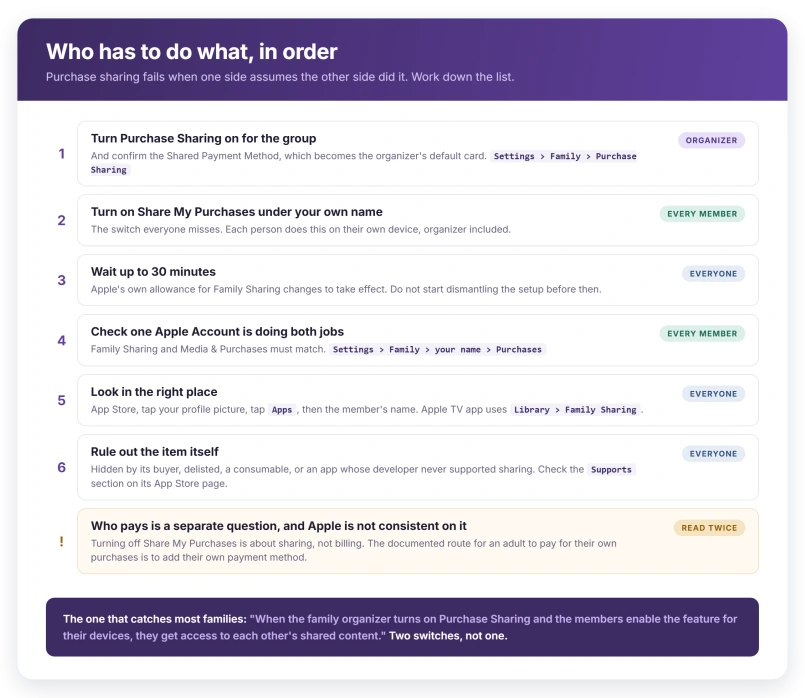
Purchase sharing takes two switches rather than one, and that is where almost everyone comes unstuck.
The organiser turns it on for the group, and each member turns it on for themselves. Let me show you both.
Where shared purchases actually appear
Before changing a setting, check you are looking in the right place. Family purchases do not land in your own purchase list, as Apple sets out on its Family Sharing purchases page.
Apple gives one route per app:
- App Store: tap your profile picture at the top of the screen, then tap Apps.
- Apple TV app: tap the Library tab, then tap Family Sharing.
- Apple Books: tap your profile picture at the top of the screen.
Then tap your family member's name, and tap the download button on anything you want.
Turn it on under your own name
Each person does this on their own device.
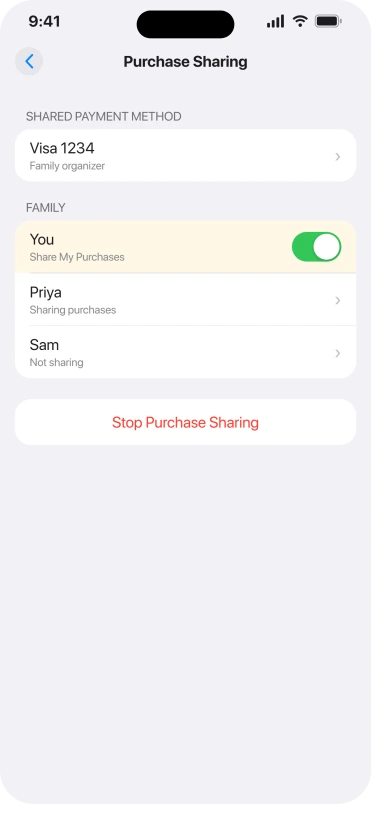
Open Settings, tap Family, tap Purchase Sharing, tap your name, then turn on Share My Purchases.
Apple's next step matters for whoever set the group up: "To confirm the payment method, tap Purchase Sharing again and check the Shared Payment Method information. This becomes the family organizer's default payment method."
Then wait before you conclude anything. Apple: "Changes to Family Sharing settings might take up to 30 minutes to take effect."
Give it half an hour before you start taking the setup apart.
One naming quirk. Most Apple pages call this switch Share My Purchases, while the iOS 26 guide calls it Share Purchases. It is the switch under your own name either way.
The two-account trap
This is Apple's own first suggestion when shared content will not appear.
Apple: "Make sure that you're using the same Apple Account for Family Sharing and Media & Purchases."
You can be a full member of the group on one account while the App Store buys and downloads with another. Nothing looks broken. The purchases belong somewhere else.
Apple's check, where the first step is the part people skip:
- Open Settings, tap Family, tap your name.
- Make a note of which Apple Account is listed.
- Tap Purchases, then tap Apple Account for Purchases.
- Confirm it matches the account you just noted.
If they differ, Apple offers Share using secondary Apple Account on that screen, where you enter the email and password of the other account.
To line everything up on one account instead, sign out of Media and Purchases only: Settings, tap your name, tap Media & Purchases, tap Sign Out, then sign back in with the account you use for Family Sharing.
That is smaller than it sounds. Apple: "You don't need to sign out of any other services that use your Apple Account, such as iCloud or iMessage."
Check the app can be shared at all
Not every app can be shared, and Apple leaves the decision to whoever made it: "App developers determine if an app can be shared within Family Sharing."
You can check any app in seconds. Apple: "go to the App Store, select the Apps tab or search for the specific app. Then scroll down until you find the Supports section. If Family Sharing is listed, then the app can be shared within your Family Sharing group."
Apple's list of what cannot be shared is longer than most pages admit:
- Individual Apple Music and Apple One subscriptions, and subscriptions and in-app purchases from non-participating apps.
- Student subscriptions.
- Consumable in-app purchases, such as coins or gems.
- Items no longer available in the App Store, iTunes Store, Books Store or Apple TV app.
- Purchases hidden by anyone in the group.
- Content assigned through a child's school using Apple School Manager.
Music from the iTunes Store, movies, TV shows, books and apps are all in scope.
A hidden purchase disappears for the whole family
An app one person hid is invisible to the whole group, and nothing on your own phone will say so.
Apple: "If a family member has hidden one of their purchased apps, no one in their Family Sharing group can see it. When you hide a purchased app, it also hides in-app purchases and subscriptions within the app."
Only the person who bought it can undo it, from their own App Store account. So one app missing while the rest share normally is a question for whoever bought it.
Note the second half of that sentence. Hiding an app takes its in-app purchases and subscriptions too, which is how a subscription vanishes from the family without anyone canceling anything.
All members must be in the same country or region
Apple states this as a requirement rather than a preference, on its iTunes guide:
> "To share purchases, all members of the family group must be in the same country or region (as determined by the billing address associated with their Apple Account)."
Apple adds that someone who moves and updates their Apple Account "might lose access to the purchases of other family members, and installed apps that were shared by other family members might not work." A family split across two countries is outside what purchase sharing supports.
Who gets billed when a family member buys something
The order surprises people, and Apple prints it in a footnote:
> "If you're in a Family Sharing group, your purchases are charged to your Apple Account balance. If you don't have enough balance for the purchase, the remainder is charged to the family organizer if Purchase Sharing is turned on, or you can add your own payment method."
So any Apple Account balance goes first, and the organizer's card covers the rest.
Apple scopes the alternative to adults, twice: the organizer pays for everyone "unless they turn off Purchase Sharing or other adult family members use their own payment method to make purchases."
Apple attaches no version number to it and does not call it new, so treat it as current behavior.
One more thing before you blame a failed purchase on sharing.
Apple: "When a family member makes a purchase on their device, the family organizer might need to verify the payment method by entering the CVV." That prompt appears on the organizer's own device, never in an email or a text message.
What turning sharing off does, and what it does not
Apple's warning is real, and where Apple puts it matters.
In the iOS 26 guide, under a paragraph that begins "If you're the family organizer, you can turn off purchase sharing", Apple adds: "Even though your items aren't shared, any purchases you make still use the shared family payment method."
Read honestly, Apple places that note in an organizer section.
Apple's own billing footnote points a different way for an ordinary member, saying the remainder goes to the organizer only "if Purchase Sharing is turned on".
Apple does not reconcile the two, so this article will not tell you which applies to your account.
What is safe to say: turning off Share My Purchases is about sharing, not billing. To stop your spending going on the family card, the documented route is an adult adding their own payment method.
Stopping purchase sharing for the group is a separate action, Stop Purchase Sharing then Stop Sharing on that same screen.
Apple: "you stop sharing your purchases and lose access to the purchases made by your other members in the family group."
And it does not end all family billing. Apple: "you can still share subscriptions like iCloud+, Apple TV, and more", which the organizer is still paying for.
If a child's request never arrives
Ask to Buy has its own troubleshooting page, and its checks are not the ones you would guess.
- A Focus can swallow it. Apple asks you to make sure time-sensitive notifications get through, or turn Focus off to test.
- The two devices must have different names. Apple's words, and the route is Settings > General > About, then tap your name. It is the least guessable check on the page.
- The child's contact card needs their correct name and Apple Account email or phone, which is what routes the request through Messages.
- "Unable to Ask Permission" on the child's screen is an account mismatch, in Apple's words iCloud and iTunes accounts "that are not associated with each other".
- Check from the organizer's side: Settings, Family, confirm Purchase Sharing is on, then tap the child's name to see whether Ask to Buy is on.
Ask to Buy is on automatically for under 18s in some places and cannot be turned off, which our guide to App Store age verification covers.
If the block is an app rating rather than a purchase approval, that is Screen Time, and our guide to iOS 26 Screen Time not working covers app exceptions.
What does not help
- Turning purchase sharing off and on from the organizer's phone alone. The member switch is separate and lives on each member's own device.
- Leaving and rejoining the family group. Apple's troubleshooting page never asks for it, and you can only switch family groups twice a year, so it is a costly thing to try on a guess.
- Signing out of iCloud. Apple's step is Media and Purchases only, and it says other services do not need signing out.
- Retrying immediately after changing a setting. Apple allows up to 30 minutes for Family Sharing changes to take effect.
- Hunting the App Store for an app someone hid. It will not appear for anyone until they unhide it.
Status: current for iOS 26.6. Apple documents that the organizer and each member must both turn purchase sharing on, that changes take up to 30 minutes, and that all members share one country.
Why are my family's purchases not showing up on iPhone?
Check where you are looking first, because family purchases appear under your profile picture in the App Store, then Apps, not in your own purchase list. If the setup is the problem, it is usually that only one side turned purchase sharing on. Apple requires the organizer to enable it and each member to enable it on their own device.
How do I turn on purchase sharing on iPhone?
Open Settings, tap Family, tap Purchase Sharing, tap your name, then turn on Share My Purchases. Whoever set the group up should also open Purchase Sharing again and check the Shared Payment Method listed there. Then wait, because Apple says changes to Family Sharing settings can take up to 30 minutes to take effect.
Why can I see some shared apps but not others?
Because that item was hidden or was never shareable. Apple says a purchase hidden by one member is invisible to the whole group, and hiding an app hides its in-app purchases too. You can check any app by finding its Supports section in the App Store, where Family Sharing is listed if it can be shared.
Does turning off Share My Purchases stop me using the family card?
Apple does not answer that cleanly. Its warning that purchases still use the shared family payment method sits in a section addressed to the organizer, while its billing footnote says the organizer is charged only if purchase sharing is on. The documented way for an adult to pay for their own purchases is to add their own payment method.
The Short Version
- Look in the right place first. App Store, tap your profile picture, tap Apps. Apple TV app, Library then Family Sharing. Books, tap your profile picture.
- Two switches. The organizer turns Purchase Sharing on, and every member turns on Share My Purchases under their own name.
- Wait 30 minutes. Apple allows that long for Family Sharing changes to take effect.
- Same Apple Account for Family Sharing and Media & Purchases. Check at Settings > Family > your name > Purchases.
- Same country or region for every member, which Apple states as a requirement for sharing purchases.
- One app missing? Someone hid it, or it does not support sharing. Check the Supports section on its App Store page.
- Coins, gems and delisted items were never shareable, along with student and individual subscriptions.
- Billing: your Apple Account balance first, then the organizer. An adult adding their own payment method is the documented way to change that.
- Ask to Buy silent? Check Focus, and check the two devices do not share the same name.
Where to Next
Two switches, and both have to be on. The organiser turns purchase sharing on for the family, and each member turns it on for themselves.
Then look in the right place, because shared purchases never appear in your own purchase list.
If both switches are on and an app still will not download for somebody, tell me whether it was bought before they joined the family, because that is the usual answer.

Isaac Smith is the founder and editor of PC Glance, a website that covers computers, laptops, and technology. He is a tech enthusiast and a computer geek who loves to share his insights and help his readers make smart choices when buying tech gadgets or laptops. He is always curious and updated about the latest tech trends.