
Your email is stuck in the Outbox, and every time you open Mail it is still sitting there. Especially maddening if it needed sending an hour ago.
Start inside the Outbox rather than in Settings, which is the opposite of what most advice will tell you.
Open the message, look at who it is addressed to, and tap Send again. I will explain why that works more often than it has any right to.
Apple's four steps, in Apple's order
- In Mail, go to your list of mailboxes.
- Tap Outbox.
- Tap the email and check the recipient's address is correct.
- Tap Send.
Two conditions come before those in Apple's own list: be connected to the internet, and check whether your provider is having an outage.
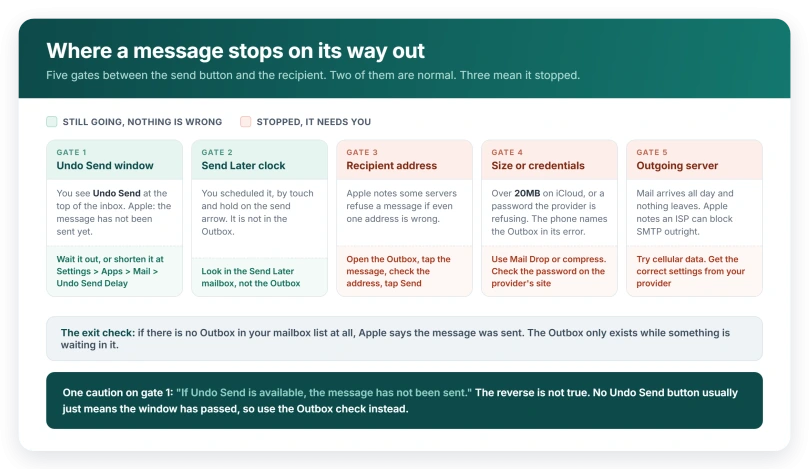
If there is no Outbox in your mailbox list at all, you have your answer already. Apple: "Tap Outbox. If you don't see an Outbox, then your email was sent."
The Undo Send check, and what it does not tell you
One check tells you whether a message has left your phone yet.
Apple: "Look for the Undo Send button in your Inbox or list of mailboxes. If Undo Send is available, the message has not been sent."
The reverse is not true, and that matters. No Undo Send button does not mean the message went. It usually just means the short window has passed. The Outbox check answers that question instead.
If it is waiting on purpose
Two features park a message deliberately, and neither is a fault.
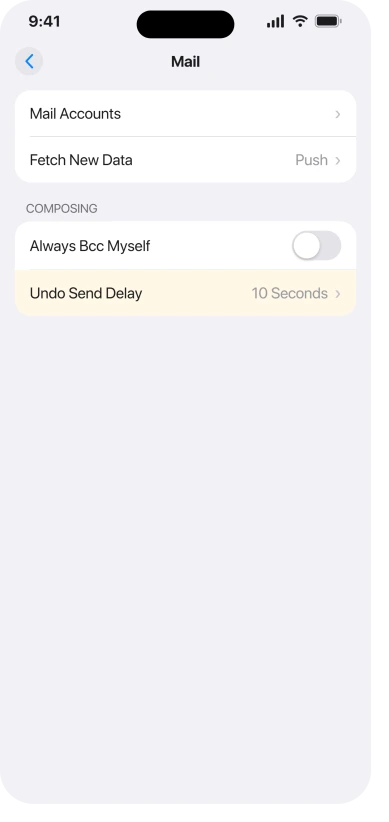
The Undo Send delay. Apple gives you ten seconds to change your mind after sending, and the length is adjustable on Apple's Undo Send page, at Settings > Apps > Mail > Undo Send Delay, where you "choose a length of time to delay outgoing email messages." Set to a longer option, every message you send visibly waits before it leaves.
Send Later. Scheduling lives on the send button, so it is easy to hit by accident: touch and hold the send arrow in a draft and pick a time.
A scheduled message does not go to the Outbox. Apple lists the standard mailboxes on iPhone as Inbox, Sent, Trash, Remind Me, Follow Up and Send Later, and the Outbox is not among them.
Look in Send Later for anything you queued.
For a text instead of an email, schedule it inside Messages, which keeps pending texts in the conversation.
If the message is large, this is probably why
Apple publishes the exact wording an iPhone shows when a message is too big, and it names the Outbox:
> "A copy has been placed in your Outbox. Sending the message failed because you exceeded your sending limit."
For iCloud Mail, Apple's published ceiling is "20MB, up to 5GB with Mail Drop turned on".
Apple's own fix: "If you're trying to attach a large file, try using Mail Drop or compressing the file before sending it. Or use AirDrop, if the recipient is nearby."
This is the one case where deleting the stuck message and writing it again is the right move, because the new message needs a smaller attachment or Mail Drop behind it.
Apple publishes three other iCloud limits that matter if you send in bulk: 1000 messages a day, 1000 recipients a day, and 500 recipients per message.
If the account is iCloud Mail
Most advice about outbox trouble is written for third-party providers. iCloud has its own checks, and Apple lists them separately.
- Use on this iPhone. Open Settings, tap your name, tap iCloud, tap Mail, and turn on Use on this iPhone.
- iCloud storage. Apple is blunt: "If you run out of iCloud storage, you won't be able to send or receive emails with your iCloud Mail address."
- Apple's status page. Check Apple System Status before changing anything.
- A VPN. Apple: "If you have VPN configured on your iPhone, turn it off, then try again."
- Push. At Settings > Apps > Mail > Mail Accounts > Fetch New Data, turn on Push and check Fetch is set to Automatically. Apple notes you can only use Push with one account at a time.
- Test at iCloud.com. Apple suggests going to icloud.com/mail to see whether the account works away from your phone.
Apple also lists turning the device off and back on here, twice, so it is a documented step for iCloud Mail rather than folk advice.
Check your Drafts as well. Apple: "If you see an unsent copy of the message in Drafts, try to send it again."
If Mail keeps asking for a password
A password prompt that will not clear stops everything queuing behind it.
Apple's instruction is to check the password by signing in to your email provider's website, so you know whether the password itself is the problem before you touch the phone.
If it is correct there and still refused here, Apple points at the provider:
> "Ask your email provider or system administrator if you turned on any security features or restrictions, like two-step verification, for your email account. You might need a special password or might need to request authorization from your email provider to send and receive email on your device."
Apple does not name that special password, and it is not needed for every account.
Providers that Apple sets up automatically, including iCloud, Google, Microsoft Exchange and Yahoo, normally sign you in through their own screen rather than asking for one.
Ask the provider what applies to your account instead of generating credentials you may not need.
If what keeps appearing is the system-wide Apple Account box rather than Mail asking for one account's password, that is a different problem, and our guide to a repeating Apple Account sign-in prompt covers it.
If mail arrives all day but nothing leaves
Incoming and outgoing are two separate servers, which is why receiving can work perfectly while sending does not.
Apple documents a second cause for the same symptom that has nothing to do with your settings: "Your ISP might be blocking the protocol used to send email (SMTP) across their network." Send the same message on cellular data instead of home Wi-Fi and you have tested it.
If the account was added manually, its outgoing server is one you typed in.
Apple asks for "the information for Incoming Mail Server and Outgoing Mail Server" during setup, and says to contact your provider if you do not have it.
One real gap: Apple's iPhone pages document those fields only while you are adding an account.
No Apple page here gives a route to the outgoing server screen for an account you already have, so this article will not invent one.
A Mac that will not send usually has a different lead cause, a spell-check setting rather than a server, and our guide to Mac Mail refusing to send starts there.
Turn the account off before you delete it
Apple documents a reversible step on the same screen as the destructive one, and it is the one to try first.
Temporarily stop using the account: go to Settings > Apps > Mail > Mail Accounts, tap the account, then turn off Use on this iPhone for iCloud, or turn off Mail for any other account.
Apple's own words: you can easily turn it back on at any time.
If you do go on to remove the account, do Apple's precaution first: "sign in to your email provider's website. Make sure that all of your email is there or make sure that your email is saved somewhere other than on your iOS or iPadOS device."
That precaution exists because of the warning at the top of this page.
Apple: "If you delete or change your email account settings, previously downloaded email might be removed from your device." Apple attaches no exceptions to that, so treat it as applying to your account whatever type it is.
The removal itself is Settings > Apps > Mail > Mail Accounts, tap the account, then tap Sign Out or Delete Account, depending on which your provider shows.
Apple notes this does not close the account, it only takes it off the phone.
If none of this worked
Apple's page ends where this one does: "If the steps in this article don't help, contact your email service provider for more information."
Before you do, collect the things they will ask for. Whether other accounts on the phone send normally. Whether the same message sends from the provider's own website. The exact wording of any error.
And whether it fails on cellular data as well as Wi-Fi.
To stop one wedged message holding up the rest, Apple's instruction is direct: "Check your Mail Outbox to see if it contains unsent messages. Resend or delete the unsent messages."
What does not help
- Force quitting Mail repeatedly. No Apple page here lists it for a message already queued.
- Retyping the same password into Mail. If the provider is refusing it, the phone is not where the answer is.
- Deleting the account as a first move. Apple puts it last, and there is a reversible switch on the same screen.
- Guessing at server ports and hostnames. Apple's instruction every time is to get the correct settings from the provider.
- Assuming the Outbox is where a scheduled message went. Apple lists Send Later as its own mailbox and does not list Outbox among the standard ones.
Status: current for iOS 26.6. Apple's send-failure page was published 31 March 2026, its iCloud Mail page 8 June 2026, and both still end at contacting your provider or Apple Support.
Why is my iPhone email stuck in the Outbox?
Usually because Mail tried to send it and could not, so it queued the message. Sometimes it never tried: the Undo Send delay parks every message briefly, and Apple's stated limit for an iCloud message is 20MB, and past that the phone says a copy has been placed in your Outbox. Check the recipient address first, then the attachment size.
How do I force an email out of the Outbox on iPhone?
Go to your list of mailboxes in Mail, tap Outbox, tap the message, check the recipient address is correct, then tap Send. If it fails again, Apple's own instruction for clearing a jam is to resend or delete the unsent messages in the Outbox, which stops one wedged message holding up everything behind it.
Where do scheduled emails go on iPhone?
Not to the Outbox. Apple lists the standard iPhone mailboxes as Inbox, Sent, Trash, Remind Me, Follow Up and Send Later, with no Outbox among them. A message you queued by touching and holding the send arrow sits in the Send Later mailbox until its time, so that is where to look for it or change it.
Is it safe to delete my email account to fix the Outbox?
Try the reversible option first. Apple documents turning an account off on the same screen, by switching off Use on this iPhone for iCloud or Mail for other accounts. If you do delete, Apple warns that a device backup saves mail settings but not email, and asks you to confirm your mail is on the provider's website first.
The Short Version
- Start in the Outbox. Open the message, check the recipient address, tap Send. Apple notes some servers refuse a message if one address is wrong.
- No Outbox in the list? Apple says it was sent.
- Undo Send showing means the message has not gone. Its absence proves nothing.
- Large attachment? Apple's iCloud ceiling is 20MB, or 5GB with Mail Drop, and the phone's error names the Outbox directly.
- iCloud account? Check Use on this iPhone, iCloud storage, Apple System Status, any VPN, and Push under Fetch New Data.
- Scheduled message? It is in the Send Later mailbox, not the Outbox.
- Password prompt? Check it on the provider's website. Ask them whether your account needs a special password rather than assuming.
- Receiving fine, sending never? Incoming and outgoing are separate servers, and Apple notes an ISP can block SMTP outright.
- Before deleting the account, turn it off instead. Apple warns your backup does not include your mail.
Where to Next
Start inside the Outbox, not in Settings. Open the message, look hard at the address, and tap Send again.
That fixes more of these than anything you can change in a menu, and it costs you nothing to try.
Nothing coming in rather than nothing going out is the other direction. Why an update reveals a mail fault rather than causing one.
If it will not go and the address is definitely right, tell me who your mail provider is, because a few of them refuse messages for reasons that have nothing to do with your phone.

Isaac Smith is the founder and editor of PC Glance, a website that covers computers, laptops, and technology. He is a tech enthusiast and a computer geek who loves to share his insights and help his readers make smart choices when buying tech gadgets or laptops. He is always curious and updated about the latest tech trends.