

Your Mail will not send after the Tahoe update, and the instinct is to start digging through server settings and passwords. Try one thing with me first, because it clears this more often than anything else.
Try one thing first, because it clears this more often than any of that.
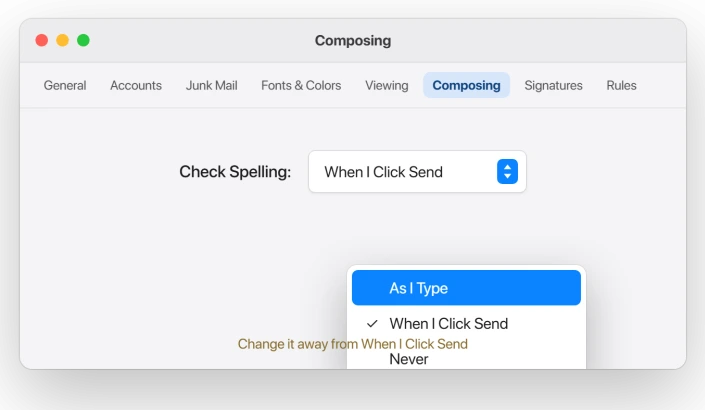
Open Mail, then Settings, then the Composing tab. If Check Spelling is set to When I Click Send, that is the bug. Switch it to As I Type or Never, and your mail sends again.
Why a spell-check setting stops your email
With Check Spelling set to When I Click Send, Mail is supposed to pop up the Spelling and Grammar panel the moment you hit Send.
On Tahoe that panel often never appears, and the Send button just greys out, so the message has nowhere to go.
It tends to work on the first email of a session, then jam on the next, which is why it feels random.
What surprises people is that this is not even a new Tahoe bug.
Apple shipped it in macOS Sequoia 15.4 in April 2025, which developer Michael Tsai documented at the time, and it carried straight into Tahoe, reported on 26.0.1, 26.1, and 26.2.
Apple has never posted an official fix, and support staff have quietly told callers to change this same setting.
The quick tell: does every account fail?
Before you touch anything deeper, use one test to point yourself the right way.
Try sending from each of your mail accounts. If every one of them fails and the Send button greys out, it is the spell-check bug, because that hits Mail as a whole.
The fix is the Composing setting, and nothing to do with your servers.
If only one account cannot send while the others are fine, it is not this bug. That account's outgoing server is the problem, so go there next.
If it is only one account: fix the outgoing server
A single account that will not send usually has a broken or out-of-date outgoing mail server.
Open Mail, Settings, Accounts, pick the account, and open Server Settings. Under the Outgoing Mail Server, open the account menu and choose Edit SMTP Server List.
Turn off Automatically manage connection settings, then check the host, the port (usually 587 or 465), that Use TLS/SSL is on, and the authentication method.
Apple details this in Change Outgoing server settings in Mail on Mac.
Gmail and Microsoft accounts often need you to sign in again, since they use a login window rather than a stored password.
Yahoo and iCloud need an app-specific password once you have two-factor turned on. A rejected password blocks that one account from sending.
If a Yahoo account shows offline with "Unable to connect to service" instead, re-adding it the normal way did not help owners. Adding it as an Other account did.
A work Exchange account that nags for its password every few minutes is a separate case; turning off its features in Internet Accounts quiets it.
To see which server is actually failing, open the Window menu and choose Connection Doctor. A red dot marks the account that cannot connect.
Still stuck for every account?
When the send is stuck for every account and the spell-check setting is already off, work through these.
- Clear a stuck message from the Outbox. One wedged message can halt the whole queue. Open the Outbox, then delete the stuck message or try sending it again.
- Rebuild the mailbox. Select the mailbox, open the Mailbox menu, and choose Rebuild. It re-downloads the messages and repairs Mail's local index.
- Take accounts offline, then online. Open the Mailbox menu, choose Take All Accounts Offline, wait a moment, then Take All Accounts Online. Apple's general steps are in If you can't send or receive email on Mac.
- Re-add the account. Remove it and add it back, or toggle it off and on under System Settings, Internet Accounts.
Keeping spell check on at send time
You do not have to give up send-time spell check for good. When the panel fails and the Send button greys, click into the body of the message and press the spacebar a couple of times, then send.
Or close the draft, reopen it from the Drafts mailbox, and send it from there.
Setting Check Spelling to As I Type keeps the spelling help without the send-time hang.
Status: a spell-check-on-send bug Apple shipped in macOS Sequoia 15.4 and carried into Tahoe, unfixed through 26.2. The Composing-setting change is the reliable fix, not a server change.
What will not fix it, and what is not this bug
- Reinstalling macOS or your account first. This is a one-setting bug for most people. Change the Composing setting before you do anything drastic.
- Waiting for an update. It has gone unfixed from Sequoia 15.4 through Tahoe 26.2, so do not count on a patch to clear it.
- Blaming Outlook's problem on Mail. If you use Microsoft Outlook for Mac and it stopped sending after Tahoe, that is a separate Outlook bug, usually fixed by updating Microsoft AutoUpdate, not the spell-check setting.
- Mixing this up with search or receiving. If mail arrives but search finds nothing, that is Mail search not working after Tahoe. Trouble on the phone instead is iPhone Mail notifications not working.
Why won't my Mac Mail send after updating to Tahoe?
Most often it is a spell-check bug. With Check Spelling set to When I Click Send, Mail fails to bring up its spelling panel and the Send button greys out, so nothing leaves.
Open Mail, Settings, Composing, and change Check Spelling to As I Type or Never. If every account is stuck, this is almost certainly it.
How do I fix the Mail spell check sending bug?
In Mail, open Settings, then the Composing tab. Change the Check Spelling menu from When I Click Send to As I Type or Never, then send a test message.
If you want to keep checking at send time, press the spacebar in the message body when the Send button greys, then send.
Is it Apple Mail or my email provider?
Test each account. If all of them fail to send, it is the Mail-wide spell-check bug, so change the Composing setting.
If only one account fails, it is that provider's outgoing server, so check its SMTP settings and sign in again.
The Short Version
- Mail refusing to send on Tahoe is usually a spell-check bug. Open Mail, Settings, Composing, and change Check Spelling off When I Click Send to As I Type or Never.
- It is an old bug, shipped in macOS Sequoia 15.4 and carried into Tahoe, unfixed through 26.2. Apple has no official fix, only the setting change.
- Quick tell: if every account fails and Send greys out, it is the spell-check bug. If only one account fails, it is that account's outgoing server.
- For a single stuck account, check the outgoing server settings and sign in again, and use Connection Doctor to see which server is red.
- Still stuck for all accounts? Clear a wedged message from the Outbox, rebuild the mailbox, take accounts offline and online, or re-add the account.
Where to Next
Another Tahoe change people meet at the login window rather than in an app: Touch ID that stopped working after the update.
- Mail arrives but search turns up nothing: Mail search not working after macOS Tahoe
- The problem is on your iPhone instead: iPhone Mail notifications not working
- Mail opens with every mailbox empty: remove and re-add the account

Isaac Smith is the founder and editor of PC Glance, a website that covers computers, laptops, and technology. He is a tech enthusiast and a computer geek who loves to share his insights and help his readers make smart choices when buying tech gadgets or laptops. He is always curious and updated about the latest tech trends.