
Every time you open the Camera, iOS switches Live Photo back on. That is deliberate, not a glitch, and it is why turning it off in the moment never sticks.
The Camera drops back to its defaults each launch unless you tell it not to.
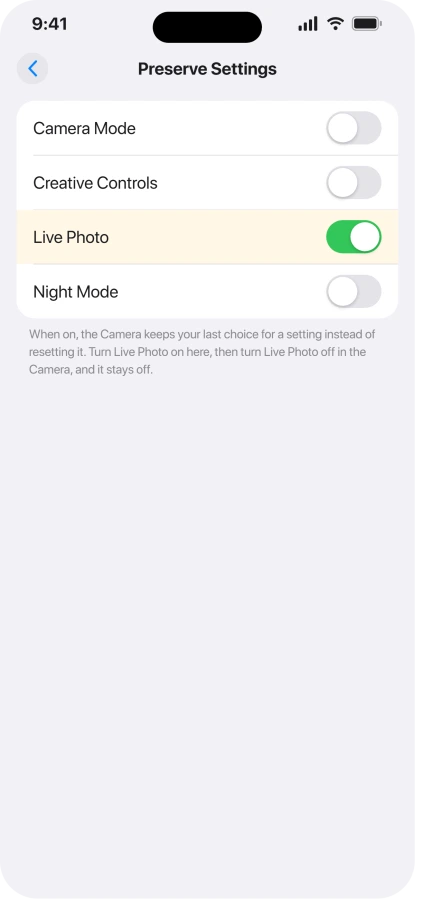
One setting changes that. In Settings, Camera, Preserve Settings, the Live Photo switch turned on makes the Camera remember your last choice instead of resetting it.
Let me show you the setting that makes your choice stick, because turning it off in the moment never will.
Turn on Preserve Settings, the right way round
Almost everyone trips on this, because the switch works backwards from what you expect.
Open Settings, Camera, Preserve Settings, and turn the Live Photo toggle on, to green. On means the Camera keeps whatever you last set.
So with this on, you turn Live Photo off once in the Camera and it stays off.
Apple lays out the setting in Save camera settings on iPhone.
Set it the other way, off, and you get the opposite. The Camera forgets your choice and flips Live Photo back on at every launch. If your fix is not holding, this backwards toggle is almost always why.
Where the Live Photo button hides on iOS 26
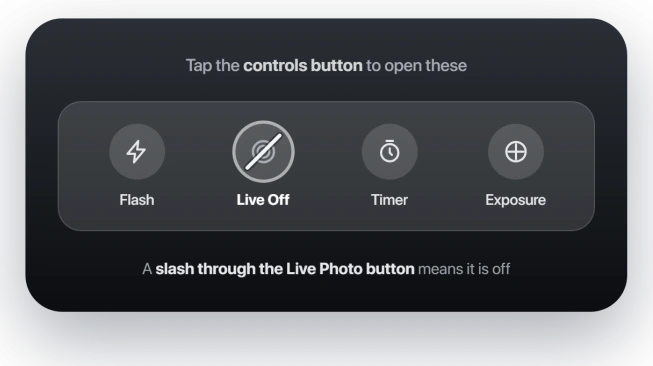
The iOS 26 Camera was redesigned, and the Live Photo button is no longer at the top of the screen where it used to sit.
Tap the controls button, the row of small icons or the arrow near the shutter, to open the pop-up controls. Live Photo is in there. Tap it so it shows a slash through it, which means the feature is off.
A slash means off, as Apple notes in Take and edit Live Photos. Do that once with Preserve Settings already on, and the Camera holds it.
When it turns back on anyway
For most people, Preserve Settings holds and that is the end of it. For some it still creeps back, often after a restart or an iOS update, and mostly on iPhone 15 and similar models.
Apple has never called this a bug, so there is no official patch to wait for.
If yours will not stay put, work through these.
- Check the toggle is on, not off. It is the single most common miss, so confirm Preserve Settings, Live Photo is green.
- Update iOS, then check again. A few people report an update settled it.
- Re-seat the setting. After a reboot or update, turn Preserve Settings, Live Photo off and back on to reset it.
- Use a different camera app. A third-party camera like Halide or ProCamera never force-resets Live Photo, so it stays exactly how you set it. This is the guaranteed fallback when the built-in Camera will not cooperate.
Turn off Live Photos you already took
Turning capture off does nothing to the Live Photos already in your library. To flatten those into normal stills, you have two ways.
- One photo. Open it, tap Edit, tap the LIVE button at the top left, choose Off, then Done. This changes it in place and can be undone later.
- A batch. Open Photos, go to your Live Photos album under Media Types, tap Select, pick the ones you want or Select All, tap the More button, choose Duplicate, then Duplicate as Still Photos.
The batch way makes a second, still copy dated today and leaves the Live originals in place, so delete those originals if you are doing this to reclaim space.
Keep a Live source when you want to make an animated iPhone sticker. The motion comes from that photo rather than a normal still copy.
Why turn them off, and what this is not
A Live Photo is a still plus a short video clip, so it takes roughly twice the space of a normal photo, and iCloud backs up the whole thing.
On a tight iCloud plan or storage, that adds up fast.
Two things this is not. If you only want photos to stop moving when you press on them, that is a different switch, Settings, Apps, Photos, Auto-Play Motion.
And if the Camera keeps resetting the whole mode, back to Photo from Video for instance, turn on the Camera Mode toggle in that same Preserve Settings screen, not just Live Photo.
Status: the Camera resets Live Photo to on every launch by design, so turn Preserve Settings, Live Photo on to keep it off. Some phones revert anyway, and a third-party camera app is the sure fix.
What will not fix it, and what is not this bug
- Turning Preserve Settings off. That is the backwards move that causes it. The switch has to be on for Live Photo to stay off.
- Only tapping Live Photo off in the Camera. Without Preserve Settings on, the next launch turns it straight back on.
- Expecting a flawless fix. This is not an Apple-acknowledged bug, and on some phones it still drifts back on, so keep the third-party-app option in mind.
- Confusing it with the camera freezing. If the Camera goes black or locks up rather than resetting, that is iPhone camera frozen on iOS 26, a separate problem.
Why do my Live Photos keep turning back on?
The Camera resets Live Photo to on every time it opens, by design. Turning it off in the moment does not carry over to the next launch.
Fix it in Settings, Camera, Preserve Settings, by switching Live Photo on, which tells the Camera to keep your last choice. Then turn Live Photo off once in the Camera.
How do I permanently turn off Live Photos on iPhone?
Open Settings, Camera, Preserve Settings, and turn Live Photo on. Then open the Camera, find the Live Photo button in the pop-up controls, and tap it so it shows a slash.
Turning the Preserve Settings switch on is the counter-intuitive step. On there means the Camera remembers your off choice.
How do I turn a Live Photo I already took into a regular photo?
Open the photo, tap Edit, tap the LIVE button at the top left, and choose Off. That flattens it to a still and is reversible.
For many at once, select them in your Live Photos album, tap More, then Duplicate, then Duplicate as Still Photos, and delete the Live originals afterward.
The Short Version
- The Camera turns Live Photo back on at every launch by design, which is why toggling it off never sticks on its own.
- The fix is backwards from what you expect: Settings, Camera, Preserve Settings, turn Live Photo on. On means the Camera keeps your choice.
- Then turn Live Photo off once in the Camera. On iOS 26 the button lives in the pop-up controls, and a slash through it means off.
- On some phones it still reverts after a reboot or update, which Apple has not fixed. Re-check the toggle, update iOS, or use a third-party camera app as the guaranteed fallback.
- To clear Live Photos you already took, Edit a photo and set LIVE to Off, or batch them with Duplicate as Still Photos.
Where to Next
And if a screenshot never appears in Photos at all, that behavior changed rather than broke.
- Storage filling up from photos and video: iCloud Photos stuck on Syncing Paused
- Camera black or frozen instead: iPhone camera frozen on iOS 26

Isaac Smith is the founder and editor of PC Glance, a website that covers computers, laptops, and technology. He is a tech enthusiast and a computer geek who loves to share his insights and help his readers make smart choices when buying tech gadgets or laptops. He is always curious and updated about the latest tech trends.