
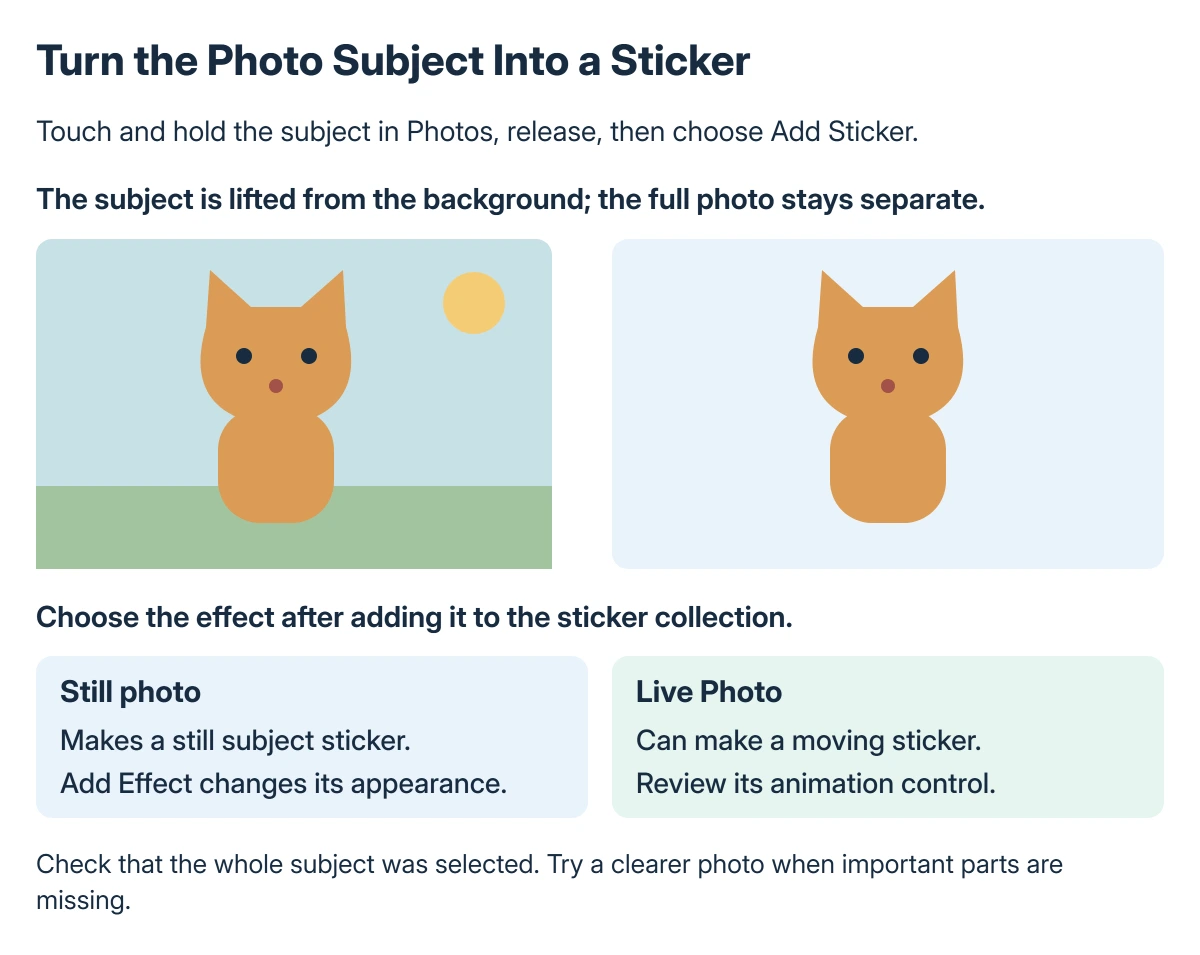
iPhone stickers can be made from a subject in a photo without manually cutting out the background. Open the picture full screen in Photos, touch and hold its subject, release, then tap Add Sticker.
A Live Photo can produce a moving sticker. Start with the picture itself, then choose effects and animation in the sticker controls rather than searching for a separate sticker-making app.
Lift the subject from the photo
Open a suitable photo in Photos so it fills the screen. Touch and hold the person, pet or other main subject until its selection appears, then release.
Choose Add Sticker from the available actions. Apple documents this photo-subject method in its sticker guide.
Status: iPhone photo-sticker creation, effects, deletion and iCloud availability checked in Apple's guide on 22 October 2026. No photo or sticker library was modified.
Check the extracted subject before using it. A complicated background or a subject that is hard to separate is a reason to try another photo, rather than repeatedly pressing the same spot.
Choose an effect or animation
Tap Add Effect in the sticker controls. Apple's examples include Outline and Comic, and its guide also describes switching a Live Photo's animation on or off there.
For a sticker that should move, use an actual Live Photo as its source. A normal still picture does not acquire the original scene's motion merely because it becomes a sticker.
If the camera keeps taking stills when Live Photos were intended, the Live Photos setting checks explain that capture preference. Check the source before recreating the sticker.
Find it from the keyboard or Markup
Apple says the new sticker appears in the sticker menu available through the iPhone onscreen keyboard or Markup tools. Open the appropriate sticker control in the app where it should be used.
Keep sending a full photograph separate from sending its sticker. The Messages photo-attachment guide covers the Photos picker when the complete picture is the intended message.
Review the result in the receiving app. An app's support for stickers and how it displays them can differ from the system's ability to create the sticker in Photos.
Remove a sticker you do not want
Apple's Photos route begins by opening a photo, selecting its edit control and opening Markup. Use the add control, choose Add Sticker, then touch and hold the unwanted sticker and choose Remove.
This removes the sticker from the sticker collection. Work with the sticker control rather than deleting the original photo simply to tidy that collection.
Check which item is selected before confirming a removal. If the goal was only to change its appearance, reopen the available effect controls instead.
Know where the collection can appear
Apple states that created stickers synchronize through iCloud to supported devices using the same Apple Account, including iPad and Mac.
If another device does not show the sticker, first check the account and whether that app exposes the sticker collection. A missing picker in one app is different from a sticker that was never created.
If Add Sticker never appears for a clearly selectable subject on an updated supported device, ask Apple Support about the model, iOS version and exact menu shown. Keep the original photo available for that check.
The Short Version
Open a photo full screen, hold its subject, release and select Add Sticker. Use Add Effect for the style and a Live Photo for genuine source animation.
Use the sticker collection from a supported keyboard or Markup control, and remove unwanted stickers from that collection rather than deleting the photo.
Where to Next
Try one sticker in the app where it will be used. Confirm that its edges and any animation look right before building a larger collection from similar pictures.

Isaac Smith is the founder and editor of PC Glance, a website that covers computers, laptops, and technology. He is a tech enthusiast and a computer geek who loves to share his insights and help his readers make smart choices when buying tech gadgets or laptops. He is always curious and updated about the latest tech trends.