
A photo subject can become a Samsung sticker directly from Gallery. Open the photo, hold the person, pet or object, then choose Save as sticker. Pick a style and tap Done to keep the cutout in the sticker collection.
Select the saved sticker from Samsung Keyboard or add it to another photo. Creating it and placing it in a message are separate actions, so check the sticker tray after saving rather than looking only for a new Gallery picture.
Save a subject from a Gallery photo
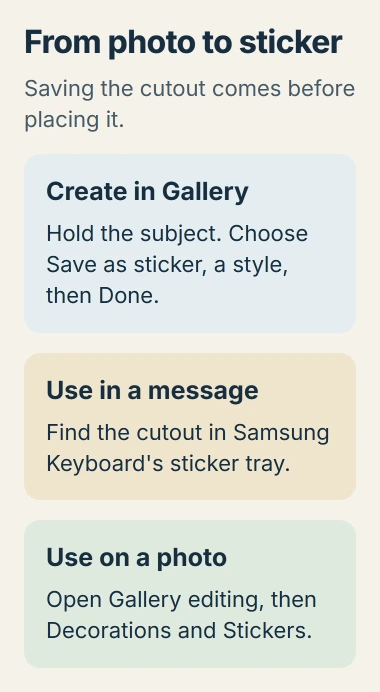
Open Gallery and select the source photo. Touch and hold the subject until its available actions appear, then tap Save as sticker. Review the cutout, choose the desired style and finish with Done.
Samsung states that Gallery stickers also work through its keyboard. Its custom-sticker instructions cover both destinations, with controls that vary by software and model.
Status: Samsung's Gallery and keyboard sticker instructions checked November 2, 2026. This guide uses photo cutouts; no Galaxy photo, keyboard or sticker collection was accessed.
Review the edges before saving several similar stickers. If the selection includes the wrong area, try a photo with a more distinct subject or use the editor's manual-selection route described later.
If the picture exists only in Google Photos, open it there and choose More > Download first. Google says Download is absent for a picture already stored on the device.
Choose the saved sticker from Samsung Keyboard
Open a message or post and tap its text field so Samsung Keyboard appears. Tap the keyboard's emoji control, then open AI stickers or Custom stickers, depending on the version's available icon.
Samsung says AI stickers uses a blue circle with stars, while Custom stickers uses a red circle with a flower. Choose the saved cutout for the message; the destination app determines how it is sent and displayed.
Those tray names do not require generating a new image. The photo sticker created in Gallery is already the item to select. A keyboard from a different developer may provide a different sticker library.
Changing the keyboard's background picture only changes its appearance. It does not create a sticker or attach the keyboard image to a message.
Place a custom sticker onto another picture
Open the destination picture in Gallery, tap Edit (the pencil), then Decorations (the smiley face). Select Stickers, then the Gallery icon at the lower left to reach custom-sticker choices.
To make a new cutout during this edit, choose Create sticker. Pick its source picture, tap Next, select the subject and tap Next again. Choose a style, then Done. Samsung says this also adds the sticker to the open picture.
When the custom collection already exists, the creation control may be Add, shown as a plus sign. This is the continuation of the same workflow, rather than a missing sticker feature.
Drag the placed sticker to the intended position. Review the finished image, tap Save and confirm Save when prompted. Reopen the picture in Gallery to check the saved arrangement before sharing it.
For a picture intended as the phone's background, use the Samsung wallpaper controls after finishing the edit. Saving a decorated image does not itself replace the Home or Lock screen.
Use manual selection when the automatic cutout is wrong
In the editor's Create sticker workflow, select the source picture, then choose Reselect > Free-form. Draw around the part to retain and use the offered selection controls to refine it.
Samsung also documents Shape for a shaped selection. Position and resize the shape over the desired area, then tap Next. Review the resulting sticker before accepting the final style and placement.
If these choices are absent, give Samsung Support the Galaxy model, One UI version and menu displayed after holding a photo subject. Include whether the missing control is in Gallery or the keyboard.
The Short Version
Hold a subject in Gallery, choose Save as sticker and finish with Done. Find it in Samsung Keyboard's sticker tray or the Gallery editor. Use manual selection when the automatic cutout misses the intended area.

Isaac Smith is the founder and editor of PC Glance, a website that covers computers, laptops, and technology. He is a tech enthusiast and a computer geek who loves to share his insights and help his readers make smart choices when buying tech gadgets or laptops. He is always curious and updated about the latest tech trends.