

Live Stickers received in iMessage can go straight into your sticker collection. Touch and hold a sticker sent as its own message, then tap Save to Stickers. For one attached to a message bubble, open Sticker Details and tap Save instead.
The two placements use different menus, so the saving command can seem to be missing. Photos, emoji, and App Store pack stickers can look similar without offering those Live Sticker controls.
In this guide
Check whether the sticker is a message or an attachment
Find the sticker's conversation in Messages. Look at where it sits: a sticker can be its own message, or it can overlap text, a photo, or another message bubble.
Press the sticker itself rather than the empty space beside it. If you're pressing a text bubble that has several stickers attached, the details view helps you select the particular sticker you want to keep.
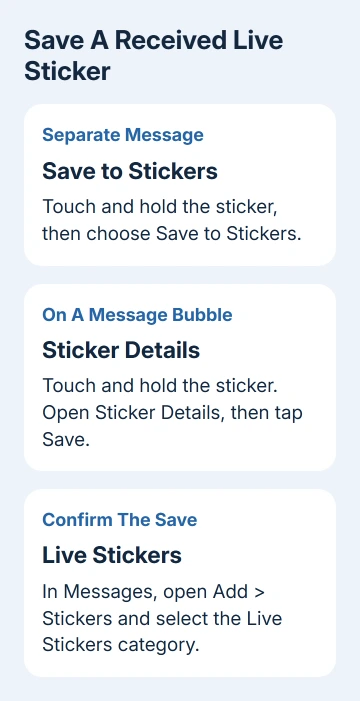
Apple's received Live Sticker instructions describe both routes. Use the steps for where your sticker sits; the same Save command won't appear on every image.
A sticker collection is different from the Photos library. Save to Stickers makes the item available for reuse from the sticker picker. It doesn't mean a new photograph will appear in Recents.
Save a sticker sent as its own message
Touch and hold the received Live Sticker. When its menu opens, tap Save to Stickers. Once it's saved, return to the conversation and open the sticker picker to check that it's there.
Tap Add beside the message field, choose Stickers, and select the Live Stickers category. Use that category rather than assuming the item will immediately appear in a frequently used emoji list.
Tap the saved sticker to put it into a new message. Add text if you want, then send it. Seeing it in the picker confirms that you saved it, rather than just opening its menu.
If the menu offers an ordinary photo-saving action instead, the sender may have sent an image rather than a reusable Live Sticker. Use the photo steps later in this guide instead of repeatedly holding the same image.
Keep a sticker attached to a message bubble
Touch and hold the attached sticker and open Sticker Details. Tap Save for the sticker you want. This extra view is important when the bubble contains more than one decoration from different people.
Return to Add > Stickers > Live Stickers to check the result. Check that you can select it for another message. A sticker still showing on the old bubble hasn't necessarily been saved to your collection.
Sticker Details can also identify who sent an attached sticker. Use that when a group conversation has several overlapping stickers and you need to ask the right person to send one again.
Don't swipe left and delete while you're trying to save. The details screen also contains sticker-removal controls, and removing a sticker from the conversation won't save it.
Use the saved item as a message or a decoration
To send it separately, open a conversation, tap Add > Stickers, choose the saved Live Sticker, and send the message. This is the easiest check when you're unsure whether the sticker was added successfully.
To attach it, press and hold the sticker in the picker, then drag it onto a message bubble. Position it before releasing. It stays on that bubble instead of appearing as a separate photo attachment.
Stickers can cover words. Double-tap a message bubble to read text hidden by a sticker. That's helpful when checking the conversation after you've placed a large decoration over a short reply.
Both you and the recipient need compatible software to move, resize, and delete placed stickers. The updated iPhone controls require iOS 17.2 or later. Those placement edits are separate from saving a received Live Sticker.
When Save to Stickers isn't in the menu
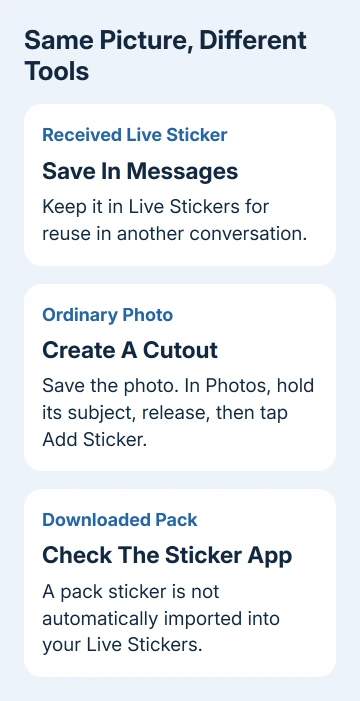
First check the item type. A standard emoji isn't a personal Live Sticker, and a picture of a sticker is still a picture. An App Store sticker pack has its own app and isn't automatically imported into your custom Live Sticker collection.
For a pack sticker, ask the sender which sticker app it came from. Check that app's App Store listing and compatibility before installing it. A screenshot of the conversation won't preserve the pack's original sticker behavior.
Next, check Settings > General > About for the iOS version. Live Stickers belong to iOS 17 and later; an older iPhone release won't have the same collection and menus. Use Software Update if the phone supports a newer release.
If a supported iPhone still shows no saving command, ask the sender to send that Live Sticker as its own message. That gives you the direct-save route and avoids guessing which part of a layered bubble you're pressing.
I'd try that before changing iCloud settings. It takes one new message and tells you whether the difficulty was the sticker's placement or its type. Signing out of the phone isn't a sensible first step for one missing menu item.
Turn a received photo into your own sticker
For an ordinary photo, save the image to Photos using its image menu first. Open the saved photo full screen, touch and hold its main subject, release, and select Add Sticker when that option appears.
The photo-to-sticker procedure creates a new cutout. It won't recover the exact sticker file, animated sequence, or decorations that were never part of the photo you saved.
Choose a photo whose subject stands apart from its background. If it won't lift, ask for the original sticker or a clearer photo. A small screenshot full of text and other stickers won't give you a clean cutout.
For stickers being shared with Android users, the Android photo-sticker options explain how their apps differ. A Samsung sticker collection is managed through different tools from the iPhone's Live Stickers.
Check another device when the collection is missing
Custom stickers use iCloud to sync between supported devices sharing your Apple Account. Check that account on the other device before expecting a sticker saved on this iPhone to appear there.
For a missing collection on an updated, supported iPhone, include the installed iOS release in your Apple Support request. Explain whether separate or attached stickers fail to save, and keep an example conversation that shows the menu.
The Short Version
Hold a separate Live Sticker and choose Save to Stickers. For an attached one, use Sticker Details, then Save. Check Add > Stickers > Live Stickers afterward. Photos, emoji, and downloaded sticker packs need their own handling.
Checked November 12, 2026.
 If you have any business, I can build it online






