
A picture background on an Android keyboard is set inside the keyboard app. For Gboard, open a typing field, tap its Menu, then Theme. Choose a photo background when offered and apply the theme.
Changing the phone's wallpaper does not change the keyboard's background.
Open Theme from the Gboard keyboard
Open an app with a normal typing field and tap the field to show the keyboard. Confirm it is Gboard rather than Samsung Keyboard or another installed keyboard. Each app has its own appearance settings.
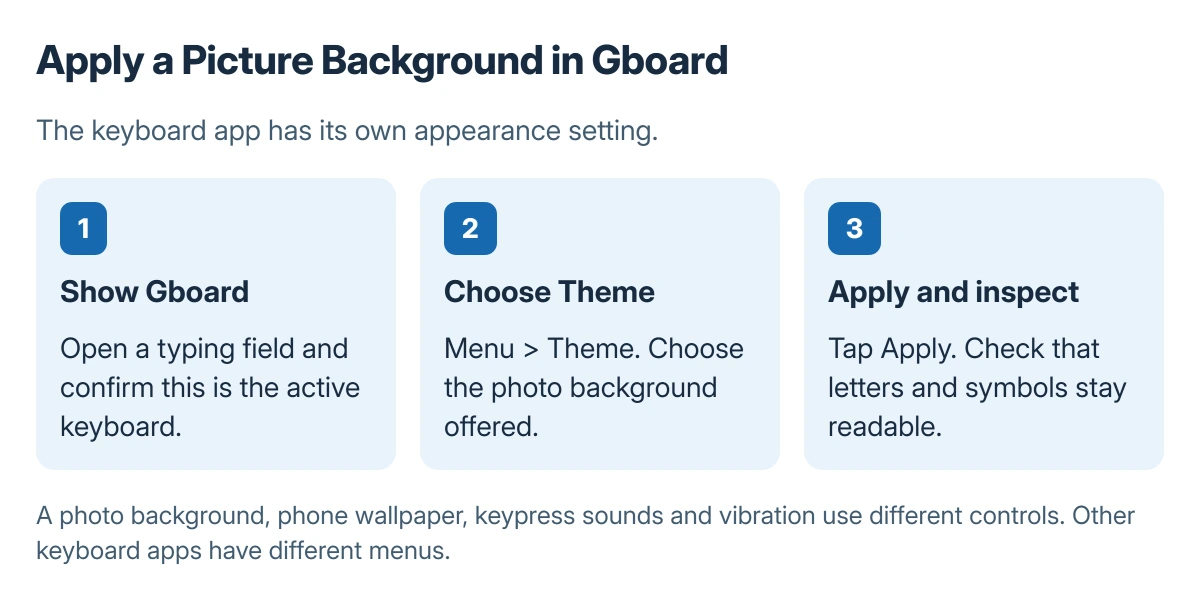
Status: Google's current Android Gboard Theme route checked 23 October 2026. The diagram shows the setting sequence, not a captured keyboard. No personal photo was opened.
Google says Gboard can use a background such as a photo or a color. Its keyboard appearance instructions give Menu > Theme, followed by choosing a theme and tapping Apply.
Select the photo or custom-background option available in that Theme view. Choose the intended picture through the offered picker and adjust its framing if prompted. Finish with Apply rather than leaving the preview without saving it.
Check that the picture leaves the letters readable
Return to a typing field and inspect the actual keys. Choose a simpler part of the image if a busy face, pattern or bright area makes the letters hard to distinguish.
Try both the letter keyboard and the numbers or symbols view. A background that works on one view can be distracting on another. Readability matters more than keeping every part of the photograph visible.
On a Galaxy, the Samsung screenshot guide also explains finding a capture in Gallery. Confirm the intended image is saved before opening the theme picker.
Separate appearance from sound and vibration
Keyboard themes are documented by Google as appearance controls. Keypress sound and vibration use Menu > Settings > Preferences under Key tap instead.
Google states that the device's vibration setting can override Gboard's vibration setting. Changing the picture therefore does not establish whether a missing keypress vibration is a keyboard or phone setting.
Keep those controls separate when the intended change is only a background. A different keyboard app may put its theme and feedback controls elsewhere.
When Theme or the photo option is unavailable
Check that Gboard is current and that its own keyboard is active. Google's guide notes that some steps can differ on Android Go. Use the appearance choices actually offered by that device rather than following another keyboard's menu.
If Gboard closes before its settings can be used, follow the Android app-crash checks for that failure. Do not clear its storage or remove the keyboard just to retry a picture without considering saved preferences and another input method.
If the issue remains, give Gboard support the Android version, Gboard version and the missing control. Choose a built-in color theme while the photo option is unavailable.
The Short Version
Open Gboard in a typing field, choose Menu and Theme, then select and apply the offered photo background. Check key readability afterward. Sound, vibration, wallpaper and other keyboard apps use separate controls.

Isaac Smith is the founder and editor of PC Glance, a website that covers computers, laptops, and technology. He is a tech enthusiast and a computer geek who loves to share his insights and help his readers make smart choices when buying tech gadgets or laptops. He is always curious and updated about the latest tech trends.